
App updates occasionally reorder puzzles. If this level 31 walkthrough doesn’t match what you’re seeing, no stress! Flip through our All Levels directory to locate your exact puzzle using its visual layout.
Target the gray squares until they all turn blue.
Level Overview
What Makes This Puzzle Tricky
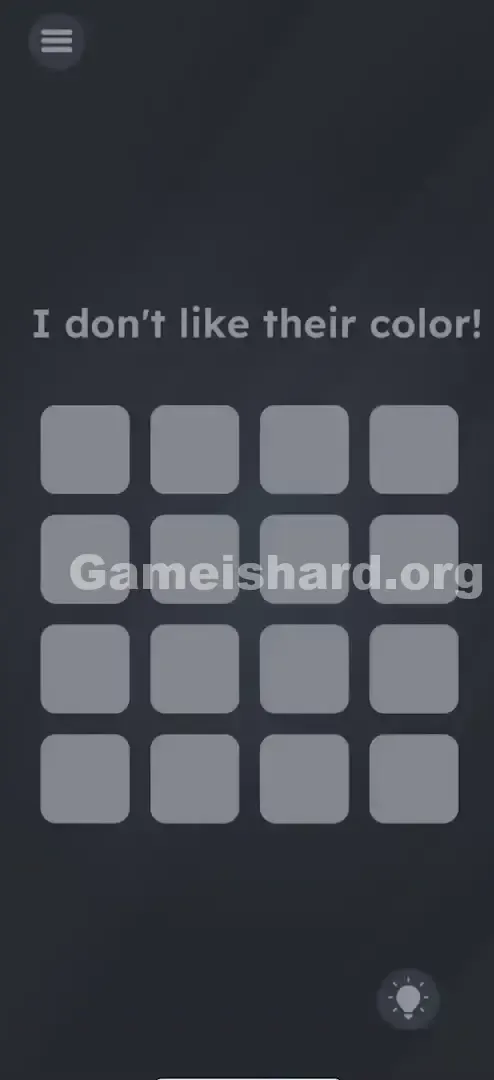
You land on a plain 4x4 grid of uniform gray squares—and a grumpy message: "I don't like their color!" Fair point—but tapping does little more than dim or flicker a square. There’s no paint tool, no palette, no obvious “make blue” button. You might frantically tap around hoping something triggers, but random taps just create confusion. Beneath that vague complaint lies a precise, position-based pattern waiting to be uncovered.
Your Goal
Your mission is to turn every square in the 4x4 grid solid blue. But here’s the catch: each square needs a specific number of taps—determined by how far it sits from the top-left corner. It’s a layered logic puzzle masquerading as a simple coloring challenge.
Key Mechanics
- Sequential Tapping: This isn’t about speed—it’s about counting taps per square.
- Grid Logic: Think of the board as concentric squares radiating outward from the top-left corner.
- Visual Feedback: Watch closely—the subtle shift to blue confirms a square is complete.
- Memory: Lose count? You’ll rely entirely on that visual cue—which can be tough with low brightness or color vision differences. It’s not a bug. It’s intentional math.
What Appears on Your Screen
Picture a clean keypad interface—no numbers, no labels, just pure geometry.
- Top Center: White text against dark background reads "I don't like their color!"
- Center Stage: A crisp 4x4 grid of 16 identical gray rounded squares—like inactive app tiles.
- Bottom Right: Standard lightbulb hint icon (skip it—you’ve got this).
- Top Left: Menu burger icon. Zero hidden elements. No draggable text. Everything hinges solely on those 16 interactive squares.
Common Mistakes to Avoid
The Trap
The biggest hurdle? Near-silent feedback. Most games reward one tap with one clear change. Here, one tap barely registers—maybe a faint dimming—so players assume tapping is wrong. They pivot to dragging the phrase “color” onto squares or shaking the device instead of digging deeper into the tap logic.
First Instincts That Fail
- Swiping: Some try sweeping across the grid like a rhythm game—nope, only individual taps count.
- Shaking: A common reflex in puzzle apps, but this level ignores motion input completely.
- Dragging: Attempting to slide squares together to “mix” colors? They’re fixed in place.
Player Reactions
I tapped the bottom-right corner nonstop for nearly a minute, convinced it was broken—until I noticed the top-left square had quietly gone blue. My thumb had covered it. Once you spot the pattern, it clicks instantly. Until then? It’s invisible.
Step-by-Step Solution
Preparing the Move
Lock your focus on the 4x4 grid. Mentally map it as nested squares, all anchored at the top-left. We’ll progress outward, layer by layer.
Executing the Solution
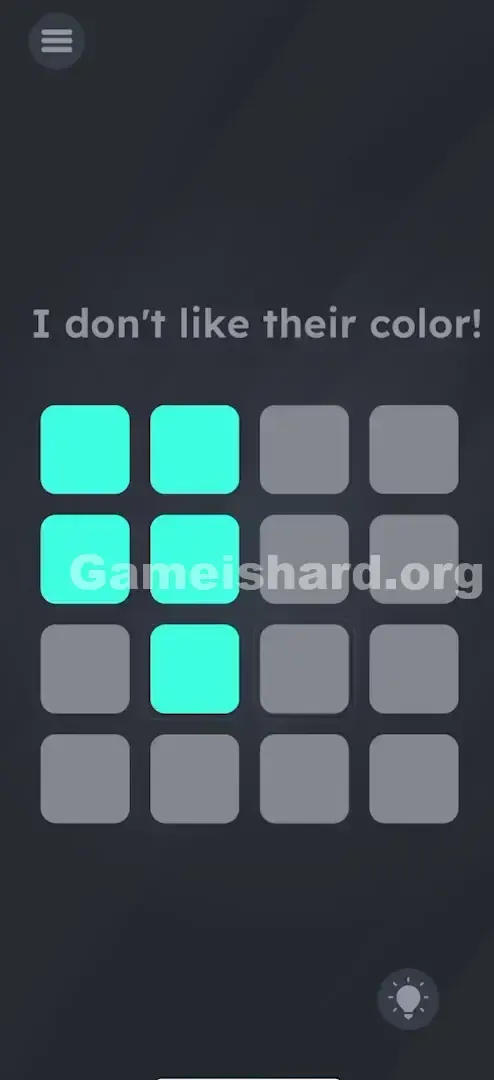
- Layer 1 (The Anchor): Tap the very Top-Left square 1 time . It should turn Blue immediately.
- Layer 2 (The 2x2): Identify the three squares surrounding that first one (Top-row 2nd square, 2nd-row 1st square, 2nd-row 2nd square). Tap each of these 2 times . They will turn Blue.
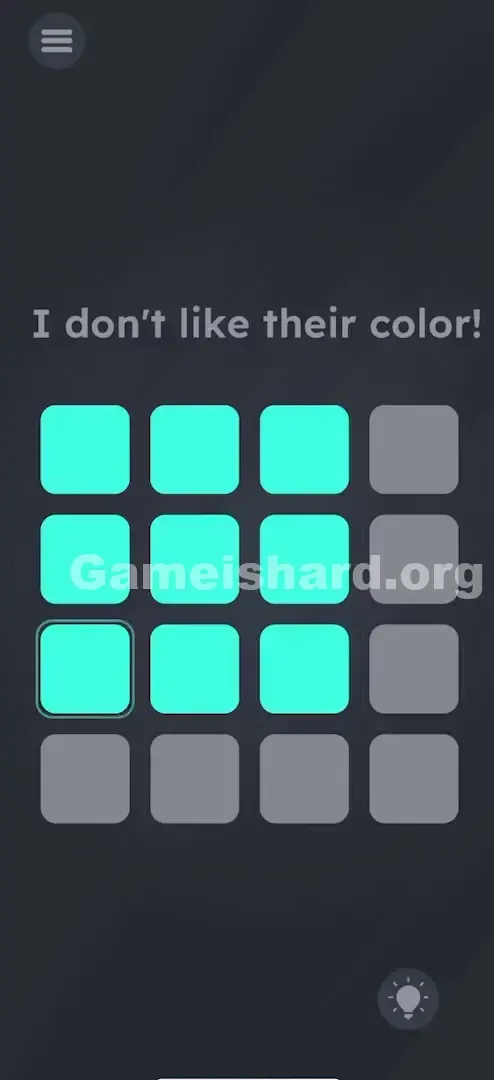
- Layer 3 (The 3x3): Now look at the 5 squares that make up the edge of a 3x3 box. Tap each of these 3 times . Watch them turn Blue.
- Layer 4 (The 4x4): Finally, tap the remaining 7 squares on the far right and bottom edges (the outer rim). Tap each of these 4 times .
Confirming It Worked
The level completes the moment the last outer-rim square hits its fourth tap. If any square stays gray, add one or two more taps—it won’t revert. Over-tapping is safe.
If It Did Not Work
- Did you miss one? Touchscreens sometimes skip rapid taps. If a square looks slightly darker gray but not blue , it likely needs one more tap.
- Is it resetting? Leaving and re-entering resets all tap counts. Complete it in one session.
Small Details That Matter
- Tap Speed: Go as fast as you like—the game handles rapid taps cleanly.
- The "Blue" Hue: It’s muted, desaturated blue—not bright or vibrant. Night mode, blue-light filters, or low brightness can blur the difference. Crank up screen brightness if unsure.
- Precision: Tap inside each rounded square. Hitting the gap between squares does nothing. I brute-forced it early on—just kept tapping each square until it changed. Counting is faster, but tapping-to-blue works every time.
Why This Solution Works
This level sharpens Pattern Recognition and Patience. It treats each square like an object with “hit points,” governed by distance from origin:
- Distance 0 (Top Left) = 1 Tap
- Distance 1 = 2 Taps
- Distance 2 = 3 Taps
- Distance 3 = 4 Taps It breaks the usual “one tap, one result” expectation—pushing you to interact repeatedly to reveal state changes.
Bonus Tip
- Start Top-Left: Ground yourself there—it’s your reference point.
- Ignore the Text: The prompt hints at the goal (“color”), not the method.
- Don’t Count: Honestly, the simplest pro tip? Tap each square until it turns blue, then move on. The layered count is elegant—but the tap-until-change method guarantees success.
- No Multitouch: Stick to one finger per square. Four-finger taps often misfire.
Alternative Attempts on Game Is Hard Level 31 (What Doesn’t Work, and Why)
- Holding/Long Pressing (Squares respond only to taps—not duration).
- Dragging "Color" to squares (Text is static decoration).
- Shaking the phone (No motion sensors active here).
- Waiting (Squares won’t auto-change).
- Tapping the "I don't like..." text (It’s not interactive).
- Pinching the grid (Zoom functionality is disabled).
- Turning the phone upside down (Orientation has zero effect on tap logic).
Common Mistakes for Game Is Hard Level 31
- Stopping too soon: Assuming outer-edge squares need only 3 taps (they require 4).
- Random Tapping: Jumping erratically makes tracking completed squares nearly impossible.
- Screen Filter interference: Blue-light filters can mute the blue-gray contrast—making completion hard to confirm.
- Assuming a Glitch: Quitting after the first tap fails to visibly change a corner square.
- Over-analyzing the text: Searching for wordplay in “don’t like their color” instead of focusing on the visual task.
Pattern Recognition: How to Spot This Trick in Future Game Is Hard Levels
The tell
When identical grid items react weakly to a single tap—a faint wobble, dimming, or barely-there hue shift—it usually means each has multiple “hit points.”
The habit
If one tap does something minor, try tapping it 5, 10, or even 20 times. Repetition is often the unlock when pure logic stalls. Treat UI elements like breakable objects in a game—they just need enough hits to shatter.
Game Is Hard Level 31 FAQ (Short, Useful)
Q: Do I have to restart if I tap a blue square again in Game is Hard Level 31? A: No. Once a square turns blue, it stays blue. Extra taps are ignored. You can’t break it by over-tapping.
Q: I'm colorblind, how do I solve this in Game is Hard Level 31? A: Use the counting method! Top-left = 1 tap. Adjacent squares = 2 taps. Next ring = 3 taps. Outer edge = 4 taps.
Q: Does the order matter in Game is Hard Level 31? A: Not technically—you could start from the outside. But building outward from top-left keeps the pattern clearest.
Q: Why isn't my touch registering in Game is Hard Level 31? A: Make sure you fully lift your finger between taps. Light “drumming” may register as a hold instead of discrete taps.
More Game Is Hard Solutions
That’s Game Is Hard Level 31 solved—clean, quick, and cheat-free. I write these guides to cut through frustration because I know how maddening it feels to stall on a deceptively simple tap puzzle. If this got you past the gray grid, share it with the friend still vigorously shaking their phone trying to blend colors.
Good luck on the next level—it only gets more delightfully strange from here!