
App updates can sometimes shuffle the order of puzzles. If this level 30 walkthrough doesn't match your screen, don't worry! You can browse our All Levels guide to find your exact puzzle by its picture.
Level Overview
What Makes This Puzzle Tricky
You launch the level—and it feels eerily still. Just moody darkness, a line of text about a distant star, and one unresponsive grey dot. Tap the dot? Nothing. Tap the words? Nothing. Tilt or shake your device? Still nothing. The real challenge isn’t complexity—it’s realizing the interface is the puzzle. It’s not broken—it’s just massively oversized.
Your Goal
Your only goal: locate and tap the star. But it’s not visible at first glance. It’s tucked away in off-screen territory—outside the frame you’re shown. Think of the level as an invisible map you must pan across to uncover the prize.
How the Game Responds
- Off-screen space: The active area extends well beyond your phone’s display.
- Scrolling/Panning: You drag the background—not objects—to shift your view.
- Hidden Object: The star stays invisible until you reposition the “camera.”
- UI Blindness: We instinctively treat screen edges as world boundaries. In this level, they’re not. It’s not a bug—it’s intentional exploration.
What Appears on Your Screen
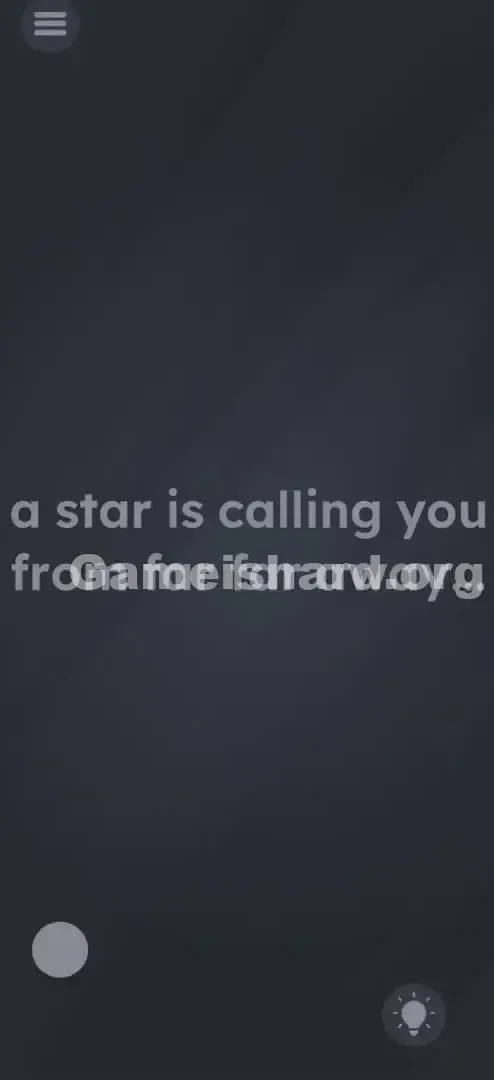
Level 30 greets you with deceptive minimalism.
- Top: A standard menu/pause button.
- Center Text: The phrase "a star is calling you from far away." sits dead center.
- Bottom Left: A single, medium-sized grey dot (circle).
- Bottom Right: A lightbulb icon (hints).
- Background: A deep, atmospheric gradient. Everything looks frozen. No arrows. No scroll indicators. No visual cues suggesting movement. It masquerades as a static, single-frame puzzle—until you realize it’s anything but.
Common Mistakes to Avoid
The Trap
The biggest mental hurdle is “The Frame Illusion.” In nearly every mobile game, interaction happens strictly within visible bounds—and if something lies outside, there’s usually a clear visual cue pointing toward it. Level 30 offers zero guidance. Your brain defaults to interacting with what’s visible: the text and the dot. That’s exactly where the trap lies.
First Instincts That Fail
- Tapping the grey dot: It looks interactive—but does nothing.
- Dragging the text: Past levels trained you to move words, so you’ll likely try sliding “star” around. It wobbles slightly but resets—no progress.
- Zooming out: Pinch-to-zoom feels like a natural way to reveal more—but it’s unsupported here, reinforcing the false idea that the screen is fixed.
Player Reactions
I tapped each letter in “a star is calling you” individually, convinced the dot over the “i” was the target. Nope. Then I accidentally dragged the dark background—and watched the whole scene glide. Instant facepalm.
Step-by-Step Solution
Preparing the Move
Put the text—and the visible grey dot—out of your mind. Place your finger on the empty dark background near the center. Picture yourself scrolling through a lengthy document—you’re aiming to reach unseen content below.
Executing the Solution
- Swipe Up (Scroll Down): Drag upward from near the bottom of the screen to shift the view downward (or pull content upward—same effect). Keep swiping up repeatedly. You’re traveling “far away,” so persistence matters more than precision.
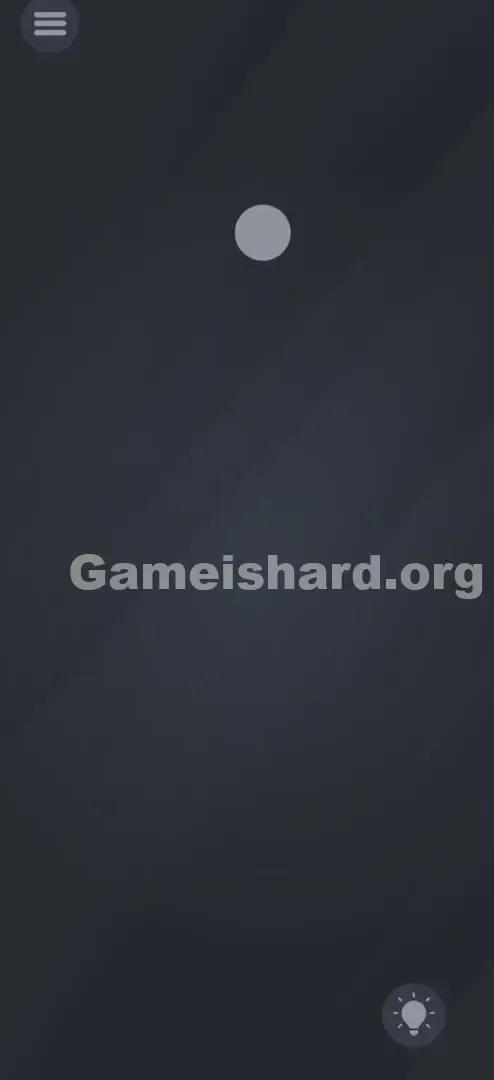
- Find the Second Dot: Continue scrolling until a fresh grey dot emerges—typically anchored near the bottom-left corner of this newly revealed section.
- Swipe Right: Once that second dot appears, place your finger on blank background and drag rightward (left-to-right motion). This shifts the view left.
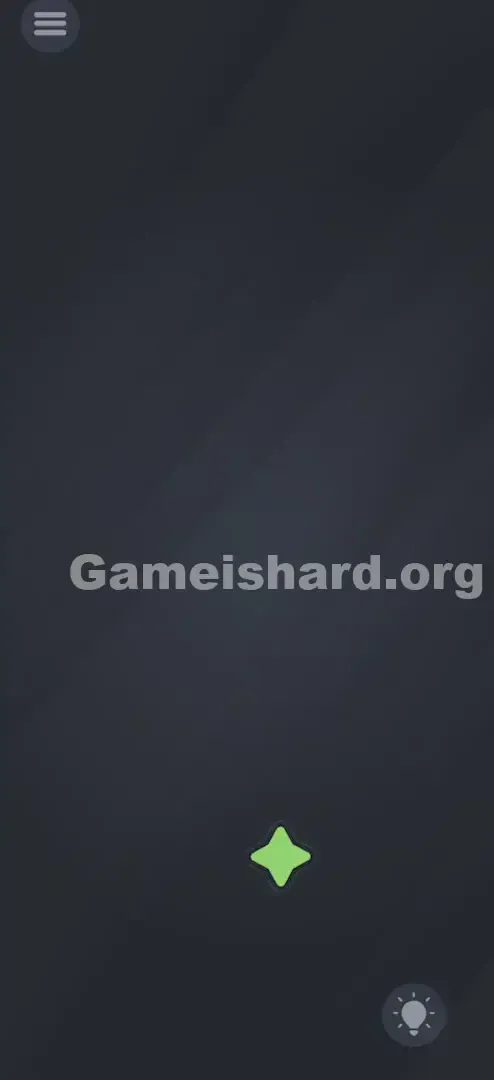
- Tap the Star: As you swipe right, a bright yellow star glides in from the left edge. Tap it immediately.
If It Did Not Work
- Did you scroll far enough? This isn’t subtle—you need two or three full, deliberate swipes.
- Did you swipe the wrong direction? Remember: “Far away” means navigating deeper into the level’s coordinate space. If upward scrolling doesn’t expose the second dot, try swiping left next—but the reliable path is always: Scroll down → Scroll left (via rightward swipe).
Small Details That Matter
Fine control isn’t required—just consistent motion.
- No “Snap-To”: The camera won’t auto-align with the star. You’ll need to hold or adjust your scroll manually.
- Background Drag Only: Start your swipe on truly empty space—not on text, icons, or the dot—or it won’t register as panning.
- Momentum Matters: A firm, fast swipe gives smoother inertia. Let it glide naturally after the initial push.
- I solved it by… fumbling. I grabbed my phone mid-fall, my thumb landed on the background—and suddenly the text drifted sideways. That tiny movement shattered the illusion of a locked screen.
Why This Solution Works
This is “thinking outside the box”—and the box is literally your phone’s display.
- Spatial Awareness: The game tests whether you recognize that the digital environment exceeds your viewport.
- Literal Clue Reading: “Far away” isn’t metaphorical—it signals physical navigation. Since there’s no avatar, you must move the viewpoint.
Bonus Tip
For speed or frustration relief:
- Swipe UP twice—hard and fast—as soon as the level loads.
- Immediately follow with two strong RIGHT swipes.
- Tap the yellow shape as soon as it fully enters view.
- Skip reading the text entirely. It’s atmospheric flavor—not gameplay instruction.
Alternative Attempts of Game Is Hard Level 30 (What Doesn’t Work, and Why)
Here’s what won’t get you anywhere—so you can skip the trial-and-error:
- Waiting: Sitting idle for minutes won’t summon the star. You must go to it.
- Shaking the phone: Hoping gravity pulls the star down? No sensor integration here.
- Tapping “Star” in the sentence: Logical—but too straightforward for this game’s design. The word is purely thematic.
- Dragging the grey dot onto the text: Attempting to “activate” something by combining elements. The dot serves only as a visual landmark—not a tool.
- Cranking up brightness: Assuming a “far away” star would be fainter. The game ignores system settings.
- Pressing volume keys: Some games use hardware buttons for navigation. Not this one.
Common Mistakes for Game Is Hard Level 30
- Assuming the camera is fixed. Most puzzle games lock the view—this one deliberately unlocks it.
- Quitting after one small swipe. You need substantial scrolling—not a nudge.
- Fixating on the center text. It’s designed to anchor your attention away from the edges where action happens.
- Swiping in the wrong sequence. Swiping down reveals only void; you need vertical then horizontal movement (up → right).
- Using the hint too soon. It simply says “Look around”—vague and unhelpful when you’re already staring at emptiness.
Pattern Recognition: How to Spot This Trick in Future Game Is Hard Levels
The Tell
If a level features sparse elements, vast negative space, and zero response to tapping or dragging individual objects—your first move should be testing the background.
The Habit
Adopt the “Canvas Check”: At the start of any puzzlingly quiet level, drag the background in all four directions (up/down/left/right) before touching anything else. If the text or objects shift relative to your screen’s edge—you’ve found a large-map puzzle.
Frequently Asked Questions of Game Is Hard Level 30 (Short, Useful)
Q: Can I pinch to zoom out to see the star in Game is hard Level 30? A: No. Game Is Hard doesn’t support multi-touch zoom for camera control—scrolling is your only option.
Q: Is the star always in the same place in Game is hard Level 30? A: Yes. Across all devices, it’s consistently positioned southwest of your starting view.
Q: I see the star but can’t tap it in Game is hard Level 30. Why? A: It’s likely still partially off-screen. Drag it fully into view—center it—before tapping to ensure touch detection works.
Q: Does the "far away" text mean I have to walk with my phone in Game is hard Level 30? A: Nope. No GPS, motion sensors, or real-world movement involved—just virtual coordinates.
More Game Is Hard Solutions
Stuck on the next challenge? Our guides cover every trick, twist, and trap in Game Is Hard—cutting straight to the solution so you spend less time frustrated and more time triumphant. Share this with friends still obsessively tapping that grey dot!