App updates can sometimes shuffle the order of puzzles. If this level 90 walkthrough doesn't match your screen, don't worry! You can browse our All Levels guide to find your exact puzzle by its picture.
You are acting like a human compass; the Up Arrow is North, Right is East, Down is South, and Left is West.
Level Overview
What Makes This Puzzle Tricky
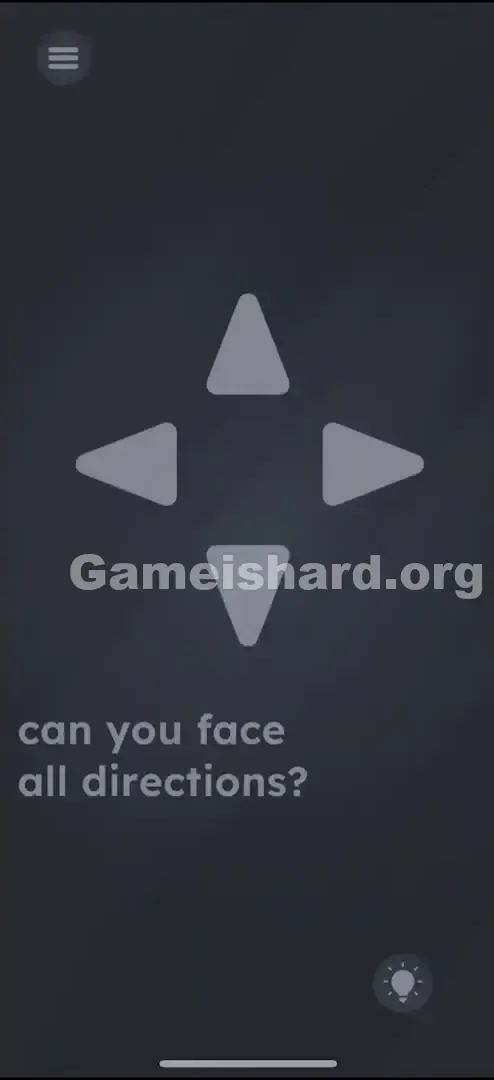
You launch Game is hard Level 90 and see a familiar D-pad layout — four arrows pointing Up, Down, Left, and Right. Your instincts scream “controller!” You tap Up. Nothing happens. You jab Right. Still silent. You swipe, drag, or double-tap — no response. The interface is deceiving: those arrows aren’t buttons. They’re status indicators.
Your Goal
This isn’t about inputting commands — it’s about real-world alignment. Your job is to activate all four grey arrows by orienting your device to Earth’s cardinal directions. The prompt — “can you face all directions?” — means exactly what it says. You, holding the phone, must physically point yourself North, East, South, and West.
How the Game Responds
This level bypasses touch entirely and leans on built-in hardware sensors:
- Compass / Magnetometer: Detects your phone’s heading relative to magnetic North.
- Gyroscope / Accelerometer: Helps stabilize orientation readings — especially when the phone is held steadily.
- Physical Movement: No amount of tapping will work. You must move your body or device.
- Feedback Loops: Arrows light up only when the sensor registers a strong enough signal at key headings (e.g., ~0° for North). It’s not logic-based — it’s a sensor challenge.
What Appears on Your Screen
The scene looks simple — which makes it frustrating.
- The Centerpiece: A large, neutral-toned cross of arrows — identical to a classic gamepad D-pad, pointing outward in all four directions.
- The Prompt: Just beneath it, plain sans-serif text reads: can you face all directions?
- The Background: A muted dark grey gradient, consistent with earlier levels.
- The UI: Standard Menu button top-left; hint (lightbulb) icon bottom-right. That’s all. No hidden elements. No draggable text. No secret taps. Just four unresponsive arrows waiting for your physical presence.
Common Mistakes to Avoid
The Trap
It’s classic UI deception fused with decades of gaming habit. We’re conditioned to treat directional icons as controls — press them to act. Level 90 flips that script. The arrows aren’t inputs — they’re outputs. You’re not pressing a button; you are the input. Most players waste minutes tapping instead of turning.
First Instincts That Fail
Before stepping away from their seat, many try:
- Swiping frantically in every direction.
- Tilting the phone like a steering wheel (relying on tilt, not heading).
- Shaking it vigorously (the universal “reset” reflex).
- Dragging the phrase “all directions” onto the arrows.
- Waiting for a timer or animation to trigger. None succeed — because the level ignores touch completely. It listens only to your compass heading.
Player Reactions
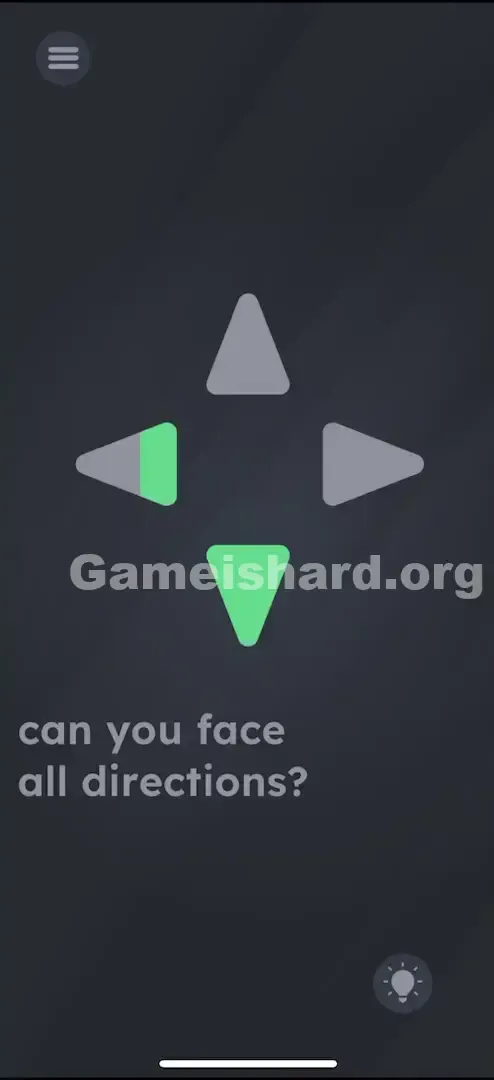
I stared at it for over two minutes — tapping Up repeatedly, convinced I’d missed something. Then, while standing up to grab water, my phone caught a breeze — and the Left Arrow lit up green. I froze mid-step. Turned back — it dimmed. Turned left again — green returned. Suddenly, it clicked: I wasn’t playing a game. I was holding a compass.
Step-by-Step Solution
Preparing the Move
Stop tapping. Get up — or at least shift your posture so you can rotate freely. Hold your phone vertically (like you’re taking a selfie) or flat (like a dinner plate), but avoid extreme tilts. Ensure you’ve got space to turn a full 360° without bumping into furniture.
Executing the Solution
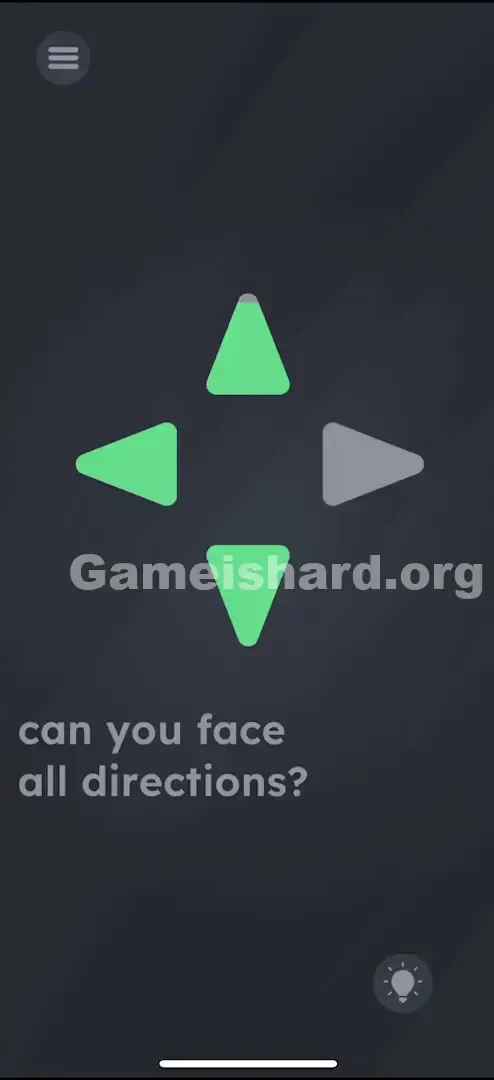
- Find North: Hold the phone steady and slowly pivot your body until the Up Arrow lights up — you’re now facing magnetic North. (If it flickers, pause for a beat.)
- Find East: Rotate 90° clockwise. Watch the Right Arrow — keep turning until it glows solidly.
- Find South: Rotate another 90° right. You’ll be facing opposite your starting direction — the Down Arrow should activate.
- Find West: Rotate one final 90° right. The Left Arrow will illuminate.
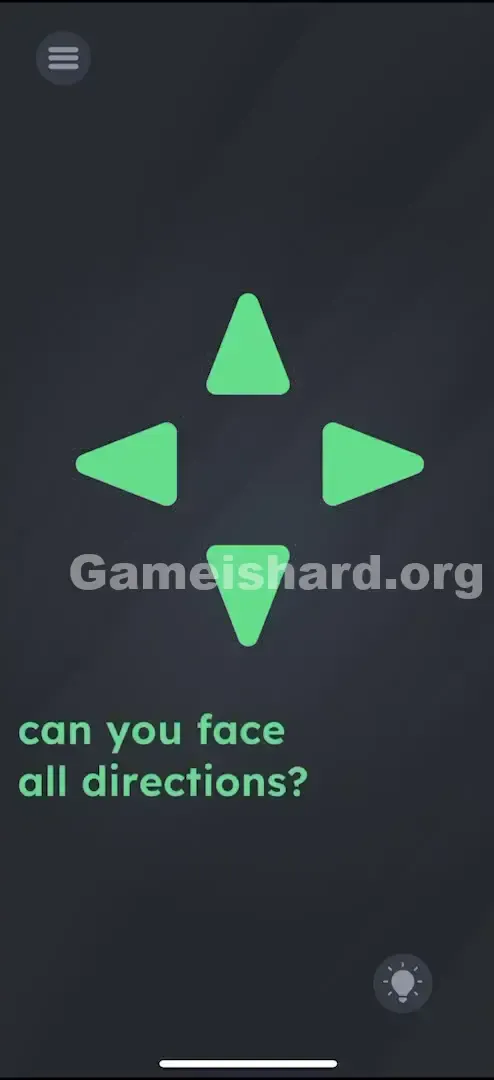
- Verify: Once all four have triggered (they usually stay lit or the level ends immediately), you’re done.
If It Did Not Work
Spinning endlessly with no results? Your compass may need recalibrating.
- The Figure-8: Wave your phone slowly in a figure-8 pattern in the air 3–4 times to reset the magnetometer.
- The Case: Remove any magnetic phone case or wallet attachment — metal and magnets disrupt readings.
- The Angle: Try switching between vertical and horizontal hold positions. Some devices respond better to one orientation.
Small Details That Matter
Success hinges on sensor behavior — not pixel-perfect aim.
- The Snap Zone: You don’t need perfect 0° North — a tolerance window (~±15°) lets you land close enough. But “close” means centered — not off-kilter.
- The Lag: Phone compasses lag slightly. Spin too fast, and the arrow won’t catch up. Move deliberately — give the sensor half a second per turn.
- The Z-Axis: Keep your phone level — either upright (charging port down) or flat (screen parallel to floor). Tilt skews the reading. I fixed it by: Removing my rugged phone case — it had a magnetic kickstand that scrambled the sensor. Once bare, the arrows lit instantly.
Why This Solution Works
This level breaks the fourth wall — literally. Instead of parsing language or manipulating pixels, you’re asked to engage with the physical world around you.
The code is straightforward:If CompassHeading ≈ 0° → LightUp(UpArrow)If CompassHeading ≈ 90° → LightUp(RightArrow)
…and so on.
It teaches that “directions” here mean geographic directions — not screen-relative ones. You’re not just a player tapping glass — you’re a person occupying space, and the game acknowledges that.
Bonus Tip
Skip the guesswork — especially if you’re racing or frustrated.
- Check a Real Compass App: Open Google Maps or your phone’s built-in Compass app to locate true North.
- Align Precisely: Switch back to Game is hard Level 90 and point your phone exactly where the compass says North is.
- Rotate Your Whole Body: Don’t just twist your wrist — pivot your torso. It keeps the phone stable and improves sensor reliability. Don’t tap the arrows. Seriously — no amount of tapping will ever work.
Alternative Attempts on Game Is Hard Level 90 (What Doesn’t Work, and Why)
Here’s what won’t solve it — so you can skip straight to the fix:
- Tapping the arrows in Konami Code order (Up, Up, Down, Down…). Why it fails: The arrows are not buttons. They have no touch listeners attached to them.
- Tilting the phone left/right (Accelerometer). Why it fails: This measures gravity/tilt, not heading. The game wants direction , not angle .
- Dragging the word "face" to the arrows. Why it fails: While linguistic drag-and-drop is common in this game, this specific level is a sensor check, not a word puzzle.
- Shouting "North" into the microphone. Why it fails: A valid strategy for other levels, but the mic is inactive here.
- Putting the phone face down. Why it fails: Facing "down" towards the floor is not a cardinal direction.
Common Mistakes for Game Is Hard Level 90
- Spinning too quickly — the sensor misses the activation zone.
- Holding the phone upside down — reverses axis mapping and confuses the logic.
- Ignoring magnetic interference — standing near speakers, microwaves, or power strips scrambles readings.
- Slouching or twisting awkwardly — limits smooth rotation and destabilizes the phone.
- Assuming arrows represent objects or actions — they’re purely directional markers.
- Giving up on one arrow — East often lags. Gently nudge the phone left/right while facing roughly East until it triggers.
Pattern Recognition: How to Spot This Trick in Future Game Is Hard Levels
The Tell
Watch for language tied to real-world positioning:
- "Face"
- "Turn"
- "Spin"
- "Where"
- "Orient"
Also, notice if directional icons lack visual feedback — no press-down effect, no highlight on tap. That’s your cue: it’s not interactive. It’s observational.
The Habit
When directional cues ignore touch, go physical: first tilt, then rotate the device, then rotate yourself. Game is hard prioritizes sensor layers — and compass is its most stubborn (and clever) tool.
Game Is Hard Level 90 FAQ (Short, Useful)
Q: I'm turning but nothing is lighting up in Game is hard Level 90! A: Your compass is likely uncalibrated. Open your map app, do the figure-8 wave with your phone, then try the level again. Also, remove magnetic cases.
Q: Do I have to do them in a specific order in Game is hard Level 90? A: No. You can light them up in any order (North, West, South, East), but going in a circle is usually the most efficient way to hit all four without missing one.
Q: Can I just spin the phone on a table in Game is hard Level 90? A: Yes, placing the phone flat on a table and spinning it like a classic "spin the bottle" game works perfectly and is often more stable than holding it.
Q: Is there a trick with the text in Game is hard Level 90? A: No. In this specific level, the text is just a hint. It is not an interactive object. Focus entirely on the arrows.
More Game Is Hard Solutions
That’s how you conquer the compass puzzle of Level 90. If this helped, we’ve got clean, no-nonsense guides for every level — no filler, just solutions. Browse the full collection at thegameishard.org and keep your streak unbroken. Good luck — and save your dizziness for after the win!