App updates occasionally reorder puzzles. If this level 86 walkthrough doesn’t match what you’re seeing, no stress! Flip through our All Levels directory to locate your exact puzzle using its visual layout.
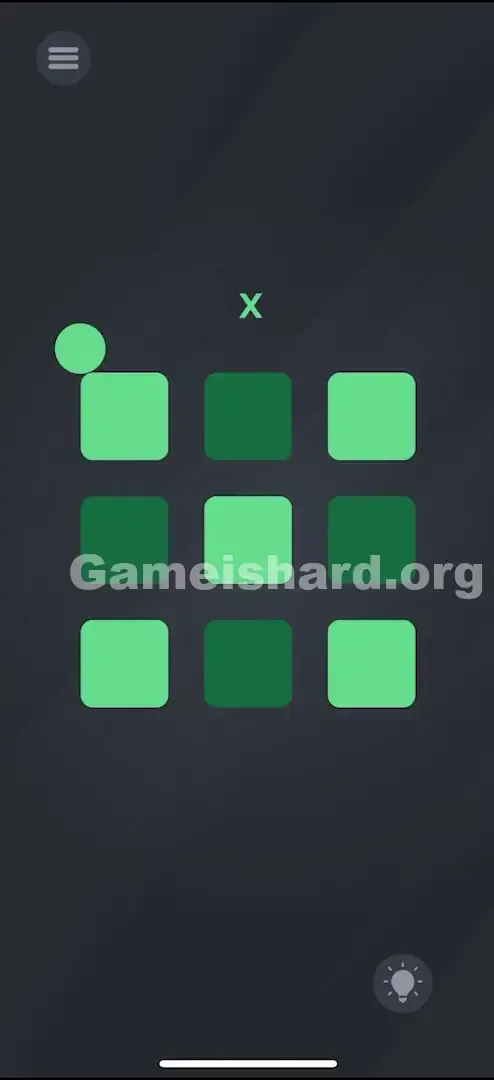
You need to light up the top-left, top-right, center, bottom-left, and bottom-right squares while keeping the others dark.
Level Overview
What Makes This Puzzle Tricky
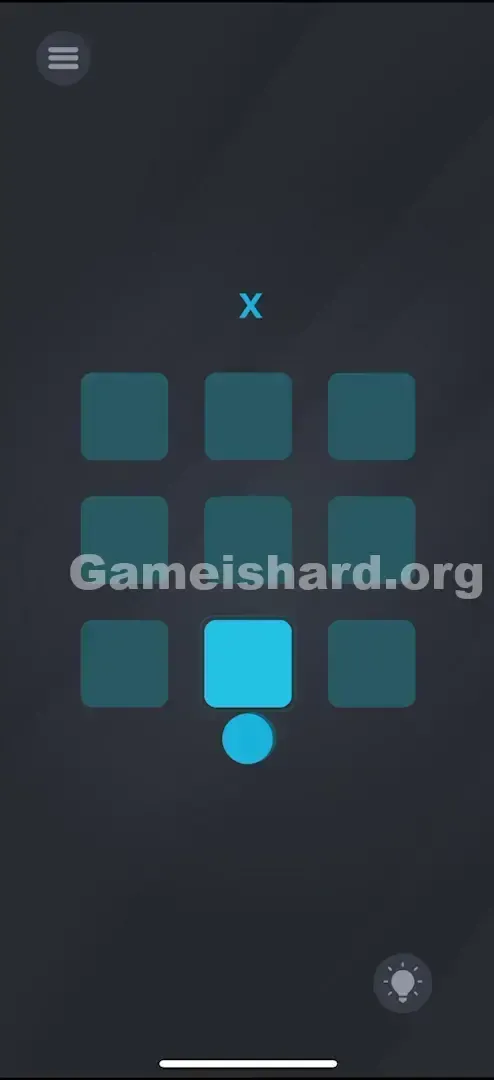
You’re faced with a simple 3×3 grid—nine blank squares and one unmoving blue ball. Tap a tile? Nothing. Drag the ball? It won’t budge. At first glance, it feels broken. Most mobile puzzles train you to tap what you want to activate—but Game is hard Level 86 flips that script. Your screen isn’t just for tapping anymore—it’s a physical platform you must tilt and balance.
Your Goal
Your target is purely visual: replicate the small blue “X” floating above the grid. That shape is your blueprint. You must illuminate exactly five squares—the four corners plus the center—to mirror that “X” across the 3×3 board. This isn’t about solving a riddle or entering input—it’s about sculpting light with motion. And your tool isn’t your finger—it’s gravity itself.
How the Game Responds
- Tilt / Gyroscope Sensors: Movement comes from how you angle your device—not touch gestures.
- Physics Interaction: The ball carries realistic weight and momentum.
- Toggle Logic: A square only changes state when the ball rests on it and you tap.
- Pattern Recognition: Success hinges on matching the “X” clue precisely. It’s not a bug—it’s intentional design.
What Appears on Your Screen
Let’s map out the layout so we’re aligned.
At the very top—centered—is a subtle, light-blue letter “X.” That’s your sole instruction. Easy to overlook if you’re rushing, but it defines everything.
Below it sits the interactive zone: a clean 3×3 grid of rounded tiles. They start dark (unlit), unless you’ve accidentally triggered one while experimenting.
Resting at the bottom—or rolling freely if your grip slips—is a dense blue ball. Think pinball meets physics puzzle. It responds to screen edges and tile boundaries.
No buttons. No keyboard. No hints beyond the “X.” Just gravity, geometry, and your hands.
Common Mistakes to Avoid
The Trap
The biggest mental roadblock is “tap reflex.” Your brain sees clickable-looking tiles and instinctively taps them—only to get zero response. Frustration spikes fast. You assume the app froze or your touchscreen failed. But the real control lies hidden in hardware you can’t see: your phone’s gyroscope.
First Instincts That Fail
- Direct Tapping: Repeatedly poking dark tiles hoping something triggers.
- Dragging the Ball: Swiping at the ball as if it were a draggable UI element.
- Shaking the Phone: Jerking the device violently—this scrambles physics instead of resetting anything useful.
Player Reactions
I spent nearly two minutes trying to drag the floating “X” onto the grid. “Drag-and-drop,” I thought. Nope. Then I tried Morse-code-style taps. Also wrong. It wasn’t until I set my phone down—and watched the ball drift slightly—that it clicked: I’m not holding a screen. I’m holding a maze.
Step-by-Step Solution
Preparing the Move
Hold your phone flat and steady—parallel to the ground. This neutral position gives you clean control. Spot the “X” at the top. That tells you which five squares must glow:
- Row 1: Left, Right (Center stays OFF)
- Row 2: Center only (Left and Right stay OFF)
- Row 3: Left, Right (Center stays OFF)
Executing the Solution
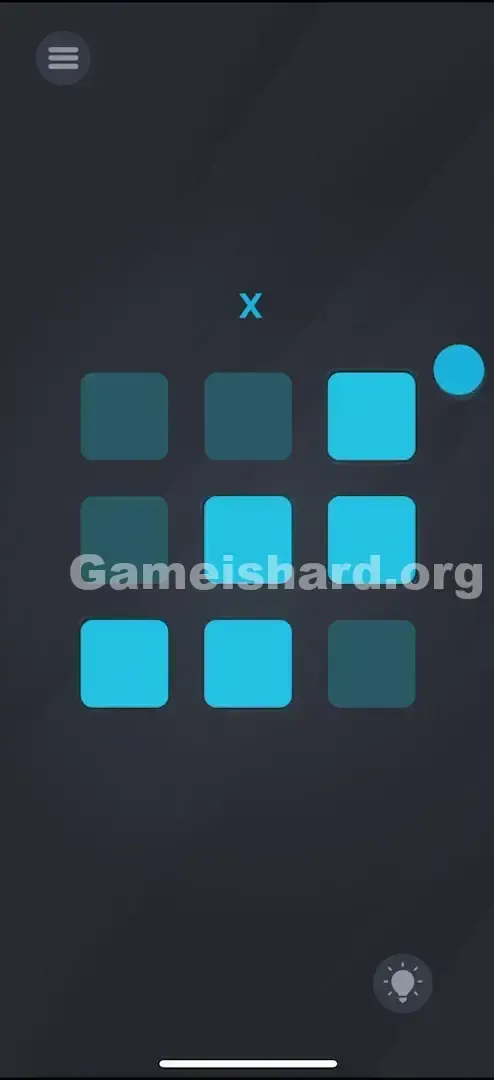
- Tilt to Position: Gently tilt your phone to roll the blue ball onto the Top-Left square.
- Toggle the Light: Once the ball settles fully on that square, tap anywhere on screen. The tile lights up bright blue.
- Move to the Next: Tilt again to guide the ball to the Top-Right square. Tap to light it.
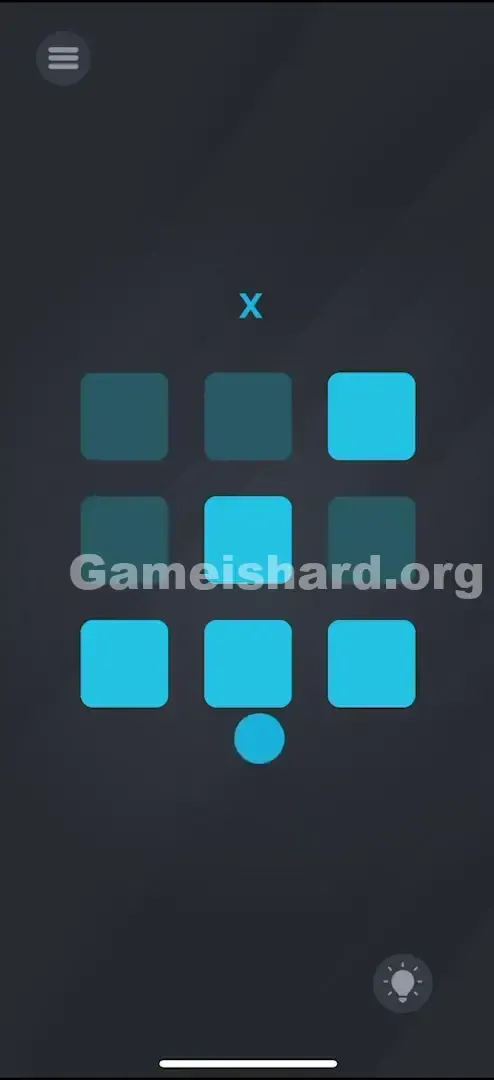
- Complete the Center: Roll the ball precisely to the middle square. Tap to activate it.
- Finish the Bottom: Guide it to Bottom-Left and tap. Then to Bottom-Right and tap.
- Cleanup: If any extra squares lit up (e.g., top-center or middle-left), roll the ball back over them and tap to switch them OFF.
Confirming It Worked
The level auto-completes the moment your lit squares perfectly match the “X.” If nothing happens, double-check the “plus” positions—top-center, middle-left, middle-right, and bottom-center—all must remain dark.
If It Did Not Work
- Ball getting stuck? A corner snag is common. Tilt sharply in the opposite direction to free it.
- Light not toggling? Make sure the ball is fully overlapping the tile when you tap—if it rolls off mid-tap, the action won’t register.
- Sensitivity issues? Lay the phone flat on a table and lift one edge slightly. This slows movement and boosts precision.
Small Details That Matter
Precision matters more than speed here—the active area for each tile is slightly smaller than it appears.
- Center Mass: Aim to settle the ball dead-center on the tile before tapping. Grazing a corner often misses the trigger zone.
- The Tap: You don’t need to tap the ball—or even the tile. Any tap on the black background works; it’s simply the “confirm” command while the ball acts as your cursor.
- I fixed it by… pausing. I’d been rushing—rolling and tapping in one motion—and missing consistently. Slowing down, letting the ball stop completely on each tile before tapping, made all the difference. Treat each placement like parallel parking—not a drive-thru.
Why This Solution Works
This level executes a classic “sensor swap”: it swaps direct touch control for indirect physical manipulation.
It tests two core skills:
- Dexterity: Can you steer a physics-based object with fine, controlled tilts?
- Rule Discovery: Can you deduce that “tap” no longer means “select this item,” but rather “act on whatever the ball is touching right now”? In earlier levels, tapping meant “do this.” Here, tapping means “execute on current context.” That tiny logic shift separates casual players from puzzle-savvy ones.
Bonus Tip
If the ball won’t cooperate:
- Use a Table: Place your phone flat on a stable surface.
- Pivot: Keep one corner anchored and lift the opposite side—this creates a smooth, low-speed pivot point.
- Tap Empty Space: Tap the black margin below the grid instead of the tiles. Keeps your view unobstructed and avoids accidental mis-taps. Do NOT: Shake the phone to reset. It only repositions the ball—not the lights. Mistakes must be corrected manually.
Alternative Attempts on Game Is Hard Level 86 (What Doesn’t Work, and Why)
- Tapping the squares directly: The tiles ignore touch input entirely—the ball is the only valid trigger.
- Dragging the ball with a finger: It’s governed by physics, not UI drag logic—so swiping has zero effect.
- Making a “Cross” (+): The clue shows an “X”—not a cross. Many default to + because it’s easier to roll, but it’s incorrect.
- Filling the whole grid: Only five tiles should light up. Anything else fails.
- Tapping the “X” at the top: It’s decorative—not interactive.
- Voice Commands: Yelling “X!” or “light up!” won’t help (though it would be fun).
Common Mistakes for Game Is Hard Level 86
- Lighting the wrong shape: Confusing the “X” (diagonals) with a “+” (vertical/horizontal).
- Over-rolling: Accidentally passing over a lit tile and tapping again—turning it off.
- Forgetting cleanup: Getting fixated on lighting the X and overlooking a stray lit tile from earlier.
- Holding the phone upright: Playing vertically or reclined makes tilt control unpredictable and overly sensitive.
- Tapping too quickly: Brief taps may not register mid-roll—pause and commit to each tap.
Pattern Recognition: How to Spot This Trick in Future Game Is Hard Levels
The Tell
Any time you spot a ball, fluid, pendulum, or dangling object that shifts subtly when you adjust your grip—the solution almost certainly involves tilt or gyroscope input.
The Habit
When tapping does nothing, test movement immediately: gently rotate or tilt your phone. If elements respond (roll, swing, slide), stop tapping and start steering. Your device is the controller.
Game Is Hard Level 86 FAQ
Q: Can I reset the lights if I mess up in Game is hard Level 86? A: No reset button exists for the grid. You must manually roll the ball over each incorrectly lit tile and tap to turn it OFF.
Q: Why isn't the ball moving in Game is hard Level 86? A: Your gyroscope may need recalibration—or screen rotation lock could interfere (rare in this game). Fully close and relaunch the app to refresh sensor input.
Q: I made the X but the level won't end in Game is hard Level 86! A: One of the four “plus” squares—top-center, middle-left, middle-right, or bottom-center—is likely lit. Double-check: only five tiles should glow.
Q: Is there a trick to make the ball stop in Game is hard Level 86? A: Not really—the surface has minimal friction. Your best move is laying the phone flat to halt momentum instantly.
More Game Is Hard Solutions
If this guide saved your sanity (and your phone), you’ll love our full walkthrough library. We skip filler and deliver straight-to-the-point solutions—because you’re here to win, not read essays. Share this with anyone grinding on Game is hard Level 86 and help them crack the code—literally.
Good luck on the next challenge!