App updates can occasionally shift puzzle order. If this level 83 guide doesn’t match what you’re seeing, no stress! Flip through our All Levels directory to locate your exact puzzle using its screenshot.
Target the gap precisely where the missing "o" belongs—the menu icon doubles as that letter (its stacked bars bridge the space perfectly).
Level Overview
What Makes This Puzzle Tricky
You land on the screen and see “h w to fix this?” — it reads like a broken message or a careless typo. Your first instinct? Hunt for a keyboard, tap the blue squares, or swipe wildly hoping something reveals itself. Nothing responds. The irritation hits fast: the problem is glaring (a missing vowel), yet the tool to fix it feels invisible. This level brilliantly hides the answer in plain sight — right where you’ve been trained not to look.
Your Goal
This isn’t about solving riddles or crunching numbers. It’s about restoration: repairing the sentence itself. The prompt asks “how to fix this?” — and your job is to literally fix that phrase. You need to find an on-screen element that visually and functionally stands in for the missing “o.”
Key Mechanics
- UI Dragging: Interface elements — like the menu or pause button — aren’t just navigation tools; they’re draggable puzzle pieces.
- Shape Association: Recognize how common UI icons (like the three-line menu) can mimic letters based on form and proportion.
- Lateral Thinking: The solution lives outside the central play zone — scan the screen edges, not just the text. It’s not a glitch. It’s intentional design. Every element on screen is fair game — even the ones that feel “off-limits.”
What Appears on Your Screen
Let’s map out exactly what appears:
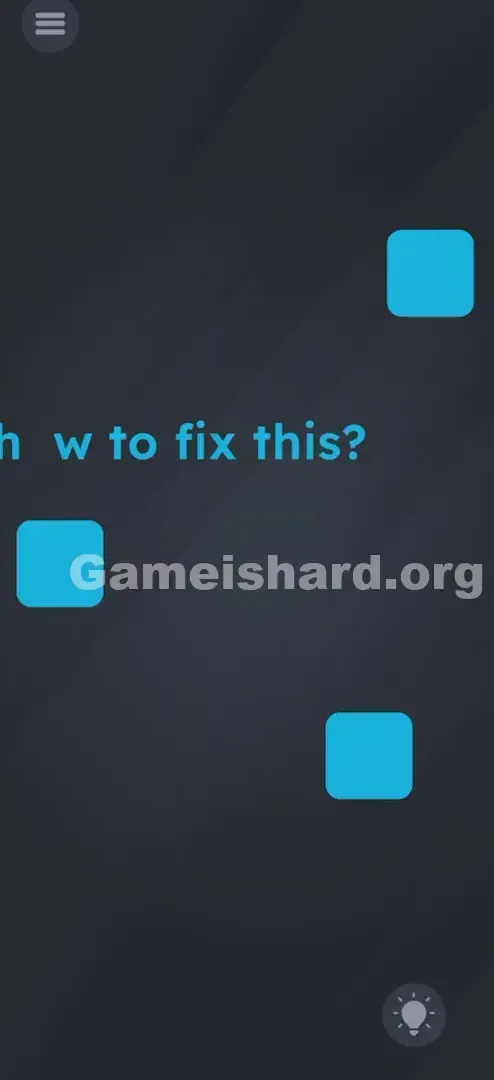
- The Prompt: Centered in bright cyan, it reads "h w to fix this?" — with a stark, obvious gap between 'h' and 'w'.
- The Decoys: Several blue squares sit around the text. They beg to be tapped or moved — but they serve no functional purpose here.
- The UI: Top-left holds the standard menu button (a dark circle with three horizontal lines). Bottom-right may show a hint bulb.
- The Background: A deep, neutral grey. Everything about the layout tempts you to interact with the blue squares — which is exactly why they’re there.
Common Mistakes to Avoid
The Trap
The biggest mental roadblock is “UI Blindness.” Years of app use condition us to treat menu buttons as system controls — off-limits during gameplay. We ignore them until we want to exit or pause. Game is hard Level 83 weaponizes that habit. Your eyes lock onto the blue squares because they look like puzzle parts — while overlooking the menu button because it looks like background infrastructure.
First Instincts That Fail
Most players jump straight into:
- Tapping blue squares in sequence or rhythm.
- Trying to drag those squares into the gap (they’re too large and angular to fit).
- Shaking the device, hoping an “o” drops into place.
- Attempting to pull the “o” from “to” or “fix” (those letters are locked in place).
Player Reactions
I spent over two minutes rotating and stacking blue squares, convinced I was missing a pattern. Then — by accident — my finger brushed the top-left corner, and the menu button lifted. I groaned. It had been staring me in the face the whole time.
Step-by-Step Solution
Preparing the Move
Skip the blue squares entirely — they’re deliberate distractions. Instead, glance at the top-left corner. Spot the Menu Button: a compact, dark circle with three parallel lines inside.
Executing the Solution
- Press and hold the Menu Button in the top-left corner.
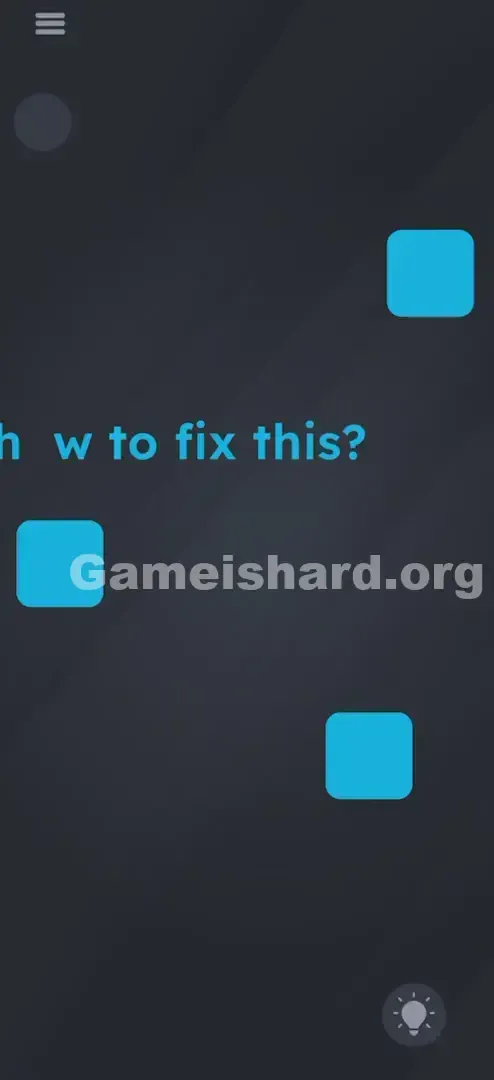
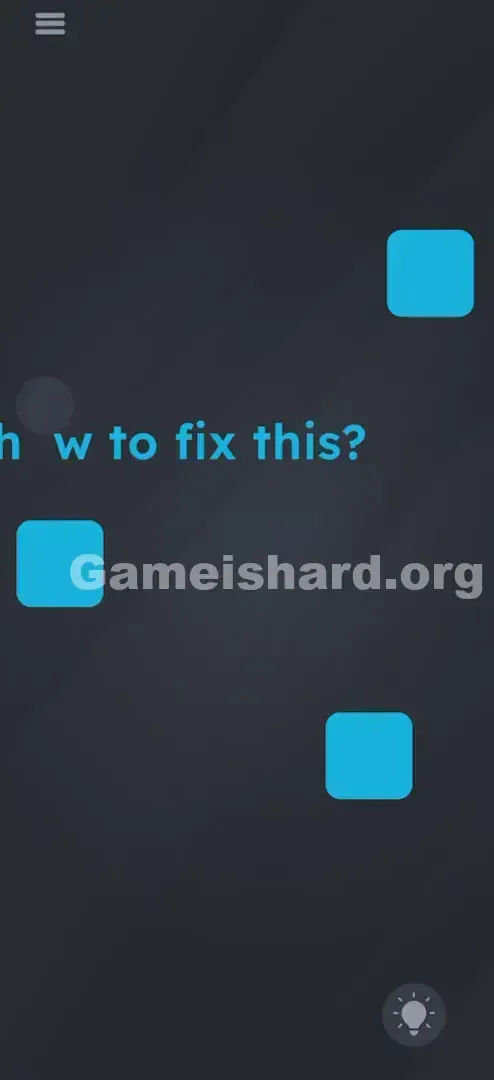
- Gently drag it downward toward the center of the screen. Yes — it detaches smoothly and moves freely.
- Release it directly into the blank space between “h” and “w” in the broken word.
Confirming It Worked
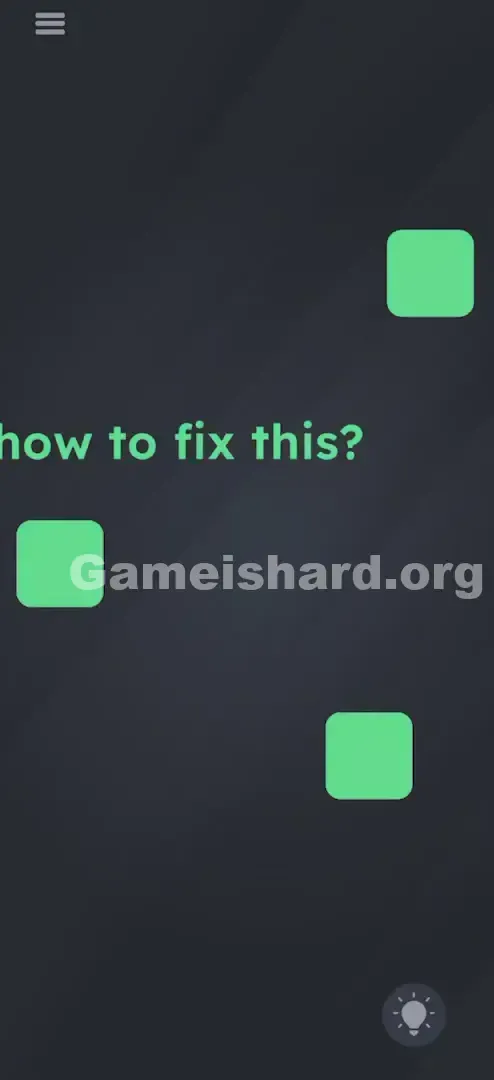
When dropped correctly, the button snaps into position. The phrase now reads “how,” and the level completes instantly.
If It Did Not Work
- If it bounces back: You’re dropping it too far left or right. Aim to center it horizontally within the gap.
- If the menu opens instead: Hold slightly longer before dragging — this ensures the game registers a drag, not a tap.
- If it won’t budge: Make sure your finger starts fully on the icon. Edge sensitivity varies — try initiating the drag a bit further inward if needed.
Small Details That Matter
Accuracy helps — but perfection isn’t required. The game uses smart visual logic, not pixel-perfect alignment.
- Snap Zone: Cover roughly half the gap with the button, and the engine accepts it as the missing letter.
- Speed: Drag at any pace — no momentum or timing mechanics apply.
- Pro placement tip: Slightly lower than the baseline of the lowercase letters often helps — the round shape aligns better vertically with “h” and “w.”
Why This Solution Works
This level hinges on “UI Object Permanence”: in most apps, interface elements float above the content like glass. In Game is Hard, they’re part of the same world — physical, movable, and meaningful.
The reasoning is simple: shapes stand in for letters when they match. A round icon + a round letter = the icon is the letter.
It breaks the fourth wall — teaching you that anything visible is potentially interactive. If it’s on screen, it’s probably yours to move.
Bonus Tip
For speedruns or repeat plays, follow this interaction priority:
- Scan the text first: Can letters shift or detach?
- Scan the UI second: Can score, pause, or menu icons move?
- Scan props last: Obvious “game objects” (like the blue squares) are almost always red herrings.
Avoid wasting time on:
- Multi-touch gestures with the squares.
- Tilting or rotating your phone.
- Cranking up audio or brightness.
Alternative Attempts of Game Is Hard Level 83 (What Doesn’t Work, and Why)
- Tapping the gap repeatedly: No hidden keyboard or input field triggers.
- Dragging blue squares: Wrong shape, wrong scale — they hover but don’t anchor.
- Shaking the device: Motion sensors aren’t active for this puzzle.
- Rubbing the text: Unlike some brain teasers, no erasure mechanic exists here.
- Waiting passively: Nothing changes over time — action is required.
- Tapping the hint bulb: It deducts hints without solving anything (though it will nudge you toward dragging the menu button).
Common Mistakes for Game Is Hard Level 83
- Obsessing over blue squares: Assuming they encode a pattern or sequence — they don’t.
- Ignoring screen borders: Fixating only on the center, missing UI elements in corners.
- Tapping instead of dragging: Clicking the menu opens settings — dragging unlocks the puzzle.
- Mistaking it for a bug: Believing “h w” is a rendering error — it’s the core challenge.
- Trying to steal letters: Attempting to pull the “o” from “to” or “fix” — those characters are static.
Pattern Recognition: How to Spot This Trick in Future Game Is Hard Levels
The Tell
When a phrase is missing a letter or word — and typing isn’t possible — check your UI. Does the level counter resemble a digit you need? Does the pause button echo an “H” or “11”? Does the menu icon mirror an “O” or “H”?
The Habit
Touch everything — deliberately. At the start of each Game is Hard level, lightly run your finger across UI elements: score, pause, hint, level number. If they highlight, wiggle, or lift, they’re active puzzle pieces. If they stay rigid, they’re pure interface. Build this “UI stress test” into your routine.
Game Is Hard Level 83 FAQ (Short, Useful)
Q: Can I use the blue squares for anything in Game is hard Level 83? A: No. In Game is hard Level 83 , the blue squares are purely decorative distractions. You can ignore them completely.
Q: Why won't the menu button move in Game is hard Level 83? A: Make sure you aren't just tapping it. Press your finger down, hold for half a second, and then physically drag your finger down the screen.
Q: Does it have to be the menu button in Game is hard Level 83? A: Yes. No other object on the screen has the correct "tag" to complete the word "how."
Q: Is this a bug in Game is hard Level 83? A: No, the missing letter is the puzzle itself. The game engine is working correctly; you just need to supply the missing piece from the UI.
More Game Is Hard Solutions
Stuck on the next puzzle? We’ve got fast, no-nonsense guides for every single stage. We cut the fluff so you can get back to feeling like a genius. Share this guide with your friends if they’re stuck staring at those blue squares!
Game on, and good luck!