App updates can sometimes shift puzzle order. If this level 74 walkthrough doesn’t match what you’re seeing, no problem! Flip through our All Levels guide and locate your exact puzzle by image.
Be sure to carry out each action in sequence—begin at the top box and move steadily downward.
Level Overview
What Makes This Puzzle Tricky
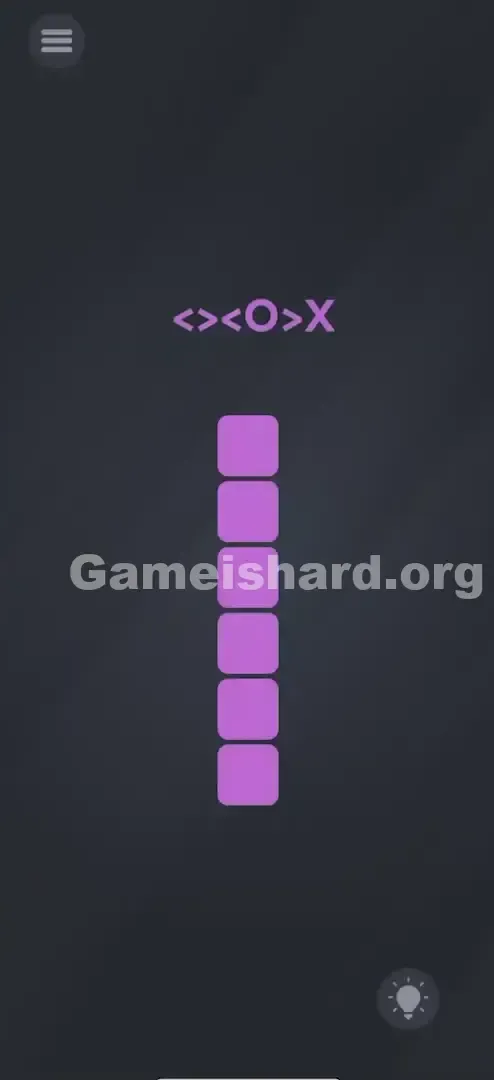
You’re greeted with six stacked purple boxes and a mysterious symbol string above them: <>
Your Goal
This isn’t about solving equations or spotting hidden items. Your job is to decode symbols into physical gestures . Think of your touchscreen as a control panel—the symbols are literal instructions telling you how to interact with each box.
Key Mechanics
- Directional Swiping: Arrows aren’t decoration—they’re direct movement commands.
- Multi-touch (Pinch Zoom): Two fingers on one element trigger expansion.
- Object Physics: Treat UI elements like real-world objects—you can fling them away.
- Sequential Logic: Actions must follow top-to-bottom order. This level embodies “Game is Hard” philosophy: no hand-holding, just pure gesture-based logic.
What Appears on Your Screen
Picture your phone screen right now—dark grey background, clean and sparse.
- Top Center: Purple text string: <>
X . - Center: A vertical column of 6 identical purple squares (rounded corners, no labels).
- Bottom Right: Hint bulb icon (best left untouched).
- Top Left: Menu button. That’s all. Its minimalism is intentional—the perfect alignment between symbols and boxes is your strongest hint. Six characters? Six boxes. That match is the key.
Common Mistakes to Avoid
The Trap
The biggest mental roadblock is misreading the symbols . Players instinctively assume O means “tap” or “select,” and X signals “avoid.” But here, X isn’t a warning—it’s an instruction to remove.
First Instincts That Fail
- Rapid tapping: Tapping any box only causes a harmless wiggle—no progress.
- Dragging the symbol text: Previous levels sometimes let you move text—but here, it’s purely instructional.
- Reordering the stack: Trying to rearrange boxes like puzzle pieces won’t register.
Player Reactions
I stared at that O for nearly three minutes. “Open?” “Orbit?” “Outline?” I even shook my phone. When it clicked—that O meant expand, not tap—it felt obvious. But in the heat of frustration, gesture-based logic vanishes.
Step-by-Step Solution
Preparing the Move
Zero in on the 6-box vertical stack. Match each symbol from <>
- Box 1 = <
- Box 2 = >
- Box 3 = <
- Box 4 = O
- Box 5 = >
- Box 6 = X
Executing the Solution
Execute these moves exactly as described.
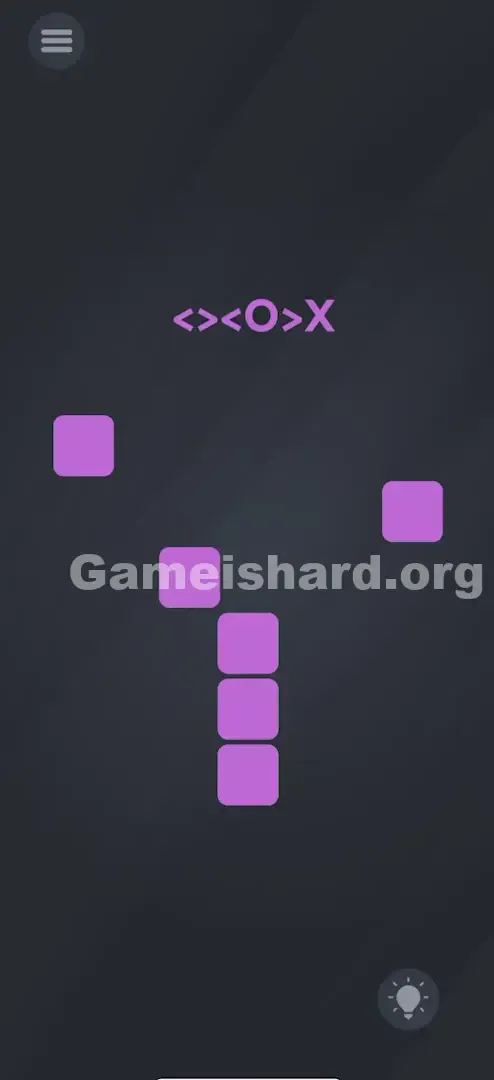
- Top Box (<): Touch and drag the first box firmly to the LEFT .
- Second Box (>): Touch and drag the second box firmly to the RIGHT .
- Third Box (<): Touch and drag the third box firmly to the LEFT .
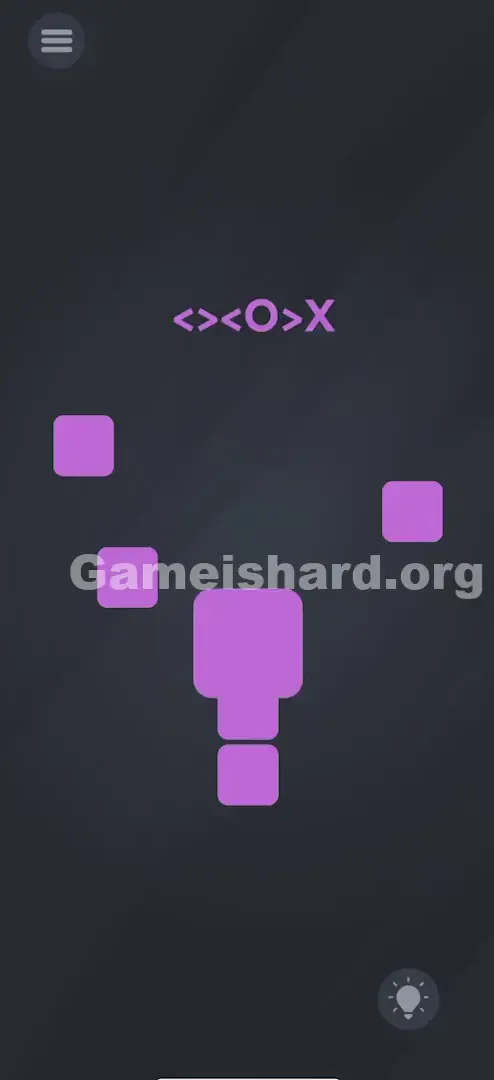
- Fourth Box (O): Place two fingers inside this box and spread them apart (pinch-out) to enlarge it.
- Fifth Box (>): Touch and drag the fifth box firmly to the RIGHT .
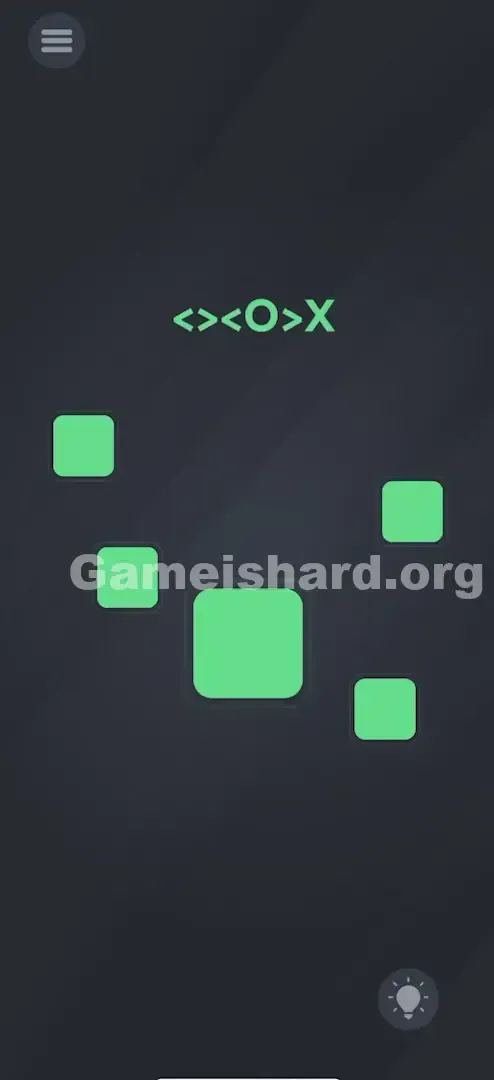
- Bottom Box (X): Flick or swipe this box decisively off-screen—left or right works—to make it vanish completely.
Confirming It Worked
Each successful action triggers visual feedback: boxes either settle into place, disappear, or visibly expand (in the case of O). Once the sixth box flies off-screen, the level completes instantly.
If It Did Not Work
If the O (4th box) refuses to grow: Confirm both fingers land inside the purple boundary before spreading. Starting outside often registers as screen zoom—or nothing at all.
Small Details That Matter
Small execution tweaks matter—especially for O and X.
- For < and > swipes: You don’t need full-screen motion—just a confident, directional drag (like unlocking a slider).
- For the O: Pinch-out should be slow and deliberate. Wait until you see the box scale up before releasing.
- For the X: Speed counts. A sluggish drag makes it bounce back. Aim for a quick, decisive flick—like skipping a song you hate. One trick that helped me reset input sensitivity: doing the O gesture first, then proceeding top-down. Not required—but sometimes jumpstarts responsiveness.
Why This Solution Works
This level teaches symbolic translation—where ASCII characters map directly to physical actions.
- < and > = left/right movement vectors.
- O = circular shape → implies expansion or scaling.
- X = removal or erasure. Game is Hard consistently treats on-screen text as functional—not decorative. With no “submit” button or feedback icons, you are the interface. Progress only happens when you physically reshape the environment.
Bonus Tip
For repeat runs or speed attempts, keep this mental shorthand handy:
- Left
- Right
- Left
- Zoom (Pinch Out)
- Right
- Yeet (Throw away) Skip tapping the top symbols entirely—they’re static and unresponsive.
Alternative Attempts on Game Is Hard Level 74 (What Doesn’t Work, and Why)
Here’s what I tested—and why it failed—so you save time:
- Rhythmic tapping: No input recognition. Tapping is ignored here.
- Drawing an “O” on the fourth box: The game doesn’t process drawing gestures—only multi-touch.
- Shaking the device: While X often means “shake” elsewhere, Level 74 ignores motion sensors entirely.
- Dragging text onto boxes: A useful trick in earlier levels—but here, the symbols are locked in place.
- Waiting passively: This puzzle won’t auto-solve. You must act.
- Pinching inward on the O: Shrinking it does nothing. O stands for outward growth—not collapse.
Common Mistakes for Game Is Hard Level 74
- Misreading X as “don’t touch”: It’s the opposite—you must forcefully remove the final box.
- Half-hearted swipes: Boxes snap back if dragged too weakly. Commit fully to each direction.
- One-handed pinch: Using thumb + index finger often triggers accidental swipes. Two index fingers give cleaner control.
- Skipping order: Though some succeed out-of-sequence, top-down avoids physics glitches and ensures reliability.
- Overlooking arrows as commands: Those < and > aren’t brackets—they’re active instructions for adjacent boxes.
Pattern Recognition: How to Spot This Trick in Future Game Is Hard Levels
The Tell
Spot a line of non-letter symbols (arrows, shapes, operators) aligned with visible objects? That’s almost certainly a Gesture Map.
The Habit
Stop reading—start matching. Count the symbols. Count the objects. If numbers match, apply each symbol’s visual meaning to the object beneath it:
- Arrow → swipe in that direction
- Circle → expand or rotate
- X → delete or dismiss
- Line → cut, slice, or swipe through
Game Is Hard Level 74 FAQ (Short, Useful)
Q: Does the order of the boxes matter in Game is Hard Level 74? A: Technically, yes—some sequences glitch the physics engine. Always go top-to-bottom (1 through 6) for consistent results.
Q: My "O" box won't expand in Game is Hard Level 74. Why? A: You’re likely dragging instead of pinching. Ensure two fingers land on the box simultaneously before spreading.
Q: What does the X actually mean in Game is Hard Level 74? A: It means “discard” or “cross out”—and the gesture equivalent is swiping it cleanly off-screen.
Q: Can I use the shake feature in Game is Hard Level 74? A: No. Accelerometer input is disabled here. All actions require precise touch gestures.
More Game Is Hard Solutions
Stuck elsewhere? Head to the main index for no-nonsense, step-focused guides—designed to deliver that “Aha!” moment fast. Share this page with anyone currently wrestling with purple boxes!