App updates occasionally reorder puzzles. If this level 75 walkthrough doesn’t match what you’re seeing, no stress! Use our All Levels directory to locate your exact puzzle by image.
Stick strictly to the sequence shown in the prompt ( red-blue-red-green ), tapping only after the ball has fully changed color each time.
Level Overview
What Makes This Puzzle Tricky
You launch the level and see a single ball centered on screen—red from the start. At the bottom, the instruction reads red-blue-red-green . Seems straightforward—until you tap and nothing else happens. No automatic color shifts. No animation loops. Tapping again does nothing. This is one of those levels where repetition only works when you physically alter how the device sits in space.
Your Goal
Your task is to enter the four-color sequence: Red → Blue → Red → Green . There are no tools, sliders, or buttons to change the ball’s hue. Instead, you’ll rely entirely on your phone’s built-in motion sensors to shift its color state.
Key mechanics at play in Game is hard Level 75:
- Tilt Control: The ball’s color responds directly to your phone’s orientation.
- Sequence Input: Each tap must happen after the correct color appears.
- Color Matching: Visual feedback must align with the on-screen prompt.
- Physics Simulation: The ball behaves as if affected by gravity-based direction. This isn’t about spotting hidden items—it’s about recognizing your phone itself as the controller.
What Appears on Your Screen
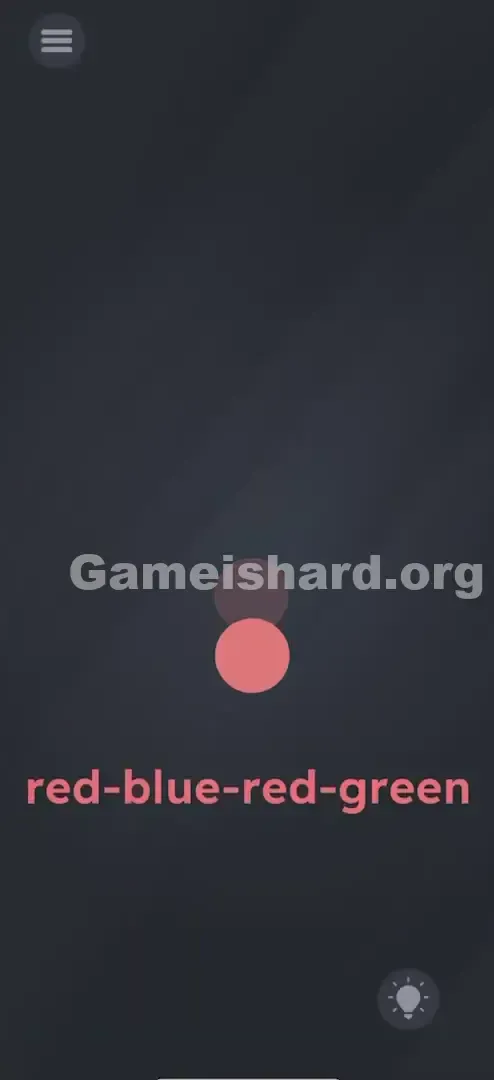
The interface is clean and minimal—mostly dark background, with just one circular object centered on screen: the ball. It starts off soft red or rosy pink. Below it, near the bottom third, the text “red-blue-red-green” appears plainly.
No extra UI elements. No inventory panel. No “continue” button. Just that ball and that code. Shaking yields no response. Dragging the ball does nothing. The simplicity is intentional—and often the first clue that you need to move your device, not your fingers.
Common Mistakes to Avoid
The Trap
The biggest stumbling block is waiting for something to happen automatically. Most mobile games train us to expect timed animations—like a traffic light cycling through colors. Here, the ball stays static unless you physically reposition your phone. The edges of your screen act as invisible triggers.
First Instincts That Fail
- Tap Spamming: Seeing “Red” and a red ball, you tap—then keep tapping, hoping it cycles. It won’t.
- Text Dragging: Past levels may have let you drag words onto objects. Here, the text is purely instructional—not interactive paint.
- Shaking: A common reset trick elsewhere, but shaking here only adds noise to the sensor input and risks mistiming taps.
Player Reactions
I wasted nearly two minutes trying to drag “blue” onto the ball. Felt brilliant for five seconds—until the text refused to budge. Then I set my phone down and picked it up again… and noticed the color shifted subtly mid-lift. That accidental tilt was the breakthrough.
Step-by-Step Solution
Preparing the Move
Hold your phone upright in portrait mode. Auto-rotate settings don’t affect this level—but keeping it vertical is your neutral starting point. Keep the sequence “red-blue-red-green” in mind—it’s your exact action plan.
Executing the Solution
- First Tap (Red): Phone upright. Ball is Red . Tap once.
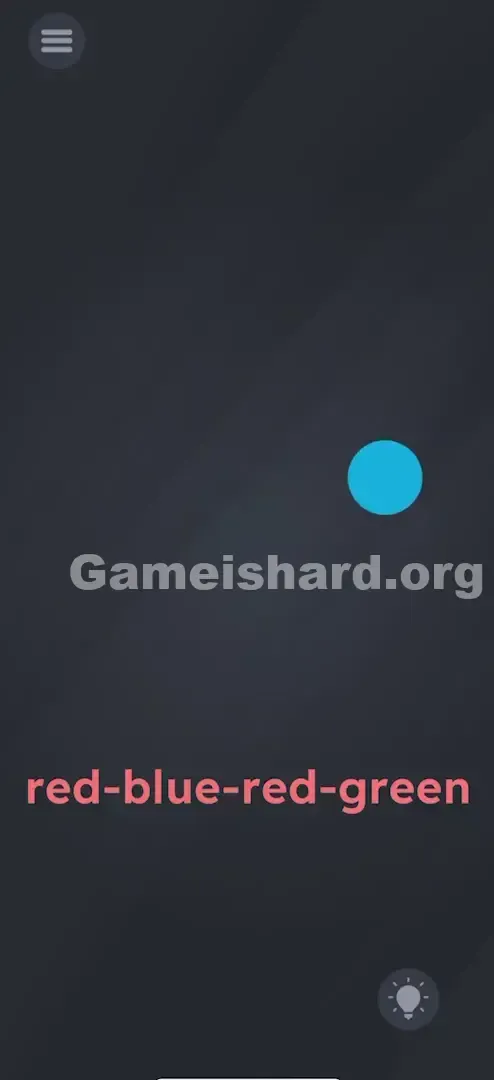
- Second Tap (Blue): Rotate your phone 90° to the Right (so the right side faces down). The ball will shift to Blue . Wait until it’s fully blue—then tap.
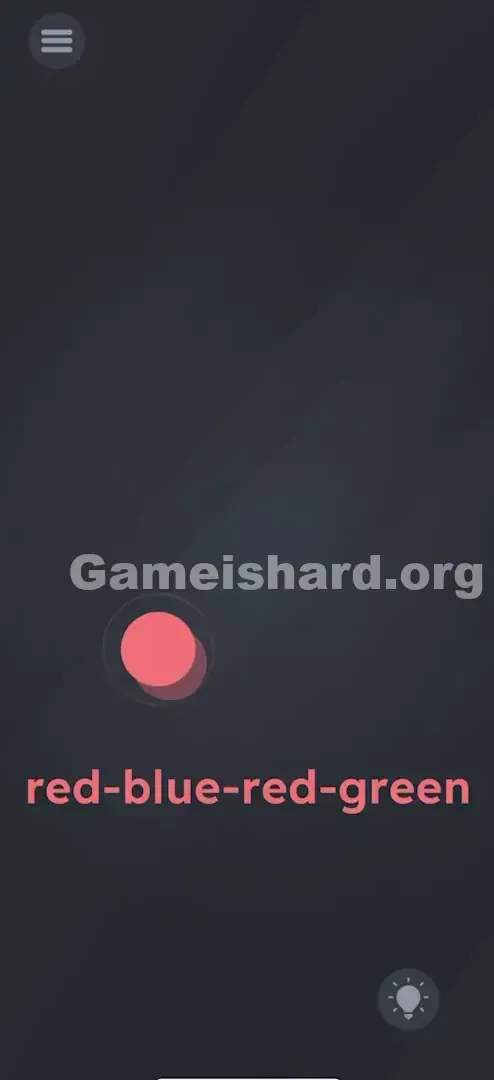
- Third Tap (Red): Return to upright portrait (bottom edge down). Let the ball revert to Red . Tap.
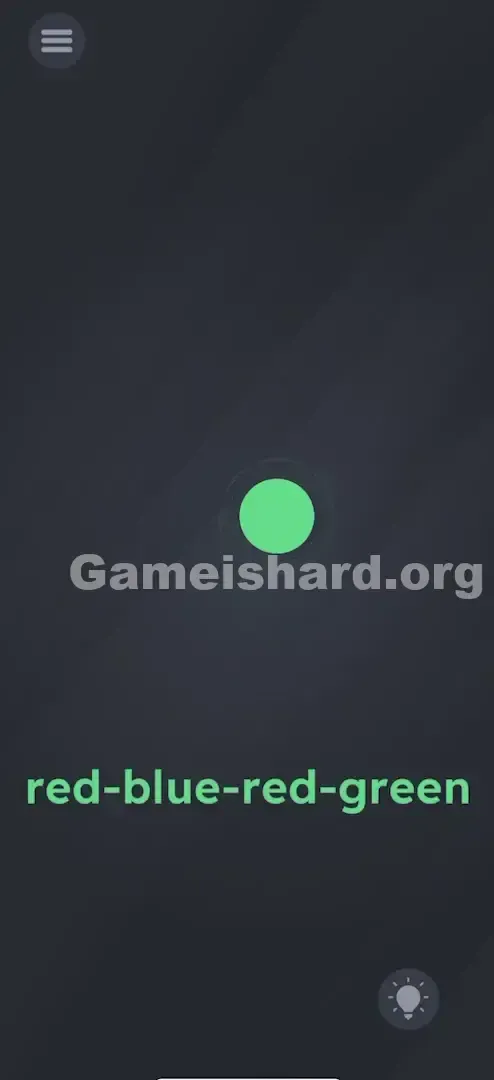
- Fourth Tap (Green): Rotate 90° to the Left (left side down). Ball becomes Green . Tap.
If It Did Not Work
- Color won’t shift: You need a firm, full 90° tilt—not a slight lean. Imagine pouring liquid out the side of your phone.
- Tapped too soon: If you tap while the color is still transitioning, the game registers the prior state. Pause half a second after tilting.
- Rotation lock interfering: Though the game uses raw gyroscope data, disabling rotation lock can help eliminate variables if inputs feel unresponsive.
Small Details That Matter
Precision here is about timing—not tap accuracy. The ball has a brief visual lag between tilt and color change.
- Wait for full settle: After tilting right for Blue, hold for ~500ms before tapping. Don’t rush the transition.
- Default = Red: Upright position always returns the ball to Red—this trips people up on step three. Just bring it back to start.
- Gravity Logic: Think of each edge holding a different color pool:
- Bottom Edge = Red Paint
- Right Edge = Blue Paint
- Left Edge = Green Paint
I nailed it by pausing, breathing, and treating my phone like a steering wheel: hard right → tap → center → tap → hard left → tap.
Why This Solution Works
This level relies on Sensor-Based UI—specifically DeviceMotion or Accelerometer input. The game maps gravity vector data (X/Y axis values) to discrete color states.
The real mental hurdle is “Input Blindness”: we default to touch-first interaction, forgetting phones have multiple input channels—gyroscopes, mics, volume keys, even charging status. Here, the prompt “red-blue-red-green” is your combo code; the tilts are the dials you turn to unlock it.
Bonus Tip
For speed runs or replays:
- Tap (upright).
- Rotate 90° clockwise → Tap.
- Rotate 90° counter-clockwise (back to upright) → Tap.
- Rotate 90° counter-clockwise again (left side down) → Tap.
- Let rotations complete fully before tapping.
Alternative Attempts of Game Is Hard Level 75 (What Doesn’t Work, and Why)
- Rapid tapping to “mix” colors: The system doesn’t blend hues—it switches between fixed states.
- Volume buttons: A smart guess for other levels, but irrelevant here—the sensor is tilt-only.
- Tapping the word “Blue”: The text is static labeling, not an interactive element.
- Upside-down tilt (top edge down): No color is assigned to the top edge in this level.
- Adjusting brightness: Changes appearance—not actual state.
- Voice commands: Mic isn’t active for this puzzle.
Common Mistakes for Game Is Hard Level 75
- Tapping mid-transition: Tilting and tapping at the same time registers the old color.
- Mixing left/right: When rotated, screen orientation can confuse which edge is which—Right Edge = Blue, Left Edge = Green.
- Under-tilting: A shallow angle often fails to cross the sensor threshold—go full 90°.
- Skipping the middle Red: The sequence has four steps—don’t skip returning to upright before going left.
- Closing the app: Assuming the game froze because nothing happened automatically.
Pattern Recognition: How to Spot This Trick in Future Game Is Hard Levels
The tell
If a level shows almost nothing—just one object, no buttons, and zero reaction to taps or drags—check your physical inputs. A non-responsive central object usually means the environment (your phone’s position) needs to change.
The habit
When stuck on a bare-bones screen:
- Shake the device.
- Tilt left, right, or upside down.
- Flip it face-down. These three moves solve roughly 20% of the toughest puzzles in this series.
Game Is Hard Level 75 FAQ (Short, Useful)
Q: My ball won’t turn green in Game is hard Level 75? A: Ensure the Left edge is fully downward. If it still resists, try resetting the app to refresh sensor calibration.
Q: Do I need to rush through Game is hard Level 75? A: Nope—there’s no timer. Focus on clean, well-timed taps instead of speed.
Q: Can I keep screen rotation locked during Game is hard Level 75? A: Yes—the game reads accelerometer data, not UI orientation—but disabling lock eliminates potential interference.
Q: Is there a fourth color hidden in Game is hard Level 75? A: No. Only Red, Blue, and Green are used. The top edge has no assigned color here.
More Game Is Hard Solutions
If the next puzzle leaves you scratching your head, resist the urge to rage-quit. We deliver quick, calm, no-fluff solutions for every level. Skip the filler—go straight to the fix. Peek at Level 41 next—it ramps up fast!