App updates can sometimes shuffle the order of puzzles. If this level 46 walkthrough doesn't match your screen, don't worry! You can browse our All Levels guide to find your exact puzzle by its picture.
Target the filled gray parts of the bars, not the empty space, and stack them like Legos.
Level Overview
What Makes This Puzzle Tricky
This level taps into every player’s worst loading-screen anxiety: endless, unresponsive progress bars. You’re staring at a frozen interface. Nothing moves. That bold white message—"takes too long!"—feels like sarcasm. It tricks you into thinking the game froze or glitched, which is precisely the illusion the designers built in.
Your Goal
You’re not meant to wait. There’s no actual loading happening behind the scenes. Your real task is to manually accelerate progress by combining all three partial loading bars into one fully charged bar. You’re assembling the solution—not observing it.
Key Mechanics involved
- UI Dragging: Those bars aren’t just visuals—they’re interactive objects you can lift and move.
- Object Merging: Like combining inventory items, stacking bars creates a new, complete state.
- Button State Change: The "loading..." button stays inactive until the merged bar hits full capacity.
- Logic Trap: The biggest obstacle is inaction. Sitting still guarantees failure. It’s not a loading screen—it’s a puzzle disguised as one.
What Appears on Your Screen
The layout is stark, minimalist—and deliberately frustrating.
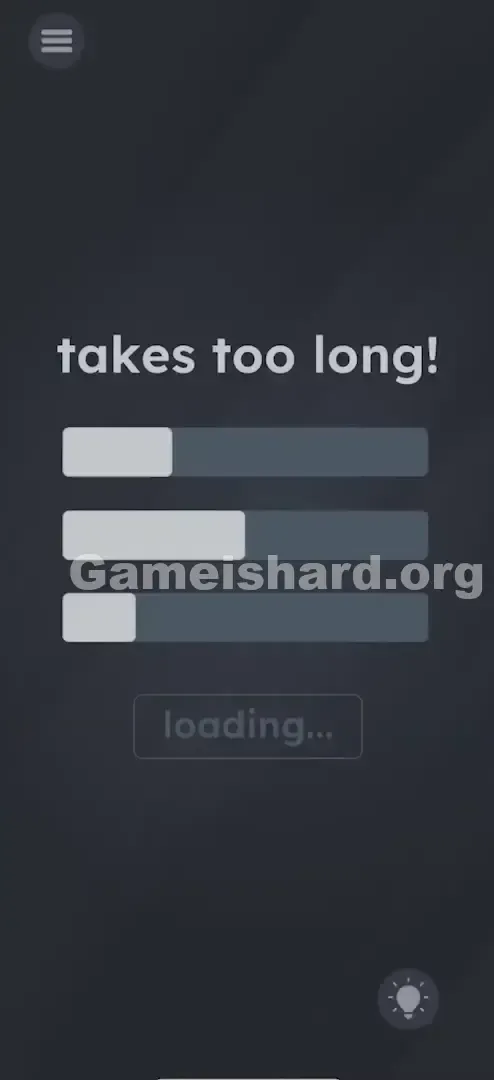
- Top Text: Bold white "takes too long!" centered at the top.
- The Bars: Three horizontal progress bars sit mid-screen. Top Bar: ~30% filled. Middle Bar: ~50% filled. Bottom Bar: ~20% filled.
- The Top Bar is about 30% full.
- The Middle Bar is about 50% full.
- The Bottom Bar is about 20% full.
- The Button: A disabled gray button labeled "loading..." sits beneath the bars.
- The Background: Plain dark gray void. Everything appears frozen. The light gray fill contrasts with the darker track—just like a stalled system process.
Common Mistakes to Avoid
The Trap
This level exploits “UI blindness”—a habit ingrained from years of watching, not interacting with, progress indicators. We’ve been trained to treat loading bars as read-only status reports. Game Is Hard flips that assumption: these bars are input tools waiting for your touch.
First Instincts That Fail
Most players freeze and wait. When patience fails, they hammer the gray "loading..." button—useless, since it’s locked. Others try shaking the phone, swiping left/right across bars, or tapping random spots hoping to “trigger” progress. None work because they ignore the core truth: the bars are draggable objects—not decoration.
Player Reactions
I stared for over a minute, convinced my connection dropped. I even closed and reopened the app, sure it was bugged. Then—by accident—I dragged my finger across a bar and saw it shift. Instant facepalm. It felt absurd to wait for something designed to be moved.
Step-by-Step Solution
Preparing the Move
Spot the three bars. Their fills add up to roughly 100% (30% + 50% + 20%). That sum isn’t coincidence—it’s your clue. You need to gather all that progress into one unified bar.
Executing the Solution
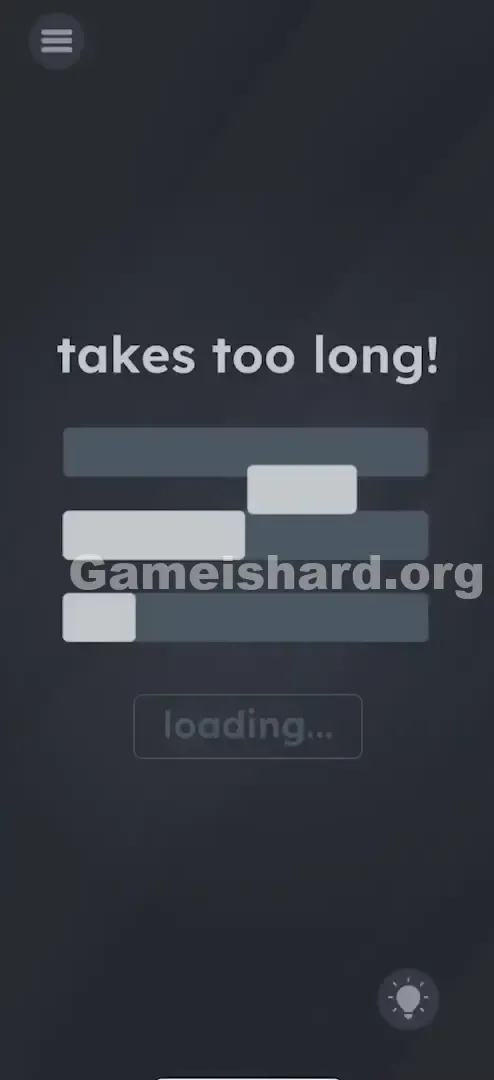
- Grab the Top Bar: Press and hold on the light gray filled section of the top loading bar.
- Drag Down: Pull it straight down and drop it squarely onto the middle loading bar. It should snap into place, increasing the middle bar’s fill.
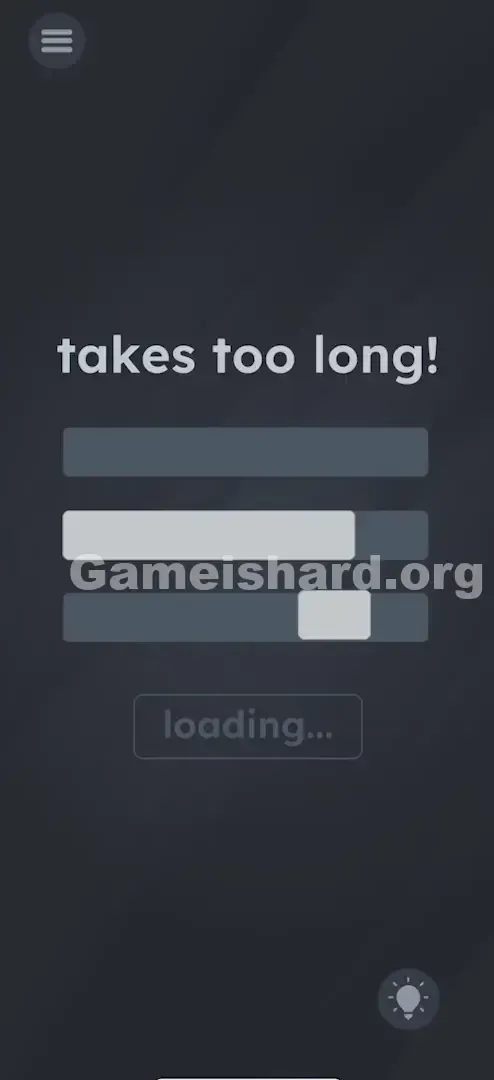
- Grab the Bottom Bar: Now press and hold the light gray portion of the bottom bar.
- Drag Up: Lift and place it onto the same middle bar.
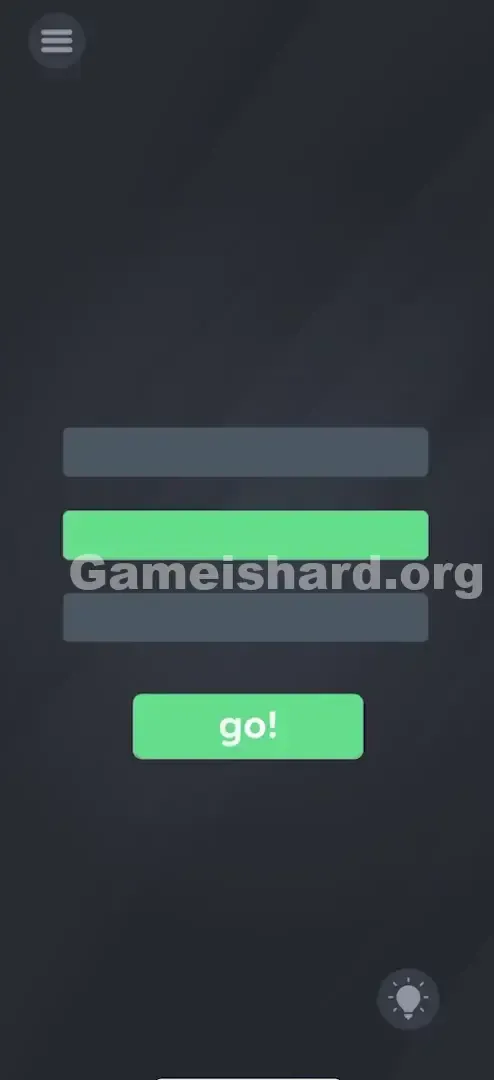
- Tap to Finish: Once all three segments combine, the middle bar glows bright green. The button below switches from "loading..." to "go!" —tap it right away.
If It Did Not Work
- If the bars don't merge: You’re likely touching the dark background track instead of the light gray fill. Only the fill is draggable.
- If the button doesn't work: Both top and bottom bars must be merged into the middle one. One merge only gets you to ~80%—not enough to activate the button.
- Precision: Exact pixel alignment isn’t required, but aim for solid overlap—drop the center of each bar onto the center of the target.
Small Details That Matter
Small screens or thicker fingers can make this feel finicky. Here’s how to nail it consistently:
- The "Hit Box": Only the light gray rectangle responds to touch. The dark track is purely visual.
- Speed: Drag speed is irrelevant—but release cleanly once bars overlap. Lingering or sliding off can break the merge.
- Visual Feedback: No sound plays, but watch for the middle bar visibly expanding. If it doesn’t grow, the merge failed—try again.
- Order: Top-first or bottom-first makes no difference. You could even merge both into the top or bottom bar instead—the goal is consolidation, not sequence. I found slower, more deliberate drags helped me land each piece accurately.
Why This Solution Works
This is pure lateral thinking. It breaks the unspoken rule that UI elements are untouchable. Here, they’re loose, manipulable parts of the puzzle. The underlying idea? “If loading drags on, take control.”
It frames “loading” as a resource puzzle—you have fragmented progress, and success means consolidating it. It’s equal parts efficiency metaphor and playful jab at our collective frustration with slow load times. The phrase "takes too long!" isn’t just flavor text—it’s the nudge telling you to intervene.
Bonus Tip
For speed runs or replays, try this optimized method:
- Use two fingers at once.
- Pinch the top bar with your index finger and the bottom bar with your thumb.
- Simultaneously drag both onto the middle bar.
- Tap "go!" with your free hand. Skip the dead time: no waiting, no premature taps, no device shaking.
Alternative Attempts of Game Is Hard Level 46 (What Doesn’t Work, and Why)
- Waiting for 5 minutes: These bars are static art—zero animation or auto-progress.
- Tapping the "loading..." button endlessly: It’s disabled until the condition is met—no amount of tapping unlocks it.
- Shaking the phone: No motion sensors are active here.
- Rubbing or swiping bars like a touchscreen charger: This isn’t a kinetic mechanic.
- Typing into "takes too long!": It’s a label—not an editable field.
- Dragging the button itself: Only the bars move; the button stays fixed.
- Tilting the device: Gravity has no effect on progress states.
- Restarting the app: Resets the level—doesn’t skip the interaction.
Common Mistakes for Game Is Hard Level 46
- Mistake: Assuming the game crashed. Correction: It's part of the puzzle. Touch things!
- Correction: It's part of the puzzle. Touch things!
- Mistake: Dragging bars off-screen. Correction: They need to be combined, not removed.
- Correction: They need to be combined, not removed.
- Mistake: Merging only two bars. Correction: You need 100% capacity. Two bars only get you to ~80%.
- Correction: You need 100% capacity. Two bars only get you to ~80%.
- Mistake: Dragging the empty space. Correction: Aim for the light gray "filled" pixels.
- Correction: Aim for the light gray "filled" pixels.
- Mistake: Tapping the green bar instead of the button. Correction: Once the bar is green, the interaction shifts to the button below.
- Correction: Once the bar is green, the interaction moves to the button below.
- Mistake: Trying to stretch one bar. Correction: You can't resize them; you must stack them.
- Correction: You can't resize them; you must stack them.
Pattern Recognition: How to Spot This Trick in Future Game Is Hard Levels
The tell
Any UI element suggesting delay—a clock, spinner, or “please wait” message—is almost certainly fake. Game Is Hard never asks you to wait passively. If you’ve paused for more than 3 seconds, you’ve missed the interaction.
The habit
When the screen feels inert, test everything. Drag text. Drag icons. Drag the background. In Game Is Hard, anything visible is fair game—until proven otherwise.
Game Is Hard Level 46 FAQ (Short, Useful)
Q: Can I merge them into the top bar instead of the middle one in Game is hard Level 46? A: Yes! As long as all three parts end up in one single bar, the button will activate. The middle is just the easiest target.
Q: My bars won't move when I touch them in Game is hard Level 46. A: Make sure you are touching the colored "fill" part of the bar. If you have a screen protector, try pressing a bit harder or using a different finger.
Q: Why does it say "takes too long!" in Game is hard Level 46? A: It's a hint. The game is acknowledging that normal loading takes too long, prompting you to speed it up manually.
Q: Does shaking the phone help in Game is hard Level 46? A: No. This level is strictly touch-and-drag. No sensors are used.
More Game Is Hard Solutions
That’s the fix for Game is hard Level 46 . If you get stuck on the next one, check out our other guides on thegameishard.org. We keep them short, sweet, and free of the usual recipe-blog fluff. Send this to your friend who’s been staring at that loading screen for ten minutes.
Good luck on the next one!