App updates can sometimes shuffle the order of puzzles. If this level 50 walkthrough doesn't match your screen, don't worry! You can browse our All Levels guide to find your exact puzzle by its picture.
Make sure you tilt gently so the letters don't bounce back out of place before you hit the button.
Level Overview
What Makes This Puzzle Tricky
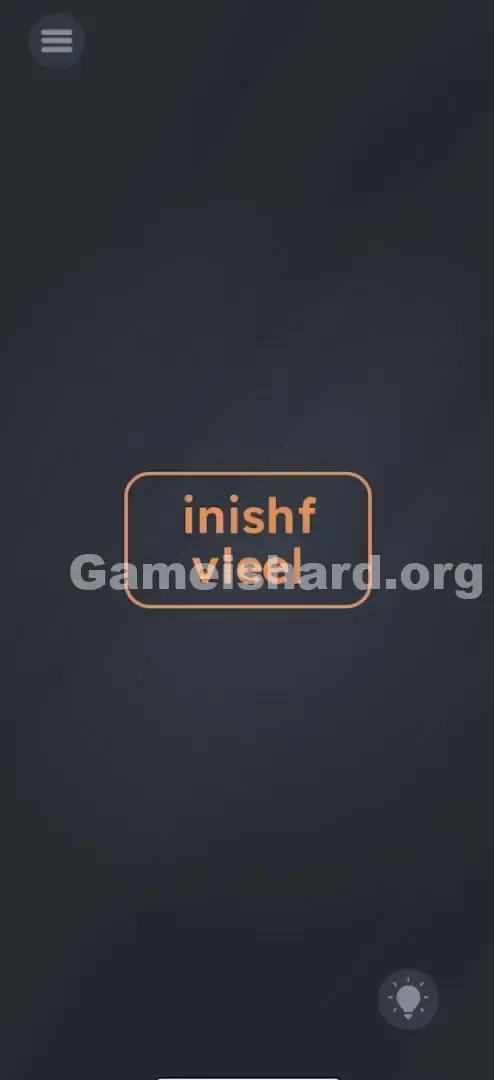
You enter the level and instantly think something’s broken — not just tricky, but genuinely glitched. There’s no riddle to decode or hidden item to uncover. Instead, you’re staring at a button whose label looks corrupted: “inishf” on top, “vieel” below. It reads like a crash log or a failed font render. Frustrating? Absolutely. Your instinct is to fix it — but tapping does nothing.
Your Goal
Your mission is straightforward: press the “finish level” button. But here’s the catch — that button isn’t functional yet. The game won’t accept input until the displayed text matches the exact phrase “finish level.” You’re not solving a puzzle — you’re reconstructing the UI itself before it even becomes interactive.
How the Game Responds
This level shifts from logic test to hands-on physics experiment. Here’s what’s really happening behind the scenes:
- Gyroscope / Accelerometer Control: The game detects real-world movement using your device’s motion sensors.
- Physics Objects: Those letters aren’t static text — they’re individual objects with weight, friction, and collision behavior.
- UI Drag (via Gravity): You can’t drag them manually; instead, gravity pulls them based on how you tilt.
- State Change: The button stays inactive (orange/neutral) until the full string “finish level” appears correctly. It’s not a spelling error — it’s a cleverly disguised physics challenge.
What Appears on Your Screen
Let’s confirm you’re looking at the right puzzle. The layout is minimal and deliberate:
- The Background: A consistent dark grey slate — same as most levels in the game.
- The Centerpiece: One large, rounded rectangle centered on screen, outlined in orange.
- The Text: Two lines inside the button. Top line: inishf. Bottom line: vieel.
- Top line: inishf
- Bottom line: vieel
- The Anomaly: Notice the odd spacing — the “f” hangs loosely at the end of the top line, while the “v” floats awkwardly at the start of the bottom. Neither feels anchored like standard typography.
- The Interface: No extra buttons, no keyboard, no hints visible — just that one scrambled call-to-action.
Common Mistakes to Avoid
The Trap
The biggest hurdle is “Touchscreen Reflex.” We’re wired to interact with mobile screens by tapping or dragging — so when we see misplaced letters, our first move is to try sliding them into place. But your finger has zero effect here. Swiping, tapping, or long-pressing the “f” or “v” does nothing. You’re not failing because you misread the word — you’re failing because you’re using the wrong input method entirely.
First Instincts That Fail
I watched someone spend over two minutes violently shaking their phone — a common tactic elsewhere in the game, but counterproductive here. Shaking scrambles positioning instead of aligning letters. Another common misstep? Tapping the jumbled button immediately, assuming it’s a simple confirmation. But the game checks for the precise string “finish level” every frame — if it’s not fully formed, your tap is ignored.
Player Reactions
I stared at it longer than I’d admit. I tried anagramming “inishf,” testing letter swaps mentally. Then, while shifting position on my couch, I tilted my phone slightly left — and saw the “f” inch over. That was the lightbulb moment. This level isn’t about thinking harder — it’s about moving differently.
Step-by-Step Solution
Preparing the Move
Hold your phone steady and level — parallel to the ground — for maximum control. Tilting while reclining or resting the device at an angle may throw off sensor readings and lock letters in place prematurely.
Executing the Solution
- Analyze the text: You need the “f” (currently trailing “inish”) to shift to the front of the top line. The “v” (leading “ieel”) belongs mid-word in “level.”
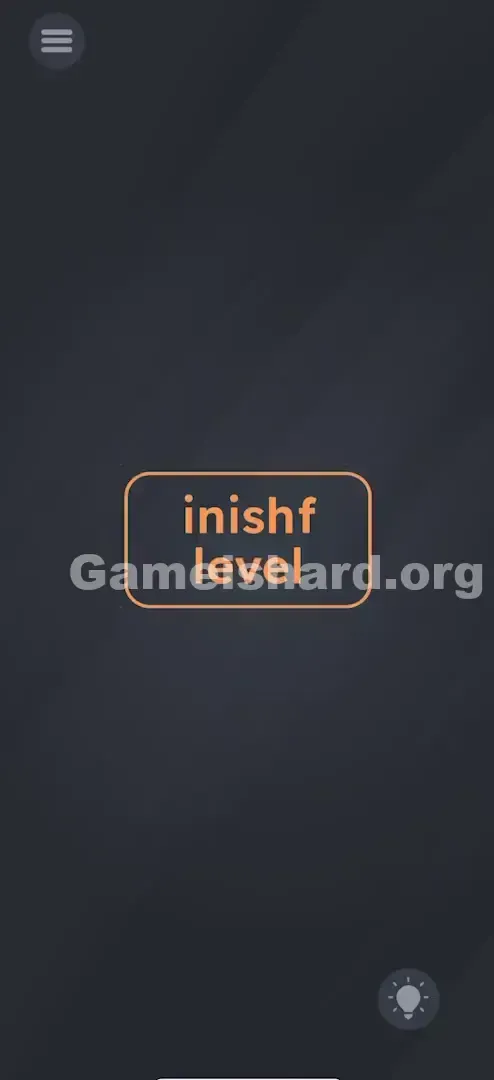
- Tilt Left: Gently lean your phone to the left. Watch the “f” glide smoothly from the far right to the far left of the top line, transforming “inishf” into “finish.”
- Adjust for the V: As the “f” moves, keep an eye on the “v.” Depending on physics initialization, it may settle automatically — or you might need a slight rightward tilt to nudge it into place within “level.”
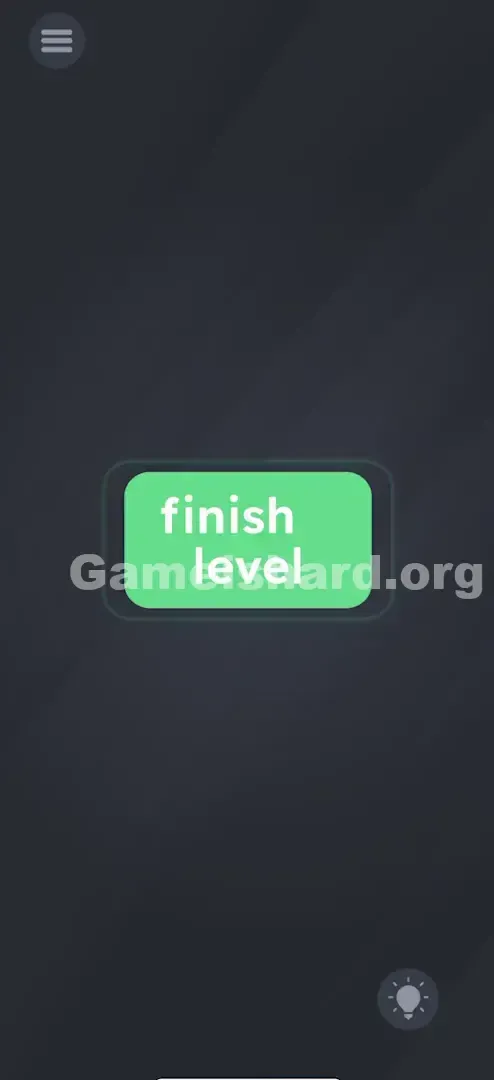
- Verify the color: Once both lines read clearly as “finish level,” the button often changes hue (commonly to green), signaling it’s now active.
- Tap the Button: The moment the text locks in and the button responds visually, tap its center without delay.
If It Did Not Work
- Letters stuck? A quick, sharp tap on the phone (not a shake) often reactivates dormant physics — then resume controlled tilting.
- Overshooting: Too much tilt sends letters flying past their targets. Move slowly — treat them like delicate beads on a track.
- Not registering? Double-check that screen rotation isn’t locked — though most versions override this. More likely, you haven’t tilted far enough. Don’t hesitate to go full 90° if needed.
Small Details That Matter
Success hinges on subtle timing and precision — the game uses smart alignment zones, not free-floating movement:
- The Rail: The “f” slides only horizontally along the top line — it won’t drop down or jump rows.
- The Snap: Exact pixel placement isn’t required. When the “f” gets near its target spot, it snaps into place automatically.
- The Hold: Wait until all motion stops before tapping. If the “f” is still drifting mid-slide, your tap won’t trigger the level completion.
I cracked this by slowing down — holding the left tilt for a full second instead of flicking back and forth. Patience beats speed here.
Why This Solution Works
This level teaches two powerful ideas: Object Permanence and UI Deconstruction. In most apps, on-screen text is fixed — it’s information, not interaction. Game Is Hard flips that assumption: here, text is the game object. By detaching letters from their words, the developers break the illusion of interface stability — telling you, “Nothing on this screen is untouchable.”
The engine listens constantly to your device’s X/Y axis data and applies directional force only to the “f” and “v.” The rest — “inish” and “eel” — are static anchors. That selective physics is why it feels confusing: you expect uniform behavior, but only two characters respond.
Bonus Tip
For fastest completion — especially during speedruns:
- Enable auto-rotate: Just in case your system restricts sensor access.
- Start flat: Place your phone face-up on a table for neutral baseline.
- Commit the tilt: Drop the left edge down ~45° and hold.
- Pause briefly: Let animation settle (~1 second).
- Tap decisively: Aim for the button’s center — not the letters.
Skip the finger-dragging. It’s impossible here — and only smudges your screen.
Alternative Attempts of Game Is Hard Level 50 (What Doesn’t Work, and Why)
Here’s what won’t get you through — so you skip the trial-and-error:
- Swiping the letters: The game registers swipes as navigation commands, not drags — no response.
- Shaking the phone: Adds chaos, not direction — letters jiggle but don’t reposition meaningfully.
- Flipping upside-down: Gravity won’t pull letters off the button — they’re bound to horizontal rails.
- Tapping the hint icon: It usually just says “Tilt the phone.” Save your hints — you’ve got this.
- Using volume keys: Some levels use them for input, but not this one — motion-only here.
- Voice commands: Saying “finish” aloud won’t trigger anything — though your pet may agree it’s overdue.
Common Mistakes for Game Is Hard Level 50
- Assuming touch works: Over 90% of players stall here because they never try tilting.
- Tilting the wrong way: Pitch (forward/backward tilt) won’t shift letters sideways — you need roll (left/right rotation).
- Tapping too soon: The “f” halfway across reads “fiinish” — incomplete, so the game rejects it.
- Rotation lock enabled: Rare on newer devices, but older OS versions may block sensor access if locked.
- Ignoring the “v”: Everyone fixes “finish,” but if “vieel” hasn’t become “level,” the button stays dead.
Pattern Recognition: How to Spot This Trick in Future Game Is Hard Levels
The tell
Any time text looks unevenly spaced, disjointed, or oddly “floaty,” treat it as a physics element — not a typo. Perfectly aligned text is static. Jittery, loose, or misaligned letters almost always mean gravity or drag is involved.
The habit
When you hit a wall:
- Try gentle tilts in all four directions.
- Add a soft shake — not aggressive, just enough to reset inertia.
- Flip your phone upside-down briefly. Before frantic tapping, ask: Is this world governed by physics? That question saves time on dozens of later levels.
Game Is Hard Level 50 FAQ (Short, Useful)
Q: The letters aren't moving when I tilt in Game is hard Level 50! A: Confirm your phone’s motion sensors are enabled — restarting the app often resets sensor calibration.
Q: Can I just drag the letters with my finger in Game is hard Level 50? A: No. Touch input is disabled for these letters — only tilt affects them.
Q: The button says "finish level" but it won't click in Game is hard Level 50. A: The snap alignment might be off by a pixel. Nudge your tilt slightly more, then tap the button’s center — avoid tapping directly on letters.
Q: Is there a hidden object I need to find in Game is hard Level 50? A: None. Every clue and solution lives solely in the text on that central button.
More Game Is Hard Solutions
Stuck on the next puzzle? We cover every level of Game Is Hard — no filler, no fluff, just direct solutions to keep your streak alive. If this guide helped you stop wrestling with that stubborn “F,” share it with friends still trying to drag it with their thumbs. Good luck on Game Is Hard Level 34 !