App updates can sometimes shuffle the order of puzzles. If this level 7 walkthrough doesn't match your screen, don't worry! You can browse our All Levels guide to find your exact puzzle by its picture.
Level Overview
What Makes This Puzzle Tricky
Why does only a small portion of the screen show color? At first glance, Game is hard Level 7 appears broken — you’re greeted with a clipped header and no obvious interaction points. Most players instinctively tap the phrase “I love the color purple,” assuming it’s either a prompt or a clue. But nothing responds.
Your Goal
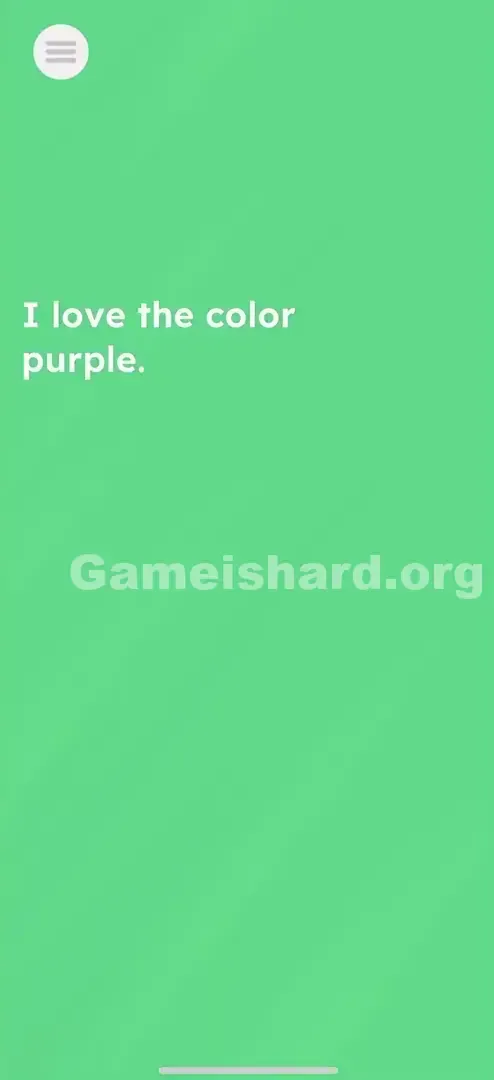
The instruction is literal: turn the entire screen purple. There’s no paint tool or palette — just one movable object. Your job is to reshape that purple element until it fills every visible pixel.
How the Game Responds
- Touch & Drag (Resizing)
- UI Deconstruction: The header bar isn’t static — it’s a draggable, scalable object.
- Hidden Mechanics: Though no resize handles appear, pinch-and-drag functionality is fully active. This isn’t a bug — it’s intentional interface manipulation.
What Appears on Your Screen
The layout feels deliberately incomplete at launch.
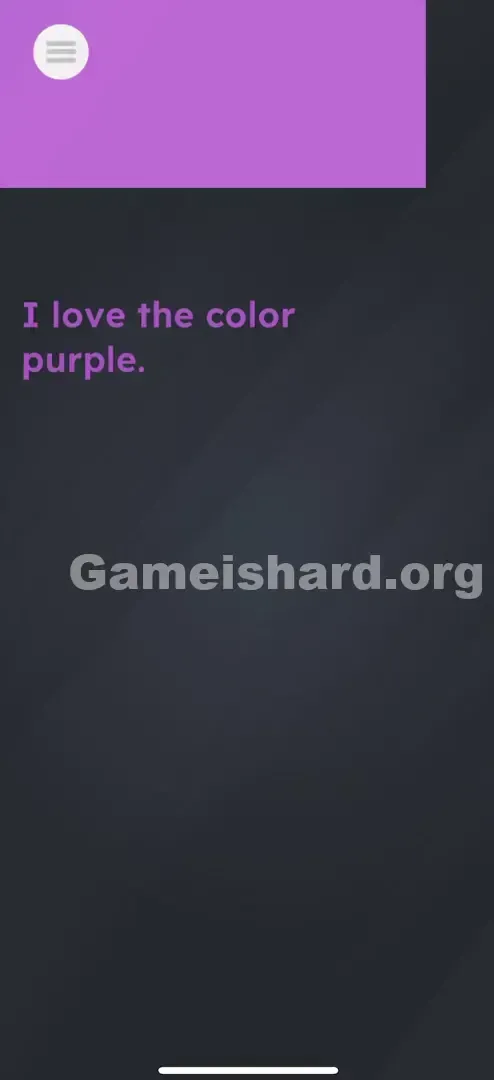
- Top Left: A solid purple rectangular block sits there, containing a standard "Hamburger Menu" icon (three horizontal lines). It resembles an app header that got cut off mid-render.
- The Text: Centered below the header, against the dark void, reads: “I love the color purple.”
- The Background: Nearly the whole screen is a muted grey/black — empty and unresponsive.
- The Trap: Everything looks fixed. The text seems like a directive; the purple box looks like part of the app’s UI. Neither gives visual feedback, so both get dismissed as non-interactive.
Common Mistakes to Avoid
The Trap
This level leans into “UI Constancy” — the mental habit that says headers, menus, and status bars are untouchable. In almost every app you use, those elements stay locked in place. Game is hard weaponizes that assumption. You overlook the purple box because your brain labels it as “system UI,” not “puzzle piece.”
First Instincts That Fail
- Clicking the Text: Since “purple” is named, players tap the word repeatedly. No reaction.
- Searching for Hidden Items: Some scan the dark background under bright light, hoping for a hidden purple shape.
- Shaking the Device: A last-resort move — shaking won’t blend colors or trigger anything.
Player Reactions
I spent over a minute hunting for a “Yes” button or toggle. I even treated the line like a true/false question. Then, by accident, I swiped the header — and watched it stretch. Instant facepalm. The answer was front and center the whole time.
Step-by-Step Solution
Preparing the Move
Ignore the text entirely. It’s decorative misdirection. Focus solely on the purple rectangle in the top-left corner.
Executing the Solution
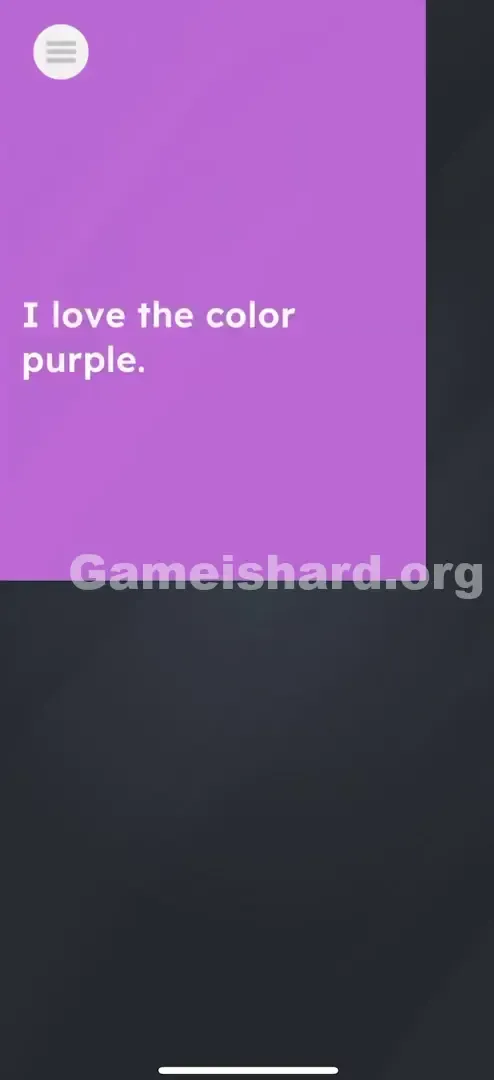
- Place your finger on the bottom-right edge (or corner) of the purple header.
- Drag firmly downward and to the right.
- Think of resizing a window on a desktop — you’re stretching that purple shape outward.
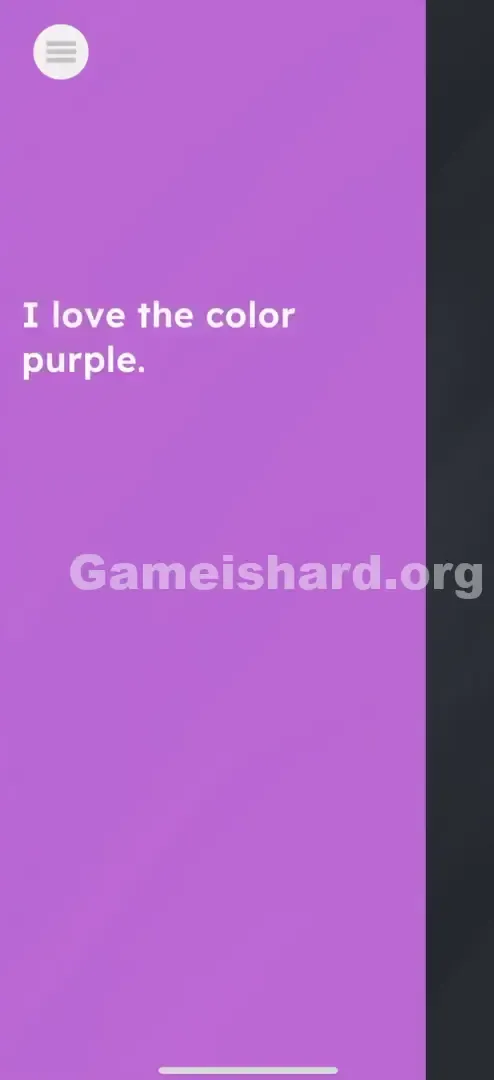
- Keep dragging until the purple completely overtakes the text and reaches the bottom-right edge of your display.
If It Did Not Work
- It snaps back: If you release too soon, the rectangle resets. You need full-screen coverage — commit to the drag.
- Menu opens: Tapping directly on the white hamburger icon pulls up the pause menu. Aim slightly away — touch the purple area itself.
- Corner glitch: Grabbing the exact corner can be finicky. Try pulling the bottom edge down first, then stretch the right edge — two separate moves work fine.
Small Details That Matter
Game is hard Level 7 uses a subtle fill threshold — not just visual coverage.
- The Threshold: Covering just the text isn’t enough. You typically need ~90–95% screen coverage for the win condition to trigger.
- Speed: Dragging slowly works fine — speed has no effect.
- Finger Placement: Avoid using your thumb if playing one-handed — it won’t reach far enough. An index finger gives better control and range. I solved it faster by using two fingers: one pulling the right edge, the other dragging the bottom edge — like stretching dough.
Why This Solution Works
This level reveals a core truth: the UI is malleable.
In most games, HUD elements float above gameplay. In Game is hard, the HUD is the gameplay. That purple rectangle isn’t just housing a menu icon — it’s a physical object governed by the game’s physics engine.
It breaks the fourth wall of mobile design. The phrase “I love the color purple” isn’t rhetorical — it’s a demand. And the only way to honor it is to flood the world with the one purple object present.
Bonus Tip
For speed-runners or replays, here’s the fastest execution:
- Rest your thumb near the center of the screen.
- Place your index finger on the purple rectangle.
- Pinch outward immediately — no hesitation.
- Level clears in under half a second. Skip the reading step — it adds unnecessary cognitive delay. See purple → stretch it.
Alternative Attempts of Game Is Hard Level 7 (What Doesn’t Work, and Why)
Here’s what I tested — so you don’t waste time:
- Highlighting the text: Tried dragging across “I love the color purple” hoping for a purple highlight. (Result: Text stays inert.)
- Tapping “Purple”: Assumed tapping the word would change the background. (Result: Zero response.)
- Shaking the phone: Thought motion might blend grey and purple. (Result: Just tired arms.)
- Dragging text into the box: Attempted to move the sentence into the purple area. (Result: Text is immovable.)
- Volume keys: Checked if hardware buttons altered color. (Result: Only changed media volume.)
Common Mistakes for Game Is Hard Level 7
- Opening the menu: Accidentally tapping the white hamburger icon instead of the purple surface.
- Letting go too early: Pulling the rectangle halfway down, seeing incomplete coverage, and releasing — you must hold it fully expanded.
- Assuming a bug: Restarting the app because the header seems glitched or misloaded.
- Over-analyzing the text: Spending time dissecting phrasing, synonyms, or double meanings.
- Flicking instead of dragging: The box won’t launch — it requires steady, sustained pull.
Pattern Recognition: How to Spot This Trick in Future Game Is Hard Levels
The Tell
If you spot any UI component — a bar, button, counter — that looks oddly cropped, misaligned, or unusually colored against a neutral backdrop, treat it as interactive. A lone colored object on a monochrome screen is almost always your tool.
The Habit
Touch everything. When entering a new level, don’t read first — explore. Tap backgrounds, drag headers, swipe footers. Assume nothing is anchored until proven otherwise. Any straight edge? Try pulling it.
Frequently Asked Questions of Game Is Hard Level 7 (Short, Useful)
Q: Why does the purple box snap back when I let go in Game is hard Level 7? A: You didn’t drag it far enough. It behaves elastically — hold it fully covering the screen for a split second to lock the win state.
Q: Can I change the color of the text in Game is hard Level 7? A: No. The text color is hardcoded. Your goal is to recolor the background, not the font.
Q: Is there a hidden paint bucket in Game is hard Level 7? A: No. The purple header is the paint — the object itself serves as your tool.
Q: My touch isn't registering on the box in Game is hard Level 7. A: You may be touching too close to the physical edge of your phone. Shift your finger slightly inward on the purple area before dragging outward.
More Game Is Hard Solutions
If you found this guide helpful, we have complete solutions for every level waiting for you. Our walkthroughs skip filler and tell you exactly where to tap or drag to succeed. Don’t let the game trip you up — jump to Game is hard Level 8 and keep your streak going!