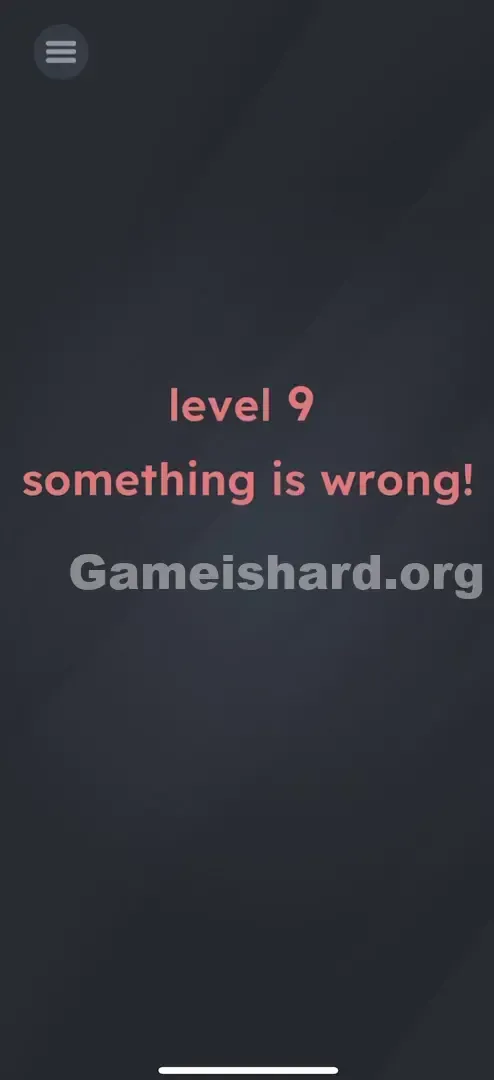
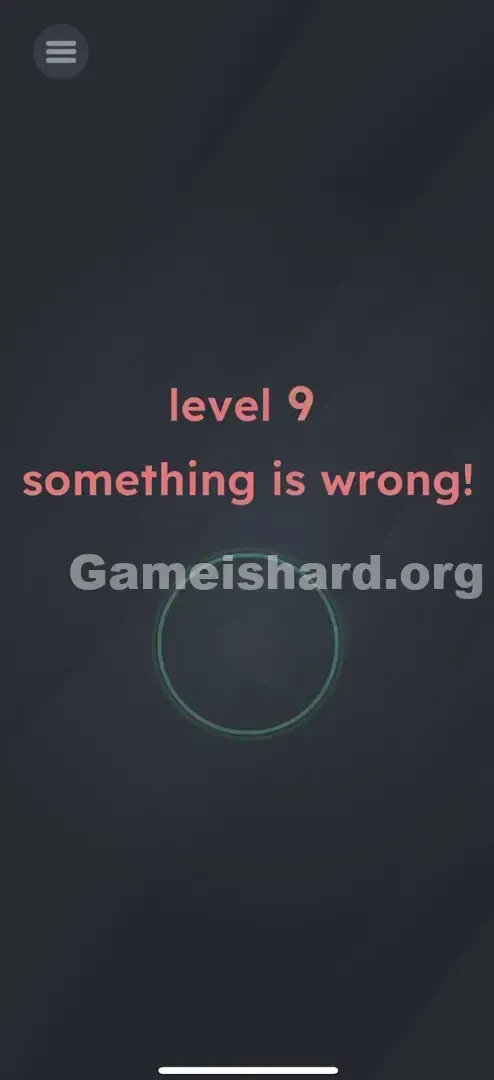
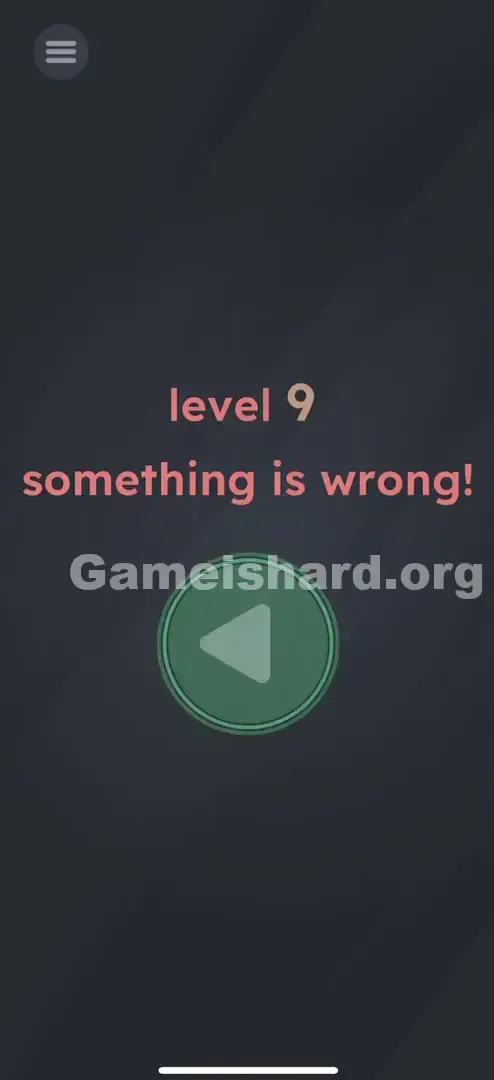
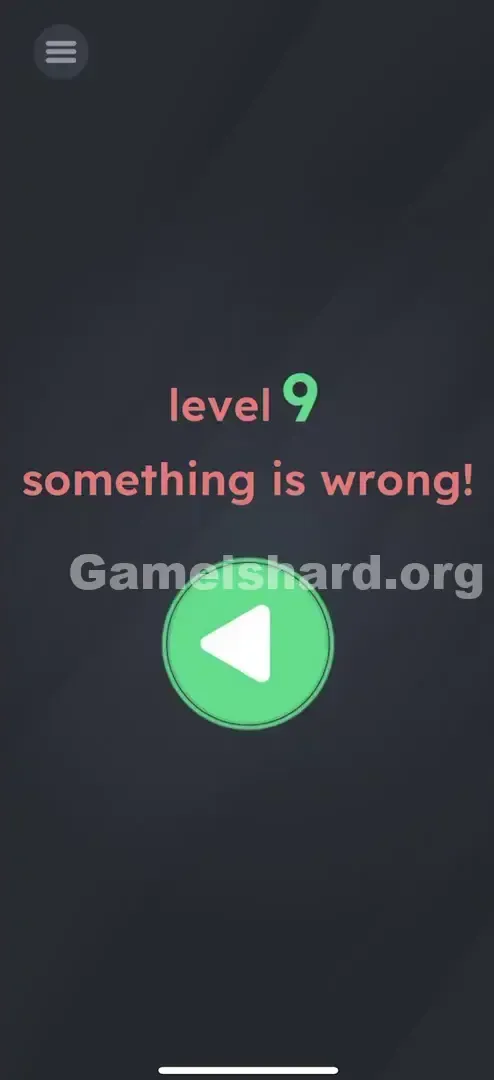
App updates can occasionally shift puzzle order. If this level 6 guide doesn’t match what you’re seeing, no problem! Browse our All Levels page to locate your exact puzzle by image.
(Tip: If you're playing on a PC or emulator, check for a screen rotation option in settings—flipping your monitor won’t activate the sensor.)
Level Overview
What Makes This Puzzle Tricky
You launch what should be Game is hard Level 6—but instead, the screen boldly declares, "Is this really level 9?!" It feels off, like you’ve skipped ahead or loaded the wrong version. Your brain locks onto the “9” instantly, sparking doubt: Did something glitch? Did you accidentally skip levels?
Your Goal
This isn’t about solving equations or spotting hidden objects. The goal is to realign perception—correcting the display by adjusting your device’s physical orientation. You’re not fixing code; you’re resetting context.
Mechanics involved in Game is hard Level 6:
- Tilt / Rotation Sensors (Gyroscope): The game detects how your phone is positioned in space.
- Visual Logic: A 6 rotated 180° becomes a 9—and vice versa.
- Hidden Buttons: The interactive element only activates once orientation shifts. It’s not a typo. It’s physics.
What Appears on Your Screen
Let’s unpack the visual trick confusing you right now. The background is plain gray—minimalist and stark.
- The Text: Centered in soft reddish-pink, it clearly states "level 9". Beneath it, a warning reads "something is wrong!" .
- The Button: Top-left corner holds a standard Menu icon (three horizontal lines). It looks ordinary—at first glance.
- The Void: No sliders, no input fields, no obvious exit. Just that bold “9” staring back at you. Stare long enough, and you might sense the menu icon feels oddly suspended—not anchored. But mostly, it’s just that number 9, challenging everything you expect.
Common Mistakes to Avoid
The Trap
The trap is trusting what’s written. We read left-to-right, top-to-bottom—so “level 9” feels like an undeniable fact. Most players instinctively hunt for a way to reverse it: tapping the number, swiping it away, or searching for a “back” option. That’s UI Blindness—you’re hunting for software controls when the puzzle lives in hardware.
First Instincts That Fail
- Tapping the 9: Feels like it should cycle backward. It doesn’t.
- Shaking the phone: A common reflex when things feel broken. Here, it does nothing but waste time.
- Tapping "something is wrong!": It’s descriptive—not interactive. No response.
- Opening the Menu: Tapping the top-left icon pauses the game, not progresses it.
Player Reactions
I poked that “9” for over a minute. Tried dragging the exclamation point. Even swiped at the text like it was a dating app profile. Then I noticed the menu icon looked like it was hanging from the ceiling—not resting on a surface. Flipped my phone out of frustration—and suddenly, “9” became “6.” Felt brilliant… and deeply embarrassed.
Step-by-Step Solution
Preparing the Move
Pause. Stop tapping. Look at “level 9.” Now picture “level 6.” They share the same shape—just flipped. The message “something is wrong” isn’t about the game—it’s about gravity.
Executing the Solution
- Hold your phone securely. You’ll rotate it—not tilt or shake.
- Flip it 180° so it’s fully upside down: charging port faces up, speaker faces down.
- Watch the text. The pixels don’t change—but viewed inverted, “level 9” now reads as “level 6.”
- Tap the Button. While still upside down, find the button (it may appear as the Menu icon—or reveal itself as a Play button, depending on your version) and tap to complete the level.
Confirming It Worked
Success triggers an immediate flash or transition to the “Level Passed” screen. If nothing happens, double-check that you’re fully inverted—not tilted.
If It Did Not Work
- Auto-Rotate Lock: If your phone’s system-wide portrait lock is enabled, the gyroscope may ignore the flip. Disable it in quick settings.
- Flat Surface: Don’t spin it on a table. Lift it and flip vertically—the sensor needs true orientation change.
Small Details That Matter
Gyroscope detection is usually reliable—but sometimes finicky.
- The Angle: Aim for near-perfect vertical inversion. Leaning sideways (like reclining on a couch) can confuse the sensor.
- The Delay: Give it half a second after flipping—let the accelerometer settle before tapping.
- Touch Input: Avoid tapping mid-flip. Flip first. Tap second. I solved it by holding my phone perfectly upright—perpendicular to the floor. Slouching made the sensor misread “up,” but sitting straight fixed it instantly.
Why This Solution Works
This level is pure hardware-based lateral thinking.
It forces you to step outside the app and engage with your device as a physical object—not just a screen.
- The "9 vs 6" Trope: A classic optical illusion. A 6 is literally a 9 doing a handstand. The game uses that ambiguity to create false progression.
- Sensor Integration: Mobile games uniquely leverage motion sensors—this level tests whether you consider your device’s capabilities beyond touch.
- Rule Breaking: The sequence “Level 6 comes after Level 5” is visually violated—so you restore continuity through action, not interface.
Bonus Tip
For speed or future attempts:
- Grip and Flip: As soon as the level loads, flip—don’t read the text.
- Tap Blindly: If you know the button’s location, tap the moment inversion locks in.
- Don’t Overthink: Ignore “something is wrong.” It’s flavor text meant to stall you. Do NOT waste time: dragging the number, rearranging characters, or trying to edit text. The font is static—it’s part of the background layer.
Alternative Attempts of Game Is Hard Level 6 (What Doesn’t Work, and Why)
- Dragging the 9 down: You might hope to “unfold” it into a 6. Nope—the text isn’t draggable.
- Typing "6": No keyboard appears. This isn’t a text-entry puzzle.
- Shaking the device: Works in other levels—but here, motion doesn’t reset anything. Orientation is static, not kinetic.
- Waiting: No timer ticks down. That “9” won’t morph on its own, no matter how long you wait.
- Tapping the Menu button (right-side up): Opens settings—not progress. Inversion is required for the button to act as “Play/Next.”
- Turning your head upside down: Funny, but irrelevant—the phone’s sensors must detect the flip, not your eyes.
Common Mistakes for Game Is Hard Level 6
- Mistake: Playing flat on a table. Fix: You must lift the device—the Z-axis movement is essential.
- Mistake: Assuming the game crashed. Fix: “Level 9” is intentional design—not a bug.
- Mistake: Tapping frantically. Fix: One clean flip + one precise tap beats random mashing.
- Mistake: Screen Rotation Lock is On. Fix: Toggle it off in phone settings if flipping has no effect.
- Mistake: Over-analyzing “Something is wrong.” Fix: It’s purely a nudge toward the number—not a coded clue or interactive element.
Pattern Recognition: How to Spot This Trick in Future Game Is Hard Levels
The Tell
If a level number seems out-of-sequence (e.g., jumping from 10 to 88) or suspiciously ambiguous, suspect orientation. Also watch for rotationally symmetrical characters: 6, 9, 8, 0, S, Z, M, W. An “M” that should be a “W”? Flip your phone.
The Habit
When taps and drags stop making sense, switch to hardware logic immediately: tilt, flip, shake, cover the camera, plug in a charger. The answer often lives outside the screen.
Frequently Asked Questions of Game Is Hard Level 6 (Short, Useful)
Q: Can I beat Game is hard Level 6 on an emulator (BlueStacks/Nox)? A: Yes—but it’s clunky. Use the emulator’s built-in “Rotate Device” key mapping or toolbar button. You can’t physically flip your monitor.
Q: I flipped my phone but nothing happened? A: Ensure it’s fully vertical—upside down—not angled. Spinning it flat on a surface rarely triggers the sensor.
Q: Does the text actually change to “6”? A: No pixel changes occur. The “9” stays “9”—but upside-down, your brain reads it as “6,” and the game accepts that perceptual shift.
Q: Do I need to hold it upside down for several seconds? A: Just long enough to tap the activated button—typically 1–2 seconds.
More Game Is Hard Solutions
If this guide saved your phone from an angry toss, we’ve got dozens more. Game is hard doesn’t ease up—it evolves. Our guides are built for speed, clarity, and zero filler—so you can solve fast and feel clever again. Bookmark us before Game is hard Level 10 rewires your expectations.