App updates can sometimes shuffle the order of puzzles. If this level 11 walkthrough doesn't match your screen, don't worry! You can browse our All Levels guide to find your exact puzzle by its picture.
Where to target: You need two fingers on the screen simultaneously; don’t let go of the top button until the level clears.
Level Overview
What Makes This Puzzle Tricky
You launch the level and see just one question staring back: "are you a multitasker?" It sounds like a personality quiz—but your phone isn’t after your life story. It’s testing your physical coordination. This is one of the game’s first real “dexterity checkpoints.” The mental puzzles pause here, and the focus shifts entirely to touch mechanics. If you’ve been playing one-handed while lounging, it’s time to sit up straight—this challenge demands two hands (or at least two fully independent fingers).
Your Goal
The goal is simple: prove your device supports true multi-touch and that your brain can manage two separate inputs at once. Most mobile games train you to act sequentially—tap, wait, tap again. Game is hard Level 11 breaks that flow. There’s no riddle to decode—just a direct, literal command from the buttons themselves.
Key Mechanics involved
- Multi-touch: The engine verifies two distinct, simultaneous touch points on your screen.
- Hold vs. Tap logic: Your device must register both a sustained press (hold) and rapid, discrete presses (taps) at the same time.
- UI Literalism: What the buttons say is exactly what they do—no hidden meanings or metaphors.
- Timing: Letting go of the hold—even for a split second—resets the tap counter. This level isn’t about cleverness. It’s about whether your hardware—and your hands—can follow basic instructions.
What Appears on Your Screen
The interface loads cleanly and symmetrically—deceptively minimal, which is often the sign of a physically demanding task.
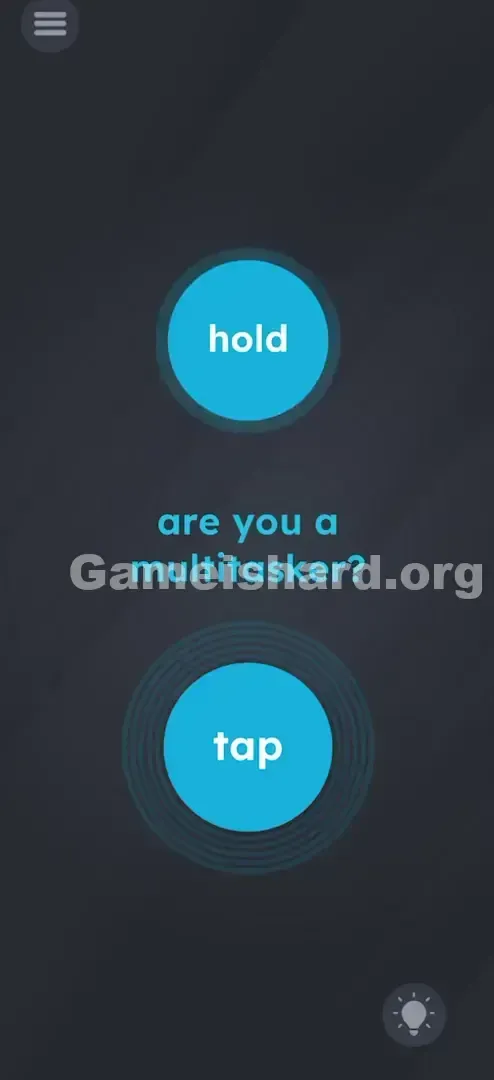
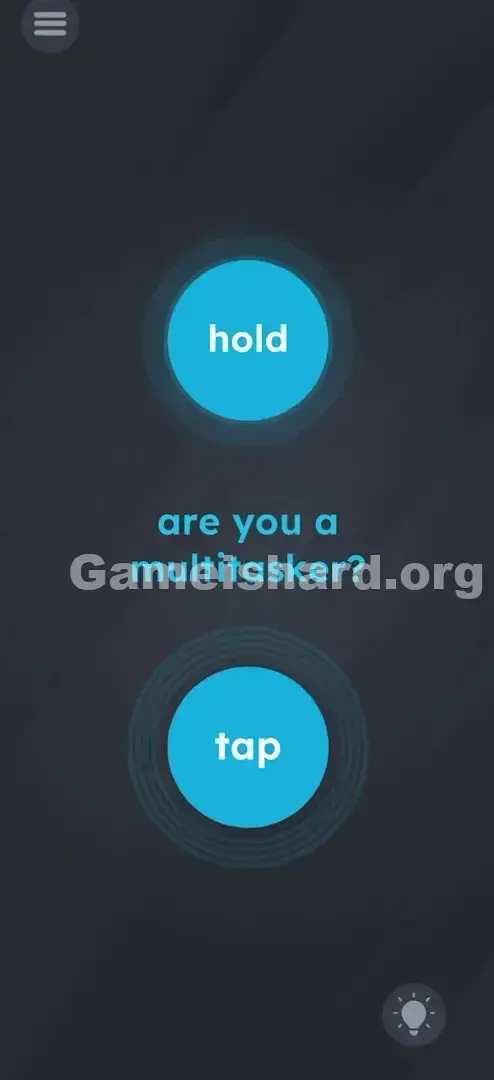
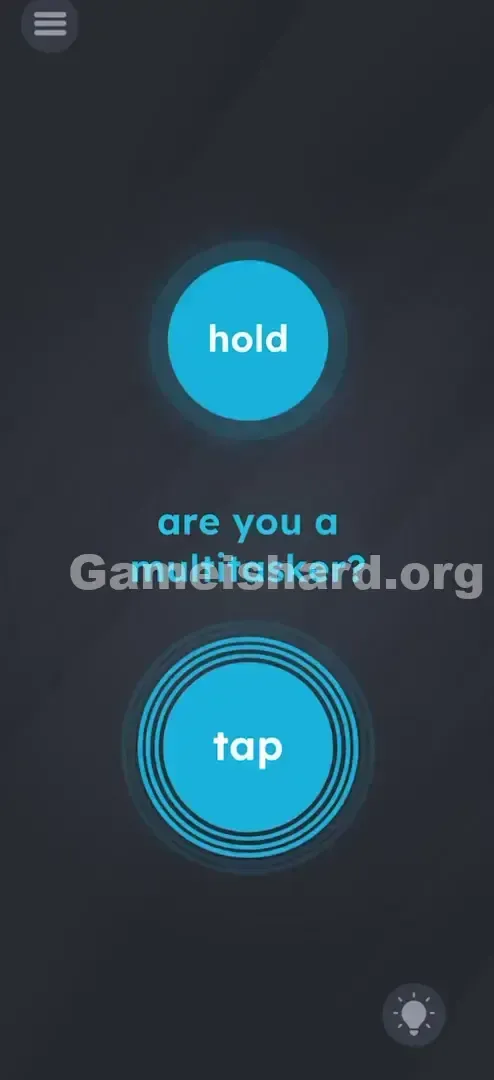
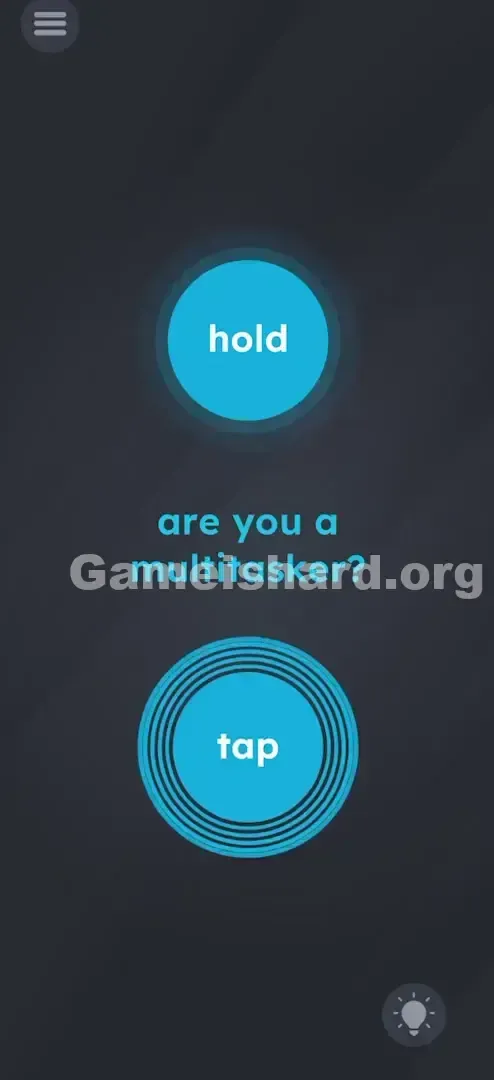
- Top Button: A large, round, cyan-blue button labeled hold in white lowercase text, positioned in the upper third of the screen.
- Middle Text: Centered between the buttons, floating calmly, is the prompt: are you a multitasker?
- Bottom Button: Identical in size and color to the top one, but labeled tap, placed in the lower third.
- Background: The game’s standard dark slate-grey backdrop.
- Menu/Hint UI: Standard hamburger menu (top-left) and hint lightbulb icon (bottom-right). Nothing flashy. No animations. Just two buttons and a question—pure execution.
Common Mistakes to Avoid
The Trap
The biggest hurdle is sequential thinking. Years of app design have wired us to interact one step at a time—press, wait, press again. So players often try holding the top button, releasing it, then tapping the bottom—or vice versa. But these aren’t two steps. They’re one synchronized action.
First Instincts That Fail
- The “Safety” Hold: Players press hold, then lift their finger to check if anything happened—breaking the required continuous input.
- The “Double Tap”: Tapping both buttons at once ignores the instruction—hold means don’t tap the top.
- The “Shake”: Hearing “multitasker” triggers chaotic energy, so some users shake the phone. Not helpful here.
Player Reactions
I stared at it for over a minute, convinced there had to be a trick. I tried dragging “hold” onto “tap.” I tried pinching, zooming, even tilting. I overcomplicated it—until I finally just did exactly what the labels said. Turns out, the game didn’t want a thinker. It wanted a precise executor.
Step-by-Step Solution
Preparing the Move
Stabilize your phone—place it flat on a table if your hands tend to wobble, or grip it firmly in one hand so your thumb and index finger (or both thumbs) stay steady and accurate.
Executing the Solution
- Place Finger 1: Rest your index finger (or thumb) directly on the top button labeled hold.
- Sustain the Hold: Keep that finger pressed down—no lifting, no sliding, no hesitation.
- Place Finger 2: With your other hand (or another finger), position yourself over the bottom button labeled tap.
- Execute the Taps: While maintaining constant pressure on the top button, start tapping the bottom button quickly and deliberately.
- Finish: Continue tapping until the completion screen appears—typically after 3–5 clean, rapid taps.
If It Did Not Work
- If nothing happens: You likely lifted the “hold” finger—even slightly—when starting the taps. Press more firmly and commit.
- If the buttons don’t respond: Wipe your screen. Oil, sweat, or dust can interfere with multi-touch detection.
- Button mashing: Avoid frantic swiping motions. Each tap needs to be a clear, intentional down-and-up motion—not a blur.
Small Details That Matter
This level relies on standard mobile OS touch APIs—so small physical details matter:
- The “Ghost” Touch: If fingers are too close or your palm brushes the edge, the system may detect an unintended third touch point and cancel the action. Keep your grip clean and focused.
- The Release Trigger: The win condition checks for both a sustained top-button press and registered bottom-button taps. If the top button’s state flickers to “released,” the tap count resets instantly.
- Snap Zones: Precision matters—but not pixel-perfect precision. As long as your “hold” finger stays within the blue circle’s visible boundary, you’re good. Drifting off breaks the logic. I solved it reliably only after switching to two-handed control—trying it one-handed caused fatigue, wobble, and accidental lifts.
Why This Solution Works
This is a textbook Hardware Verification Puzzle. It’s not measuring your reasoning—it’s confirming your device’s responsiveness and your ability to interact with it physically.
“Game is hard” constantly reminds you that the screen isn’t magic—it’s glass, sensors, and software. Forcing you to cover two areas at once shatters the illusion of detached control. You’re not observing—you’re operating.
It also introduces Simultaneity as a core mechanic. Up to this point, most levels unfold linearly. Level 11 plants the seed for future challenges—like holding open a gate while guiding a character through, or stabilizing one element while manipulating another.
Bonus Tip
For speedruns or repeats:
- Anchor the top button with your left thumb.
- Tap the bottom button with your right thumb.
- Focus on finger placement—not the text.
- Keep tapping until the “Level Passed” animation is fully visible. What NOT to do: Don’t attempt alternating taps with one finger. It’s physically impossible to satisfy the requirements that way.
Alternative Attempts of Game Is Hard Level 11 (What Doesn’t Work, and Why)
Here’s what failed—so you don’t waste time repeating the same errors:
- Dragging the buttons: The hold and tap buttons are fixed in place—no merging possible.
- Tapping the question text: “are you a multitasker?” is purely visual—no interactivity.
- Using volume keys: Hardware buttons aren’t read by this level’s logic.
- Holding the bottom button: The trigger requires tap events (down → up), not sustained presses.
- Tilting the device: Orientation changes won’t flip or reassign the buttons.
- Using the Hint: The hint simply repeats the button labels—no extra insight, and it costs coins or forces an ad.
Common Mistakes for Game Is Hard Level 11
- Lifting the Hold: The #1 error—your brain focuses on tapping, and your holding finger eases up without you noticing.
- Tapping too slowly: One tap every few seconds won’t register as multitasking—the taps need to feel active and concurrent.
- Reversing the roles: Tapping the top and holding the bottom violates the instructions. Top = hold. Bottom = tap.
- Screen protectors: Thick, uneven, or damaged protectors can dampen multi-touch sensitivity—press with slightly more force.
- Sweaty hands: Moisture causes false touches or signal noise—dry your fingers first.
- Quitting early: Don’t stop after one tap. Aim for 3–5 quick, clean taps before expecting success.
Pattern Recognition: How to Spot This Trick in Future Game Is Hard Levels
The Tell
When two interactive elements appear far apart on screen—and especially when verbs like Hold, Keep, Secure, or Stay appear in the UI—expect a multi-touch requirement.
The Habit
Adopt the “Anchor Finger” habit. In upcoming levels, if dragging fails or doors snap shut mid-action, try fixing one element with a steady finger (anchoring it), then using a second finger to handle the rest. This pattern recurs frequently in Game is hard.
Frequently Asked Questions of Game Is Hard Level 11 (Short, Useful)
Q: Can I skip Game is hard Level 11? A: Yes—usually via ad or coin—but don’t. It’s a foundational mechanics lesson. Later levels build directly on this skill.
Q: Why isn’t my tap registering in Game is hard Level 11? A: You’re likely tapping outside the blue circle’s active zone. Aim for the center of the tap button—the hitbox is strict.
Q: Does it matter which fingers I use in Game is hard Level 11? A: No. Your phone detects touch points—not fingers. Thumb, index, pinky—it all works, as long as there are two distinct contacts.
Q: Is there a timing limit in Game is hard Level 11? A: No visible countdown, but the hold-and-tap action must happen in close succession. Pausing too long between the hold and first tap won’t trigger progress.
Get more level walkthroughs on thegameishard.org We write these guides to be fast, precise, and devoid of the fluff you find on other recipe-blog-style gaming sites. If this helped you stop raging at your screen, verify your hardware, and pass the level, share the link with your discord group. Good luck on Game is hard Level 12 !