App updates can sometimes shift puzzle order. If this level 250 walkthrough doesn’t match what you’re seeing, no stress! Flip through our All Levels directory to locate your exact puzzle using its visual layout.
You must physically hold the device as if taking a real phone call—this unlocks the true puzzle rules before any tapping begins.
Level Overview
What Makes This Puzzle Tricky
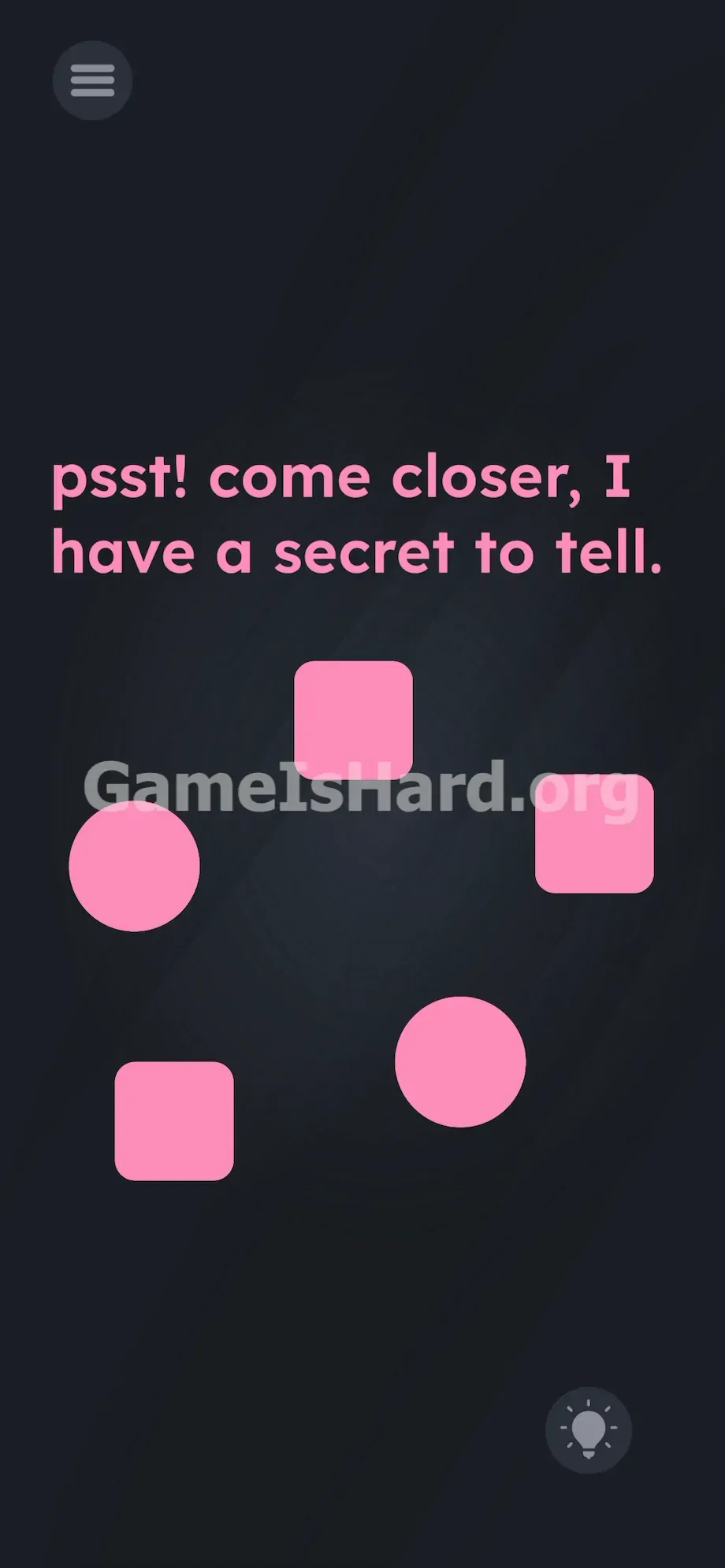
A soft pink screen greets you with a whisper: “psst! come closer, I have a secret to tell.” Most players skip right past the clue. They drag shapes. They tap frantically at the words. Nothing responds. The game isn’t just hiding the solution—it’s redefining what counts as part of the interface. Your touchscreen isn’t the whole picture. The hardware inside your phone is the puzzle.
Your Goal
Your mission is to reveal the real instructions—and that starts by stepping away from the screen entirely. The first step requires interacting with your phone’s physical sensors—not swiping, not dragging, but triggering an actual hardware response.
Mechanics in play here:
- Hardware sensor / Proximity trigger
- Hidden UI
- Multi-step logic
- Sequential tapping It’s not a mistake. It’s intentional design.
What Appears on Your Screen
The opening view is stripped down—almost deceptively bare.
At the top, bold pink text reads: psst! come closer, I have a secret to tell.
Beneath it sits a ring of five identical-pink shapes: three squares (boxes) and two circles (balls), all centered on a dark gray background. In the bottom-right corner, the familiar lightbulb hint icon sits quietly.
No sliders. No blank fields. No letters to rearrange. The screen feels frozen. That stillness? It’s the puzzle’s first trick.
Common Mistakes to Avoid
The Trap
Hardware tunnel vision. We’re trained to treat mobile games as flat, touch-only experiences. When progress stalls, we default to swiping, dragging, or holding. When told to “come closer,” many instinctively pinch to zoom. That fails—because the clue isn’t about screen scale. It’s about real-world distance. Your phone has sensors everywhere—microphones, gyroscopes, and yes, a proximity detector tucked near the front camera. This level weaponizes your habit of ignoring the device as a physical object.
First Instincts That Fail
I wasted minutes trying to drag the word secret into a box. Zero success. Talking into the mic? Nope. Cranking volume buttons? Still nothing. Pulling apart letters one by one? A dead end. The solution isn’t digital—it’s physical.
Player Reactions
Total forehead-slap moment. I assumed the mic was key and actually leaned in and whispered, “What’s the secret?” like someone who’d lost their mind. Then—by accident—I brushed the top edge of my screen against my cheek… and the colors flipped. Proximity sensor. Of course.
Step-by-Step Solution
Preparing the Move
Grab your phone firmly. Pause for a second and look away from the screen. Find the front-facing camera area—that’s where the proximity sensor lives.
Executing the Solution
- Pick up your phone and press the top half of the screen firmly against your ear—just like answering a call.
- Hold it there for a full second.
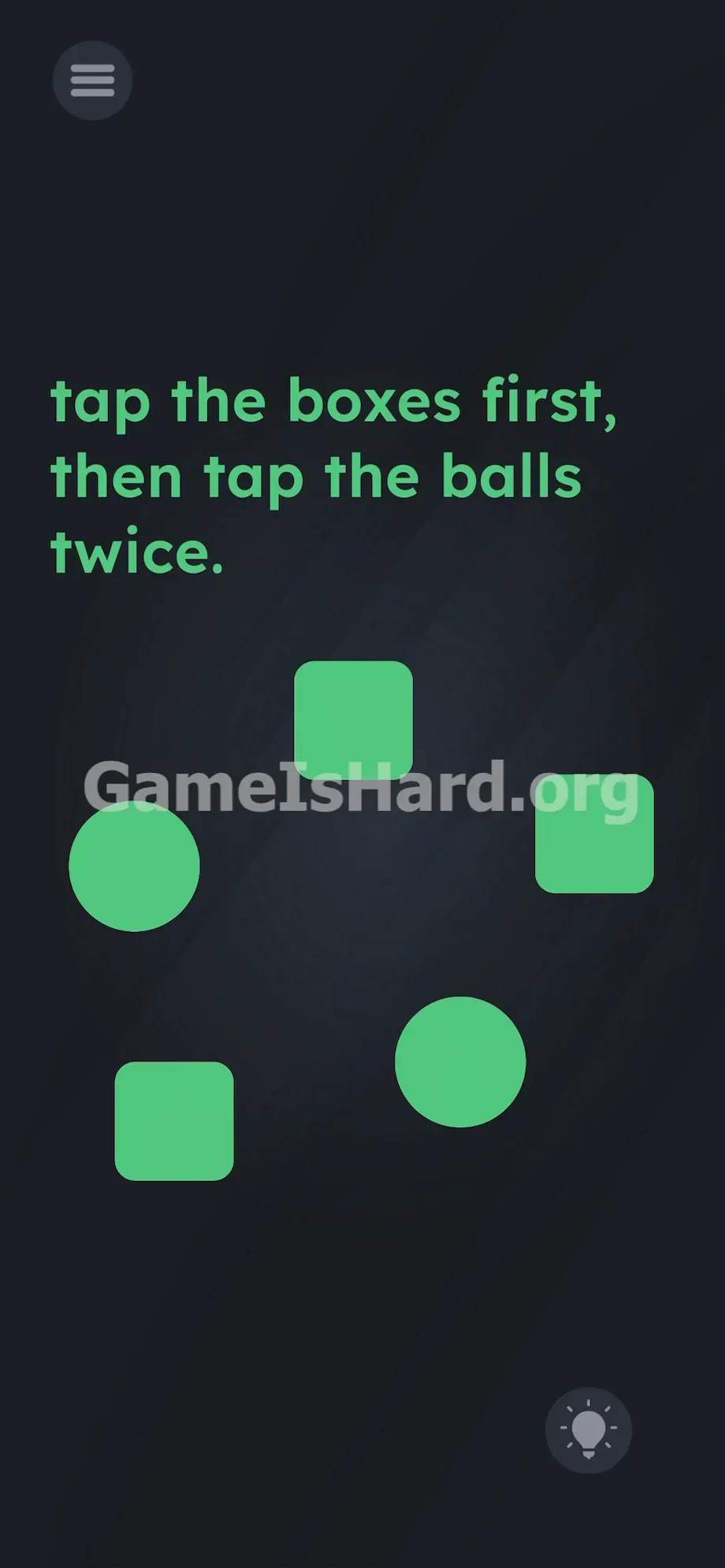
- Pull the phone back and check the screen. Everything shifts from pink to green.
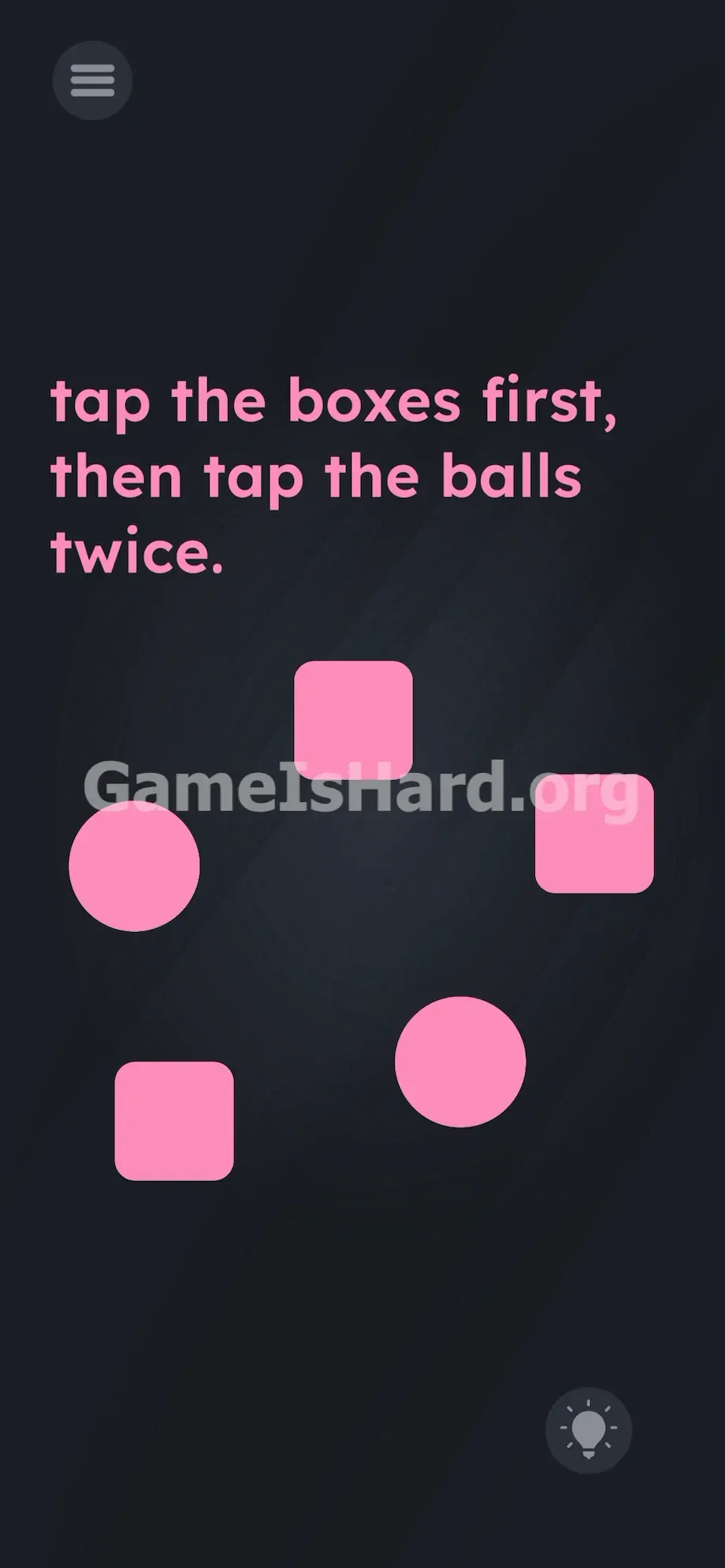
- Read the updated instruction: “tap the boxes first, then tap the balls twice.”
- Tap each of the three green square boxes exactly once.
- Tap each of the two green round balls exactly twice.
If It Did Not Work
- The text won't change: Your proximity sensor may be obstructed. Thick cases or smudged screen protectors often interfere. Wipe the top bezel clean and try again—or simply cover the front-facing camera fully with your thumb.
- I tapped but failed: You likely broke the sequence. Boxes must all be tapped before touching any ball.
- Nothing registered: Avoid rapid tapping. Be deliberate. Accidentally tapping a ball three times invalidates the pattern. Reset and restart the full flow cleanly.
Why This Solution Works
This level challenges your willingness to break immersion—and interact with your device as a real-world object.
Mobile OSes use proximity sensors to disable the touchscreen during calls—so your face doesn’t hang up on people. The developers repurposed that exact system as a puzzle gate. Once triggered, the level drops back to a simple execution test: follow clear, ordered instructions precisely. Speed doesn’t help. Force doesn’t help. Accuracy does.
Bonus Tip
Skip overcomplicating the sensor step. If bringing the phone to your ear feels awkward, fake it.
- Press your thumb firmly over the top edge of the screen—right where the speaker and front camera sit.
- Wait for the UI to flip to green.
- Tap each square once.
- Double-tap each circle.
- Done. No dragging, no typing, no guessing—just clean, mechanical action.
Frequently Asked Questions
Why isn't the text changing when I zoom in? Zooming is a touch gesture—the prompt “come closer” refers to physical closeness, not screen magnification. You need to activate the hardware sensor near your front camera by covering it.
Does the order of the boxes matter? Not at all. Tap the three boxes in any sequence—left-to-right, diagonal, random—it’s fine. Just make sure all three are tapped before you start on the balls.
I tapped the balls twice but the level didn’t complete? You probably tapped one three times by accident. The game tracks exact counts—if a ball registers three taps instead of two, it treats it as an instruction violation. Restart the level, re-trigger the green UI, and tap slowly and deliberately.
Can I do this level on a tablet? Yes. iPads and Android tablets include proximity sensors—usually along the top bezel near the front camera. Just cover that spot with your hand instead of lifting the whole device to your ear.
More Game Is Hard Solutions
We cut fluff—not solutions. Our guides exist to get you unstuck and back into gameplay, fast.
If this walkthrough rescued your patience, share it in your Discord server or send it to friends stuck endlessly tapping. Visit thegameishard.org for walkthroughs of every brutal stage. Keep going—you’ve got this.