App updates can sometimes shift puzzle order. If this level 21 guide doesn’t match what you’re seeing, no problem! Jump to our All Levels page to locate your exact puzzle by image.
Wait for the system to register the screenshot, and the new button will pop up directly under the text.
Level Overview
What Makes This Puzzle Tricky
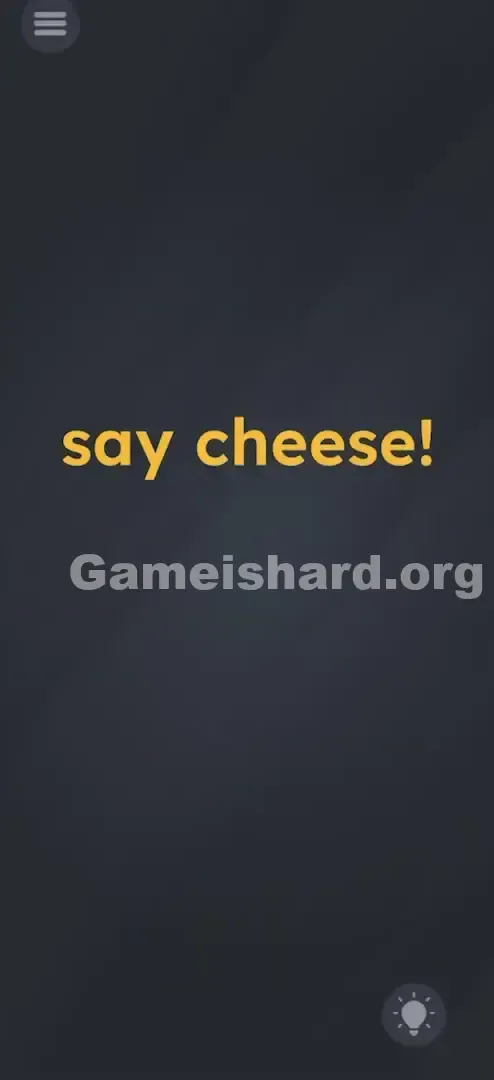
You’re faced with an almost entirely black screen. Bright yellow text reads “say cheese!”—and that’s all there is. No camera icon. No shutter control. No mic prompt. You might even shout “Cheese!” at your phone, but nothing responds. The real challenge? The game hides its interaction outside the app itself—asking you to step into your device’s operating system instead.
Your Goal
This isn’t about solving an in-app riddle. It’s about interpreting “say cheese!” literally: it signals a photo moment. And since you’re looking at a screen—not a person—the photo must be a screenshot of the game itself. Your job is to trigger your phone’s built-in screenshot function to capture the scene.
Key Mechanics involved
- System-Level Interaction: Unlike most levels, this one requires hardware—not touch. You’ll use physical buttons, not on-screen taps.
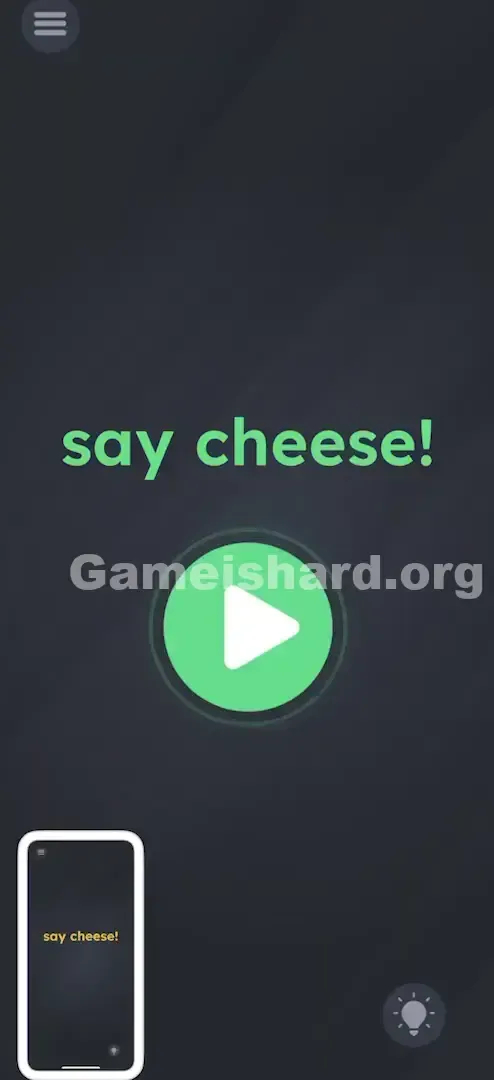
- Hidden UI: The green Play button only appears after the correct system event fires—it’s not visible until you’ve taken the screenshot.
- Lateral Thinking: You must connect the phrase “say cheese” to the universal action of snapping a photo—even when no camera is visible.
- OS Detection: The app listens for the OS-level signal that confirms a screenshot was captured—not the image content itself. It’s less a puzzle and more a hardware handshake.
What Appears on Your Screen
Let’s describe the screen precisely—it’s intentionally sparse:
The background is the game’s familiar dark slate-grey, clean and minimalist—designed to emphasize emptiness rather than hide elements.
Centered near the top half of the display is the phrase: say cheese! It uses the game’s standard sans-serif font and signature yellow color. That exclamation point? It’s not decorative—it’s urgent.
In the top-left corner sits the Settings/Menu icon (three horizontal lines).
In the bottom-right corner is the Hint bulb icon.
That’s everything. No sliders. No faint outlines. No secondary text. The void is the clue—and the missing camera button tells you the camera is you.
Common Mistakes to Avoid
The Trap
The trap is “App Containment”—the mental habit of assuming games only respond to inputs inside their own interface. We tap, swipe, and pinch the glass—but rarely consider the power or volume buttons as part of gameplay. When you read “say cheese,” your brain jumps to:
- Is there a mic? (Should I speak?)
- Is there a hidden shutter? (Should I tap the black space?)
- Is the text interactive? (Can I drag or rearrange it?) You waste time probing software when the answer lives in hardware.
First Instincts That Fail
We’ve watched players tackle this level—and nearly every first attempt involves voice. They grant mic permissions, yell “CHEESE!”, whisper it, try “SMILE!”—nothing works. Next comes dragging the words around: “Does ‘say’ go into ‘cheese’?” Nope. Does the hint bulb do anything besides show ads? Not here. The silence isn’t broken by feedback—it’s designed to build tension.
Player Reactions
I stared at it for over two minutes. Tapped every inch of that black background, convinced a tiny shutter button was hiding in plain sight. Then, while setting my phone down, I accidentally pressed the volume rocker—and realized I’d been overcomplicating it. The second I took the screenshot and saw that green button appear, it clicked: “Say cheese” = photo. Photo on screen = screenshot.
Step-by-Step Solution
Preparing the Move
Get ready physically—not mentally. Position your fingers on your phone’s side buttons. Stop interacting with the screen. Don’t drag the text. Hold your device securely so you can press two buttons cleanly without dropping it.
Executing the Solution
- Identify your Screenshot Buttons: On most modern Androids and iPhones (no home button), it’s Power + Volume Down pressed together. On older iPhones with a home button, it’s Power + Home .
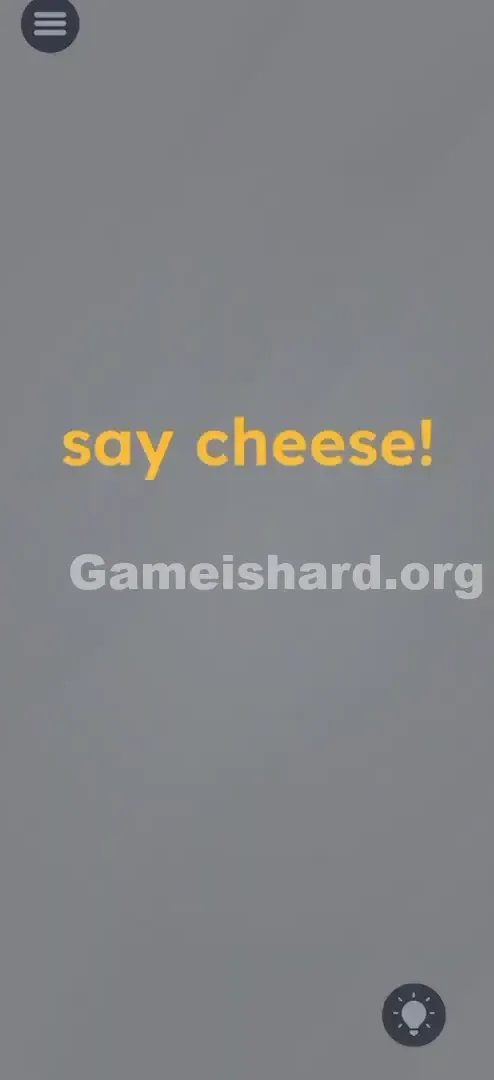
- Press and Hold Briefly: Tap both buttons at once—just long enough for your screen to flash white or emit a shutter sound. That’s your screenshot.
- Wait for the UI: Right after the flash or animation ends, a bright Green Play Button will appear centered beneath the “say cheese!” text.
- Tap to Win: Tap that green button to advance.
If It Did Not Work
- "I took a screenshot but nothing happened": Pause for 2–3 seconds. The app may need a brief moment to detect the OS event.
- "The screenshot menu is covering the game": If your phone opens an edit overlay, dismiss it immediately so the game remains visible—the green button should be waiting.
- "I'm on a tablet/emulator": Using BlueStacks or similar? Look for the camera icon in the emulator’s sidebar—it triggers the same response.
Small Details That Matter
The game isn’t scanning your screenshot—it’s listening for the OS log entry that says SCREENSHOT_TAKEN .
- Timing: Precision isn’t needed. Just get the screenshot taken.
- Permission: Camera access isn’t required—but the game must be the active, foreground app. Taking a screenshot of your notifications won’t count.
- The Green Button: It’s not a “Next” arrow—it’s a “Play” symbol, subtly reinforcing that you just captured a moment worth viewing.
- My Fix: On one older device, my volume button was sluggish—I had to try three times before the OS registered the press correctly. If your buttons feel stiff, press firmly and deliberately.
Why This Solution Works
This level breaks the fourth wall—intentionally.
In gaming, the “fourth wall” is the screen itself: the invisible barrier between player and world. Most games treat it like a window. Game Is Hard shatters that illusion by treating your phone as a physical object—not just a portal.
The logic flows like this:
- Prompt: “Say Cheese!” → instantly evokes photography in real life.
- Constraint: Zero camera controls exist inside the app.
- Deduction: Since no tools are provided, you must supply the camera.
- Execution: The only way to photograph an app screen is via screenshot. It tests whether you see your device as a tool—not just the app as a playground. This kind of mechanic is rare, but unforgettable (think closing a Nintendo DS to stamp a map in Zelda).
Bonus Tip
Speedrunners and repeaters, listen up—here’s the fastest path:
Skip reading the text entirely.
Take the screenshot the instant the level loads.
Tap the Green Button the millisecond it appears.
Ignore any “Share screenshot” pop-ups your OS throws up. Do Not Waste Time On:
Shaking the device (that’s for accelerometer-based levels).
Adjusting volume (unless you’re accidentally triggering the screenshot combo).
Tapping individual letters—it’s not a keyboard puzzle.
Alternative Attempts of Game Is Hard Level 21 (What Doesn’t Work, and Why)
Here’s a list of common dead ends—and why they fail.
- Dragging “Cheese” to “Say”: Makes sense for a word scramble, but this is a hardware puzzle—the text is fixed.
- Covering the front camera: Some games use ambient light sensors. This one doesn’t—darkening the room changes nothing.
- Speaking into the mic: Even though “Say” is the verb, voice recognition isn’t used here.
- Tapping rapidly anywhere: There are no hidden hitboxes—just clean glass and growing frustration.
- Waiting passively: Unlike patience-based levels, this one won’t reward stillness. The green button won’t appear unless you act.
- Flipping the phone upside down: A classic tilt trick—but orientation plays no role here.
- Opening the in-game Settings Menu: The solution lives outside menus—in your hardware or OS.
Common Mistakes for Game Is Hard Level 21
- Mistake: Taking a photo of your phone with another device. Why: The game only responds to internal system events—not external images.
- Why: The game only responds to internal system events—not external images.
- Mistake: Recording a video instead of taking a static screenshot. Why: The trigger is tied specifically to the screenshot event—not video capture.
- Why: The trigger is tied specifically to the screenshot event—not video capture.
- Mistake: Assuming the level crashed or failed to load. Why: The blank screen is the loaded level—minimalism is the design.
- Why: The blank screen is the loaded level—minimalism is the design.
- Mistake: Tapping “Say Cheese” repeatedly. Why: It’s decorative text—not a functional button.
- Why: It’s decorative text—not a functional button.
- Mistake: Using the wrong button combo (e.g., Power + Volume Up). Why: That usually adjusts volume or forces a reboot—neither helps here.
Pattern Recognition: How to Spot This Trick in Future Game Is Hard Levels
You’ll encounter variations of this mechanic again. Here’s how to spot it early.
The Tell
Look for Total UI Absence.
If a level loads and shows:
- Zero movable objects.
- No input fields or toggles.
- No visible buttons or sliders.
- A prompt referencing native phone actions (charging, sleeping, volume, photos)… …then it’s almost certainly a hardware-triggered level.
The Habit
When the screen feels unresponsive to touch—stop touching it. Glance at your phone’s edges.
- Does the prompt suggest sound? Try volume buttons.
- Does it hint at power or rest? Try the power button.
- Does it imply motion? Try shaking or tilting.
- Does it evoke sight or capture? Try screenshot. Game Is Hard Level 21 teaches you: your hands—not just your fingertips—are part of the controller.
Game Is Hard Level 21 FAQ (Short, Useful)
Q: Does this level require camera permissions in Game is hard Level 21? A: No. Screenshots are handled by your OS—they overlay the app. The game simply listens for the event, not the camera feed.
Q: I took a screenshot and nothing happened in Game is hard Level 21. Why? A: You may have missed the timing—or your device uses an alternate gesture (like three-finger swipe) that the game doesn’t monitor. Stick with physical buttons.
Q: Can I skip this level? A: Yes—ads usually offer a skip—but once you know the trick, it takes under two seconds. Save skips for tougher logic or math puzzles.
Q: What if my buttons are broken in Game is hard Level 21? A: Enable your phone’s on-screen accessibility menu (like Assistive Touch or Accessibility Shortcut) to trigger screenshots via software—the game accepts those too.
More Game Is Hard Solutions
If this guide saved you time, you’ll love our full collection—we cover every level, written for players who want straight answers and zero filler. Keep progressing—and keep snapping!