App updates can sometimes shuffle the order of puzzles. If this level 299 walkthrough doesn't match your screen, don't worry! You can browse our All Levels guide to find your exact puzzle by its picture.
Level Overview
What Makes This Puzzle Tricky
You’re staring at a broken-looking controller interface. The prompt says fix the controller. You instinctively try dragging pieces into place — swiping, holding, dragging — but nothing responds. That’s no accident. The game’s designed to make you question what’s broken: the UI… or your assumptions.
Your Goal
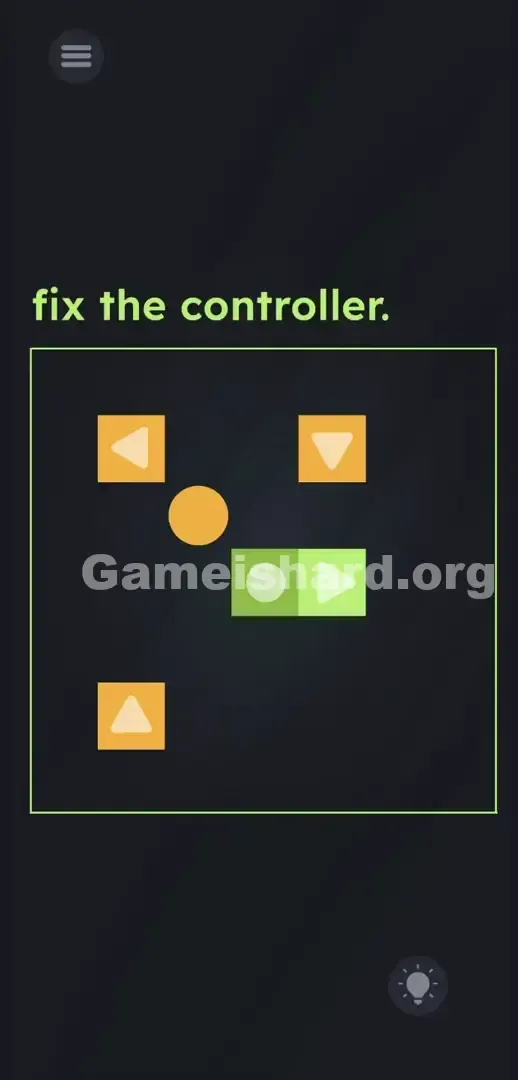
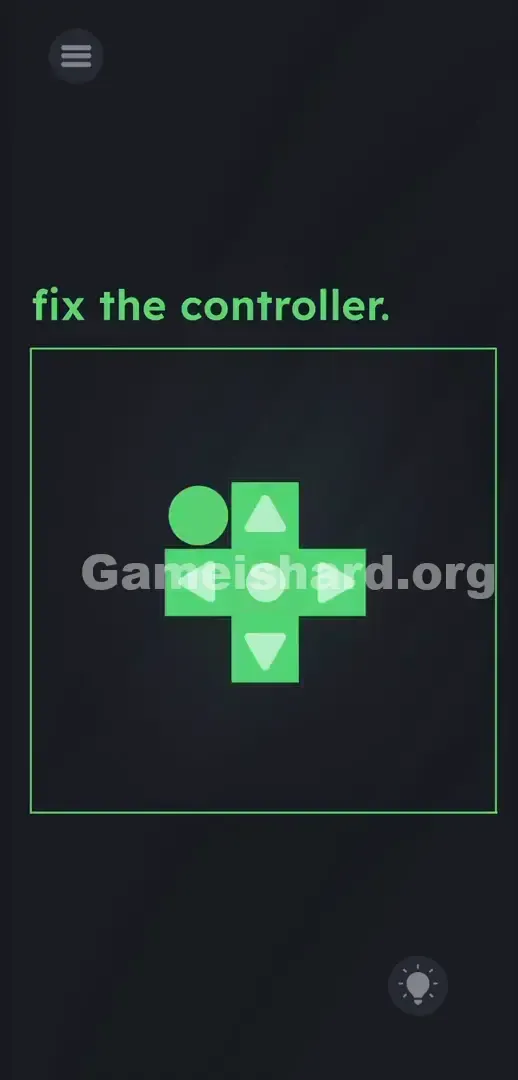
Your goal is to reconstruct a full directional pad in the center. The green Right arrow block is already locked in place. The other three arrows — Up , Down , and Left — float freely nearby. But you can’t move them directly. Instead, you’ll use the orange ball as a movable tool to physically push them into position.
- Button trick: Those arrow blocks aren’t just decorations — they’re active controls.
- UI drag: Dragging is intentionally disabled to break muscle memory.
- Hidden object functionality: The orange ball isn’t scenery — it’s your only manipulator.
- Logic trap: The interface is the gameplay space — not separate from it. It’s not a glitch. It’s the core mechanic.
What Appears on Your Screen
The screen mimics a retro console menu gone slightly off-kilter. At the top left, bright green text reads fix the controller.
Below that, a thin green border outlines the play area. Inside, everything feels deliberately unbalanced. Centered is a solid green block with a white Right-facing arrow . To its left sits a faded green cross shape with three blank circular slots — your assembly target.
Scattered around the edges are three loose orange square blocks: one marked Up , one Down , and one Left .
Floating in the open space between them is a single orange ball — seemingly idle, but absolutely essential.
In the bottom right corner, the usual lightbulb hint button waits. Skip it — you won’t need it.
Common Mistakes to Avoid
The Trap
UI blindness is the real enemy here. When you see matching shapes and empty slots, your brain screams drag and drop. But Game Is Hard disables dragging entirely — and instead turns those arrow blocks into live input buttons. Tapping them doesn’t select anything; it triggers movement.
First Instincts That Fail
I tried dragging the ball straight toward the slots. Nothing. I tried dragging arrow blocks onto the cross. No response. Even tried tilting my phone — hoping gravity would help. Nope. This level is built to punish standard puzzle reflexes.
Player Reactions
Frustration led me to rapid-tap the Up block — and suddenly, the orange ball jumped upward. Lightbulb moment: those arrows aren’t static art. They’re functional buttons controlling the ball’s movement in real time.
Step-by-Step Solution
Preparing the Move
Focus first on the orange ball . Forget treating the arrow blocks as puzzle pieces — they’re your remote control. The ball is your pusher. Your job is to pilot it into position, then use directional taps to drive it into each loose block and shove it home.
Executing the Solution
- Tap the loose Up , Down , Left , or the fixed Right arrow block. Watch the orange ball shift exactly one grid space in that direction.
- Choose your first target — say, the Left-facing arrow block (often near the top left).
- Steer the orange ball so it lands directly to the right of that block — snug against its right edge, with wall space behind it.
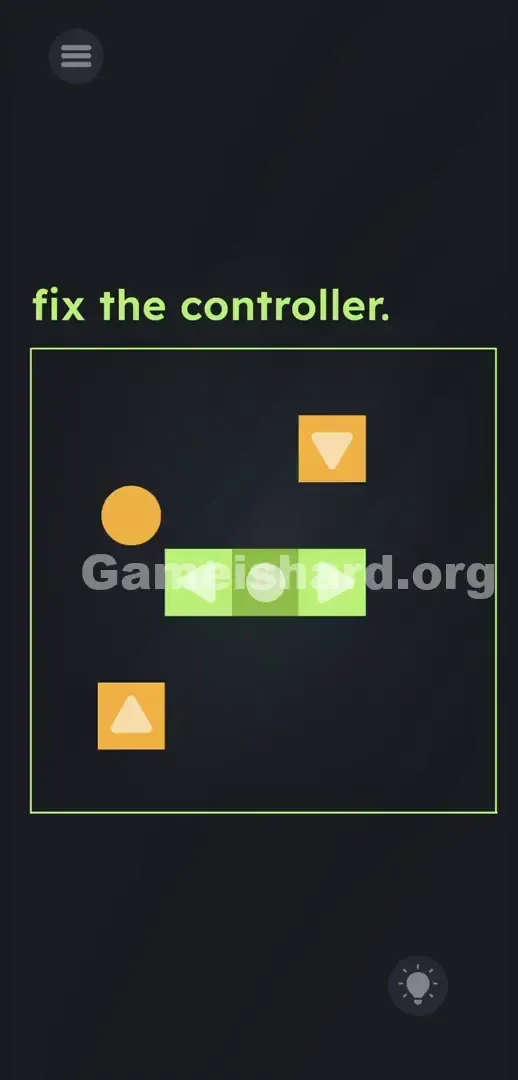
- Tap the Left button. The ball surges left, colliding with the block and sliding it across the screen.
- Keep tapping Left until the block slides cleanly into the far-left green slot on the cross. You’ll hear or see it lock in.
- Pull the ball away — recenter it in the play zone.
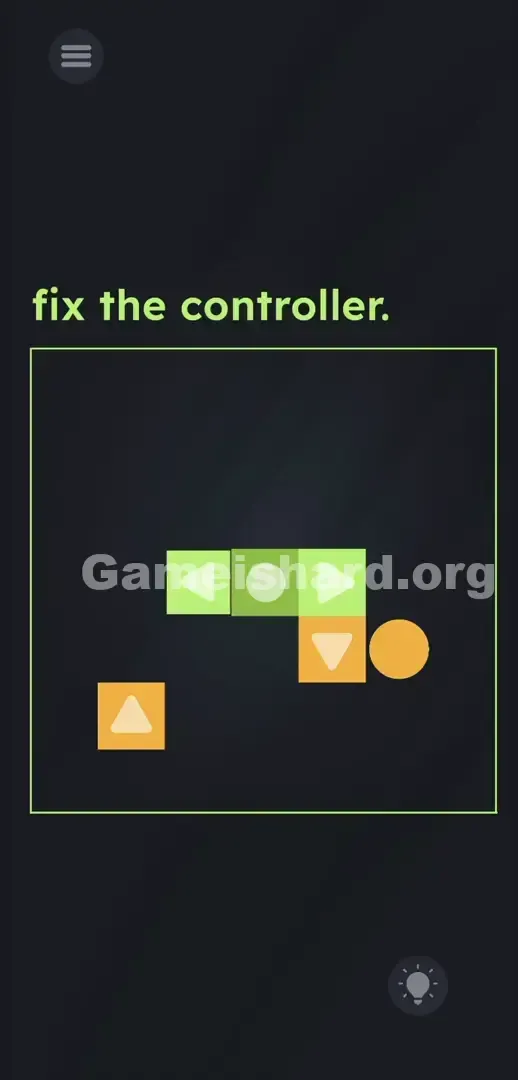
- Repeat for the remaining blocks. For the Up block, get the ball directly beneath it, then tap Up repeatedly to nudge it into the top slot.
- Once all three — Left , Up , and Down — snap into place beside the fixed Right block, the level completes instantly.
If It Did Not Work
- Stuck on a wall: If the ball hits the green border, tap the opposite arrow to reverse out of the corner.
- Cornered blocks: Avoid pushing any block into tight corners. If it happens, reposition the ball beside the exposed edge and gently nudge it free.
- Overshooting: Tap deliberately — one tap equals one precise movement. Spamming makes it easy to overshoot the slot.
Why This Solution Works
This level dismantles how we think about control. You assume you’re meant to manipulate the pieces — but instead, the pieces manipulate you, via the ball. It flips the script: buttons aren’t abstract commands — they’re physical objects inside the world, subject to collision and momentum.
Think of a real controller: press a button → character moves. Here, the button is part of the world — and pressing it moves an object that then pushes the button into place. It’s interface design turned inside out. The UI isn’t layered over the game — it is the game. The instruction “fix the controller” isn’t a task — it’s misdirection. The real puzzle is realizing the controller is the solution.
Bonus Tip
Skip the trial-and-error and follow this optimized flow:
- Start with whichever loose block is closest to the center — clears space faster and gives more maneuvering room.
- Align the orange ball perfectly parallel to your target slot before pushing — prevents diagonal slips or missed placements.
- Tap with rhythm, not speed. One tap = one clean movement.
- Use the fixed green Right button only when you need to shift the ball eastward — it won’t budge, but it will move the ball. Dragging does nothing — and never will.
Frequently Asked Questions
Why won't the blocks move when I drag them? Because they’re input devices — not draggable assets. Tapping sends movement data to the ball. Dragging is fully disabled to enforce the intended interaction.
I pushed a block into the corner, now what? Stay calm. Circle the ball around to the side of the trapped block that’s still accessible, then give it a gentle nudge back toward open space. There’s no penalty, no timer, and no dead ends.
Does the order of the blocks matter? Not at all. You can install Up , Down , or Left in any sequence — the level only verifies that all three green slots are occupied.
What is the green Right block actually for? Two roles: it’s your “move right” command for the ball, and it serves as the immovable foundation for the completed controller.
More Game Is Hard Solutions
Tired of guides that bury the answer under fluff and filler? Ours cut straight to the solution — accurate, tested, and built for speed. Share this with your Discord squad stuck on Game Is Hard Level 299. And check back soon for Level 300.