App updates can sometimes shuffle the order of puzzles. If this level 262 walkthrough doesn't match your screen, don't worry! You can browse our All Levels guide to find your exact puzzle by its picture.
Target the absolute tip of the shape to ensure the game registers your touch as a hinge mechanic rather than a standard screen swipe.
Level Overview
What Makes This Puzzle Tricky
You’re met with just one line of text and a simple geometric shape—no animation, no hints, no movement. Tapping does nothing. No menu appears. No hidden clues reveal themselves. That silence? That’s when doubt creeps in. This puzzle tricks you not with complexity, but with deliberate emptiness.
Your Goal
Your task isn’t to decode symbols or find hidden items—it’s to physically transform a flat UI element into something three-dimensional. You must do exactly what the instruction says—not interpret it, not overthink it—just act.
This level leans heavily on a few core mechanics to disrupt your expectations:
- UI drag: Turning passive interface elements into interactive objects.
- Tilt / rotation: Using a simple horizontal drag to trigger 3D-style rotation in a 2D space.
- Hidden object: The right half of the bar isn’t missing—it’s waiting to be pulled into existence. It’s not a mistake. It’s intentional design.
What Appears on Your Screen
The screen is stripped down to essentials. A dark, grainy grey background fills the frame. Top-left holds the familiar hamburger menu icon; bottom-right, the dim hint lightbulb waits quietly.
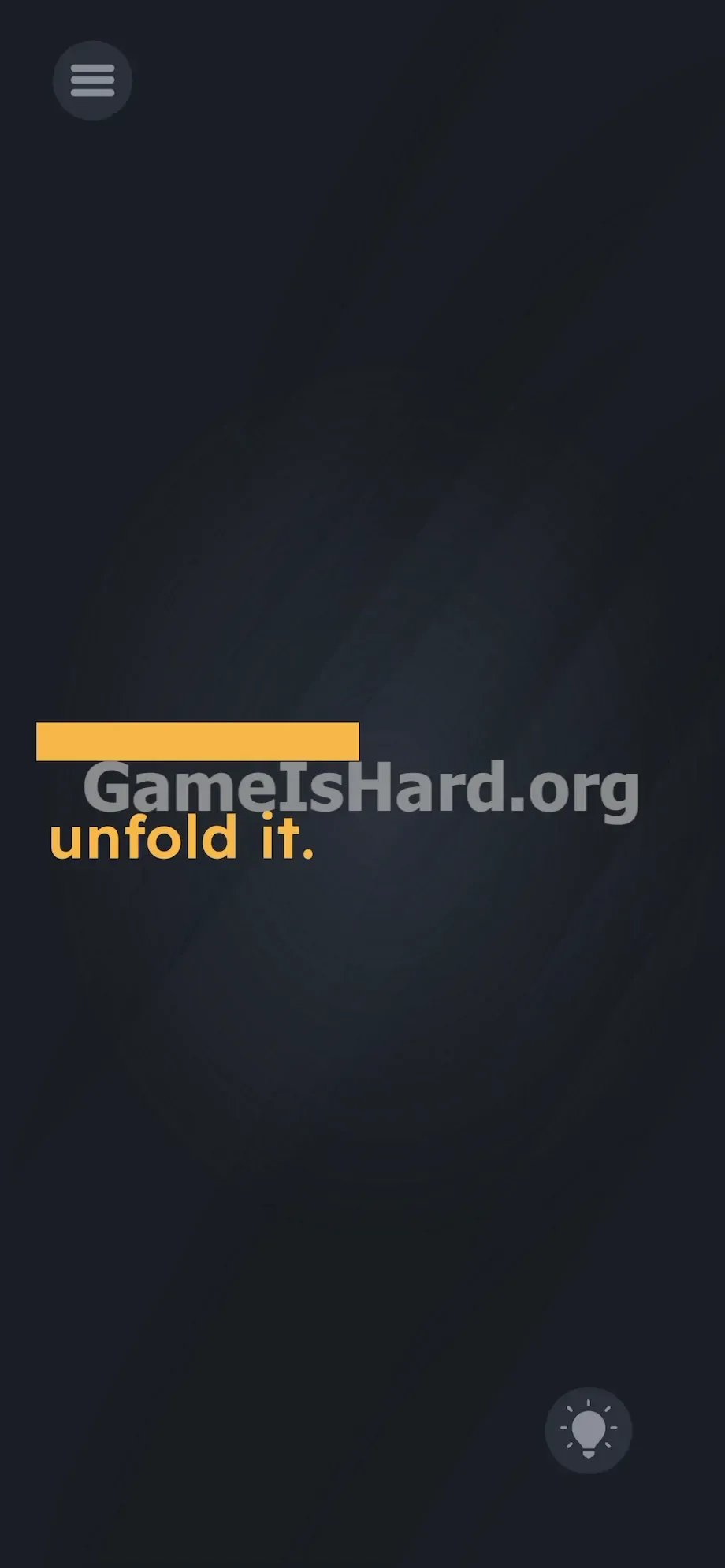
Centered perfectly—and lying completely flat—is a thick yellow bar. It resembles a frozen progress indicator. Directly beneath it, in lowercase orange letters, reads: unfold it.
No arrows. No fold lines. No subtle shadows suggesting depth or hinges. Even the spacing feels tight—text pressed right up against the bar—to make them appear fused, unchangeable.
Common Mistakes to Avoid
The Trap
You’re falling prey to “UI Blindness.” Years of app and game use have wired your brain to treat certain visuals as untouchable—like static dividers or decorative graphics. You see the yellow bar and dismiss it. You read unfold it. and assume the word is the puzzle. You wait for paper to appear. The trick works because it hijacks your instinctive digital habits.
First Instincts That Fail
Players spend minutes trying to separate the letters—swiping down on “unfold,” pinching to stretch the bar, even shaking their device hoping for a physics glitch. These are all reasonable guesses based on common mobile puzzle patterns—and every single one fails.
Player Reactions
I double-tapped each letter for nearly three full minutes, convinced I had to shatter the word itself. Then—by accident—I grazed the very left corner of the bar… and watched it pivot. I literally dropped my phone. The answer is so brutally literal, it makes overthinking feel embarrassing.
Step-by-Step Solution
Preparing the Move
Stop focusing on the text—it’s purely decorative. Your attention belongs entirely to the leftmost edge of the yellow bar. Think of that point as the spine of a closed book.
Executing the Solution
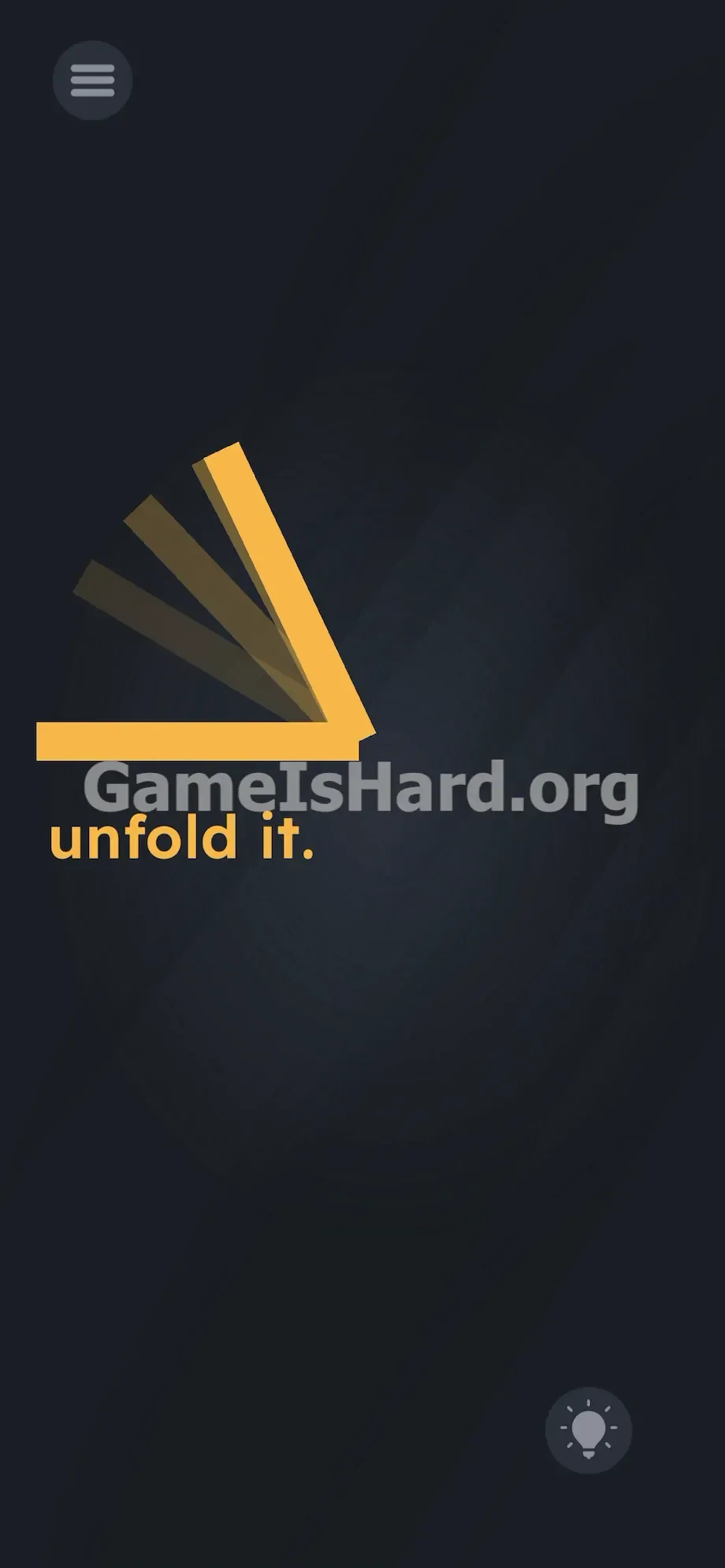
- Place your thumb or index finger precisely on the far left edge of the yellow bar .
- Press and hold—don’t lift your finger.
- Drag steadily and horizontally across the screen to the right.
- Watch as the shape pivots around its center, rotating outward in a smooth 3D arc.
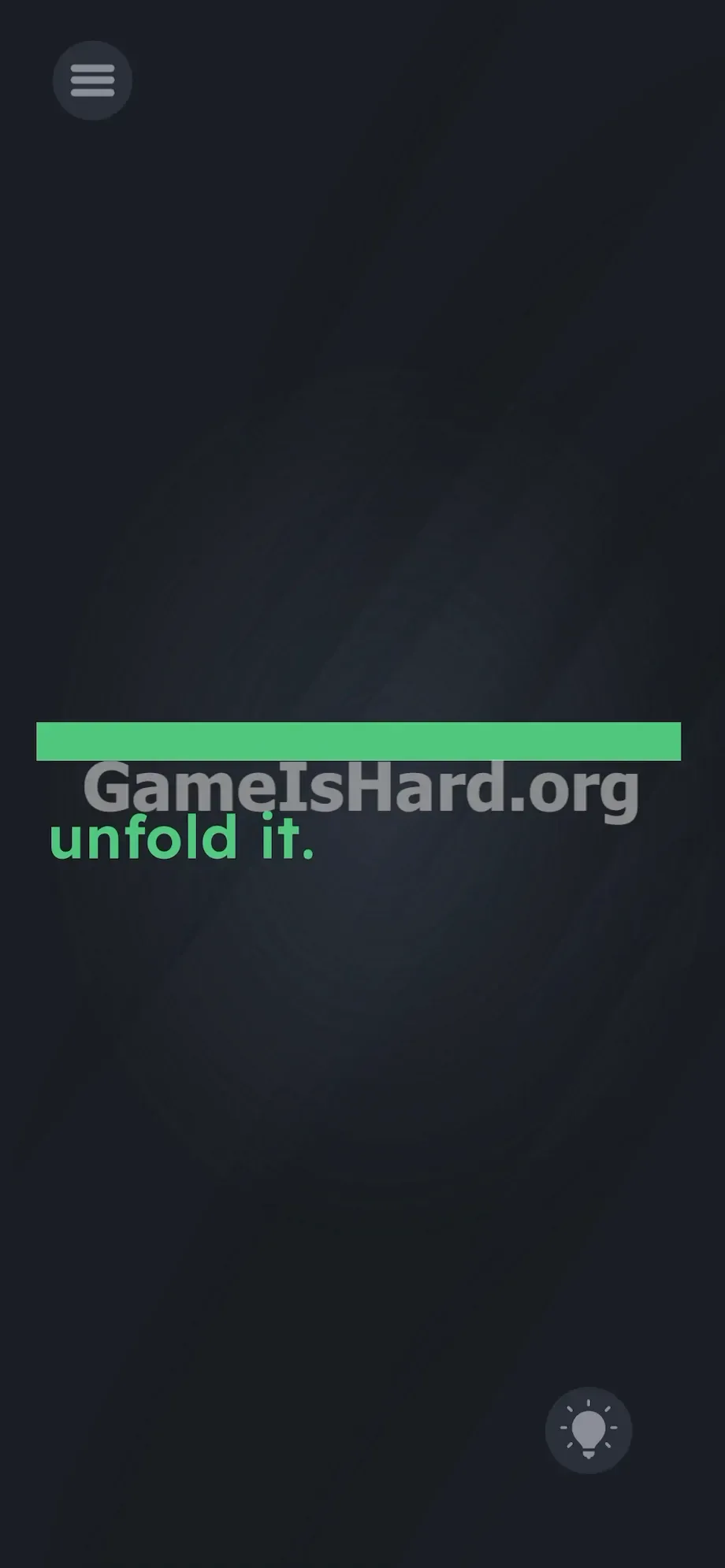
- Continue pulling until it rotates fully 180 degrees and lies flat on the right side. The moment it locks into place, the entire bar instantly shifts color—from yellow to green—confirming success.
If It Did Not Work
If nothing moves, your touch point is off. Grabbing the middle or right side won’t activate the hinge—it’ll just scroll or ignore input. You must hit the extreme left pixel. A vertical drag breaks the rotation—keep it strictly horizontal. If rapid tapping has desensitized the screen, close and restart the app to reset touch detection.
Why This Solution Works
This level tests how literally you take instructions—and how quickly you unlearn visual assumptions. The rule here is simple: text describes action, object receives action. When the screen says unfold it., the nearest physical object—the yellow bar—is what gets unfolded.
It follows a consistent theme across the game: instructions mislead, interfaces deceive, and the real puzzle hides in plain sight. Here, the UI is the playing field. A flat, 2D shape suddenly obeys 3D hinge physics—breaking the visual rules the game itself set up moments earlier.
Bonus Tip
Skip the guesswork—this level takes two seconds if you do it right:
- Tap and hold the far left tip of the yellow bar .
- Swipe hard and straight to the right.
- Hold until the bar flashes green. Ignore the lightbulb. Hints aren’t needed when the gesture is this direct.
Frequently Asked Questions (Short, Useful)
Why won't the bar move when I swipe it? You're likely touching too close to the center. Only the extreme left edge triggers the hinge—anything else registers as a dead input.
Can I fold the bar downwards instead? No. Rotation is locked to a vertical axis. You must drag left-to-right—exactly like opening a book’s front cover. Pulling down does nothing.
What does the green color mean at the end? Green is your instant visual cue—the bar has completed its 180-degree rotation and triggered the level’s success state.
Does tapping the text do anything at all? Nothing. The text is purely instructional and non-interactive. Its only job is to guide—and distract.
More Game Is Hard Solutions
Our guides cut straight to the core mechanic. No filler, no speculation—just the precise action, exact placement, and why it works. Share this with your squad when they hit the same wall. Keep pushing forward.