App updates can occasionally shift puzzle order. If this level 15 guide doesn’t match what you’re seeing, no stress! Flip through our All Levels hub to spot your exact puzzle by image.
(The trick is realizing you can manipulate the bars differently: some spin, some slide.)
Level Overview
What Makes This Puzzle Tricky
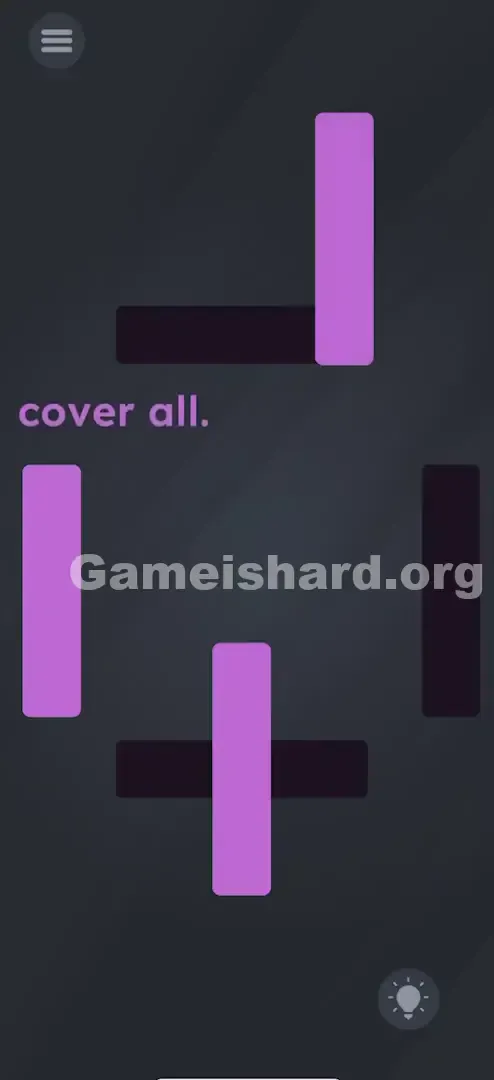
You’re staring at the screen—four black rectangular gaps, three purple bars, and the blunt command “cover all.” Basic logic says you’re one bar short. Dragging them in place fails. Shaking your device yields nothing. That simple prompt feels like a taunt—like the rules themselves have bent.
Your Goal
Your mission is straightforward: completely cover every black gap with a purple bar. But with only three bars and four gaps, it’s not about counting—it’s about exploring every interaction the game allows.
How the Game Responds
- Touch & Drag: Sliding objects across the screen.
- Rotation / Two-finger twist: Adjusting object orientation.
- Object recycling: Repurposing a bar from one spot to another.
- Hidden Properties: Recognizing that identical-looking bars may behave differently. This isn’t arithmetic—it’s spatial reasoning disguised as a shortage puzzle.
What Appears on Your Screen
Let’s map out exactly what’s in front of you.
- The Prompt: Just two words—“cover all”—anchored near the middle-left of the screen.
- The Black Gaps: Four black rectangular outlines arranged roughly in a square. Top and bottom are horizontal; right and left are vertical.
- Top one is horizontal.
- Bottom one is horizontal.
- Right one is vertical.
- Left one is vertical (but seemingly filled already? No, wait, look closer).
- The Purple Bars: Three draggable purple rectangles. One stands vertically at top right. One stands vertically at bottom center. One stands vertically at far left.
- One is standing vertically on the top right.
- One is standing vertically on the bottom center.
- One is standing vertically on the far left.
- The Mismatch: Top and bottom gaps run horizontally—but all bars start upright. Dragging them straight onto those gaps creates an awkward cross shape. They won’t fit—unless you change their orientation.
Common Mistakes to Avoid
The Trap
The biggest mental roadblock is “Uniformity Bias”: assuming all three purple bars work the same way—and that vertical bars must stay vertical. Most players try dragging them onto horizontal gaps, expecting auto-rotation. The game won’t oblige.
First Instincts That Fail
- Spam Dragging: Repeatedly dragging a vertical bar over a horizontal gap, hoping it’ll snap into alignment.
- Hunting for a 4th Bar: Swiping frantically at screen edges or shaking the device, convinced a hidden bar is lurking off-screen.
- Skipping Rotation: Mobile habits train us to tap or drag—but forget that pinch-and-twist is essential here.
Player Reactions
I spent nearly two minutes stretching bars, even trying to pull them apart with two fingers. Nothing worked—until my grip slipped and I accidentally rotated one. That tiny mistake cracked the whole level wide open.
Step-by-Step Solution
Preparing the Move
Start with the top and bottom gaps—they’re the toughest because their orientation clashes with your starting bars.
Executing the Solution
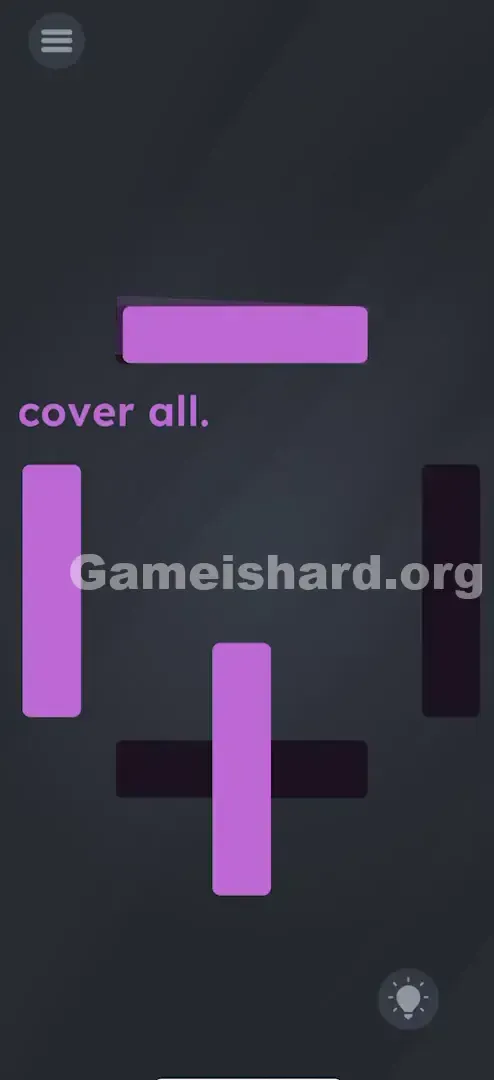
- Step 1 (The Top): Place two fingers on the top-right purple bar. Twist them to rotate it 90 degrees until it lies flat. Slide it onto the top black horizontal gap—it’ll lock in perfectly.
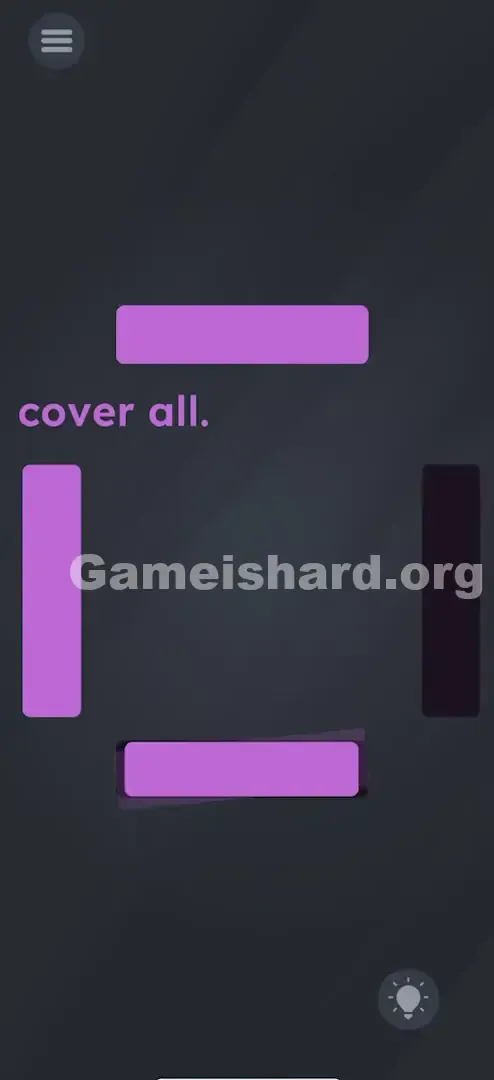
- Step 2 (The Bottom): Do the same with the bottom-center bar. Two fingers, twist until horizontal, then drag it onto the bottom black gap.
- Step 3 (The Sides): Now only one purple bar remains—vertical, on the far left—and one uncovered vertical gap remains on the right.
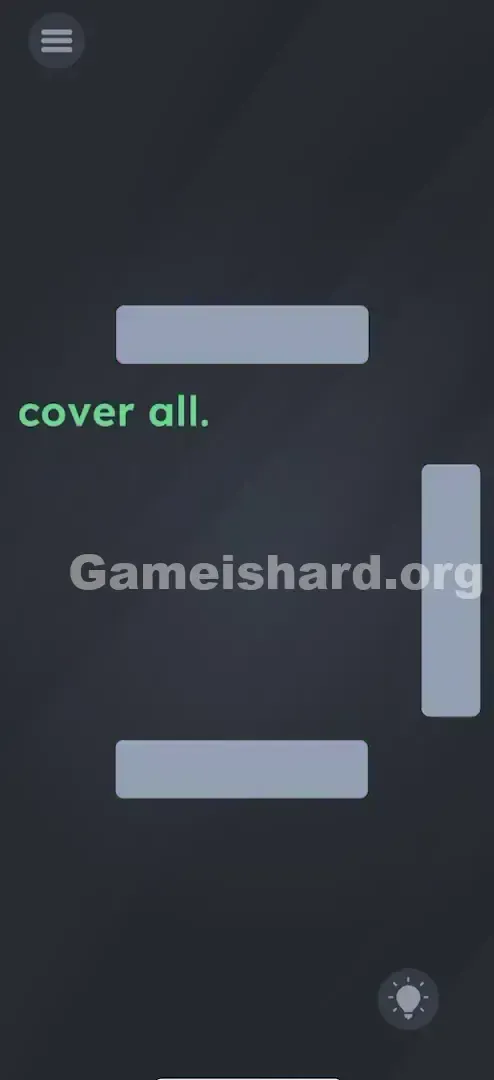
- Step 4 (The Slide): Tap and hold the left bar, then swipe it smoothly all the way to the right and drop it onto the final vertical gap.
Confirming It Worked
As soon as the last gap fills, the level completes instantly—often with a flash or fade of the “cover all” text.
If It Did Not Work
- Rotation stuck? Make sure your two fingers are spaced well apart on the bar—too close, and the game reads it as a pinch instead of a twist.
- Bar won’t move? Try tapping it once before dragging. Also double-check you’re not rotating it mid-drag.
Small Details That Matter
Precision helps—but the game rewards intent over pixel-perfect placement.
- The Snap Zone: Coverage of ~80% or more of a black gap is enough—the bar doesn’t need perfect centering.
- Rotation Tolerance: You don’t need textbook 90° alignment. A slight tilt (85°–95°) usually still counts.
- The Drag Speed: Flick the left bar across—it responds quickly. There’s no inertia or weight to overcome. I fixed it by: Realizing the left bar shouldn’t be rotated. Rotating all three first made the final vertical gap impossible to fill. Only rotate the bars that need to switch orientation.
Why This Solution Works
This level tests “Input Literacy”—how fluently you read and use touch gestures.
Most puzzles lock you into one mechanic per level (drag-only, shake-only, etc.). Level 15 layers them silently.
- Object Independence: Each bar behaves on its own terms. Just because one rotates doesn’t mean others must.
- Tool Adaptation: Instead of hunting for a matching piece, you adapt the tool itself—like turning a key to fit the lock. It’s designed to break the “single-thumb” reflex. Real progress demands a two-finger pincer grip.
Bonus Tip
For speed runs or replays:
- Twist Top & Bottom First: Immediately rotate both horizontal-gap bars—no hesitation.
- Park Them Fast: Drop each onto its target gap without repositioning.
- Swipe Right: Flick the left bar directly to the right-side gap.
- Ignore the Text: “cover all” is UI—not interactive. Don’t waste taps on it.
Alternative Attempts of Game Is Hard Level 15 (What Doesn’t Work, and Why)
Here’s what won’t get you anywhere—so you skip the trial-and-error:
- Dragging the text “cover all” into a gap. Why: In other levels, text moves—but here, it’s static interface.
- Why: In other levels, text moves—but here, it’s static interface.
- Shaking your phone to spawn bars. Why: Gravity sensors are disabled for this puzzle.
- Why: Gravity sensors are disabled for this puzzle.
- Tapping gaps to fill them. Why: This isn’t a paint or tap-to-fill mechanic—it’s physics-based object placement.
- Why: This isn’t a paint or tap-to-fill mechanic—it’s physics-based object placement.
- Pinching to resize bars. Why: Bars have fixed dimensions—only rotation is supported, not scaling.
- Why: Bars have fixed dimensions—only rotation is supported, not scaling.
- Trying to split a bar in half. Why: No cut/swipe mechanics exist here—unlike fruit-slicing games.
- Why: No cut/swipe mechanics exist here—unlike fruit-slicing games.
Common Mistakes for Game Is Hard Level 15
- The “One Finger” Rotation: Circling one corner with a single finger rarely registers. You need two distinct contact points.
- Over-rotating: Spinning past 90° (e.g., 180°) can confuse the game’s alignment logic—stick to clean quarter-turns.
- The “Fourth Bar” Fallacy: Scrolling behind menus or under prompts won’t reveal extra pieces—the solution uses only the three visible bars.
- Mixing Up Bars: Using the left bar for the top gap works if rotated—but it’s slower. Grab the closest bar for each gap.
Pattern Recognition: How to Spot This Trick in Future Game Is Hard Levels
The Tell
When a shape clearly doesn’t match its target’s orientation (e.g., vertical bar → horizontal gap), rotation is almost certainly the answer.
The Habit
The Two-Finger Test: If dragging fails, place two fingers on the object and twist. If tapping does nothing, try pinching to zoom. Game Is Hard hides mechanics in standard multi-touch gestures—so when shapes don’t fit, don’t hunt for new ones—reshape the ones you’ve got.
Game Is Hard Level 15 FAQ (Short, Useful)
Q: Can I rotate the left bar in Game is hard Level 15? A: Yes—but don’t. The right-side gap is vertical, so keep that bar upright.
Q: My bar keeps snapping back to vertical in Game is hard Level 15! A: You’re releasing too early. Twist it fully to horizontal (or near it), then lift both fingers cleanly.
Q: Do I have to do it in a specific order in Game is hard Level 15? A: No. You can cover the right gap first—but rotating the top and bottom bars first clears visual clutter and simplifies the final move.
Q: Is there a hidden button on Game is hard Level 15? A: No. This level relies purely on drag-and-rotate—no secret taps or hidden UI.
More Game Is Hard Solutions
That’s everything you need to conquer Game is hard Level 15. If this rotation insight saved you time, you’ll love our guides for later levels—where physics gets even more inventive. We keep these walkthroughs lean, searchable, and zero-fluff, because you’re here to win—not to scroll. Share this with anyone still searching for that “missing” fourth bar!