App updates can sometimes shuffle the order of puzzles. If this level 115 walkthrough doesn't match your screen, don't worry! You can browse our All Levels guide to find your exact puzzle by its picture.
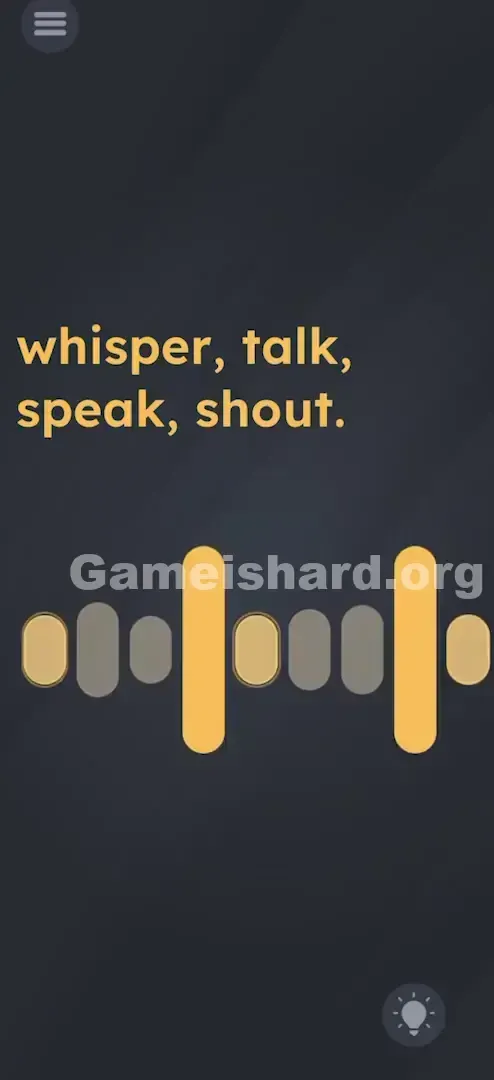
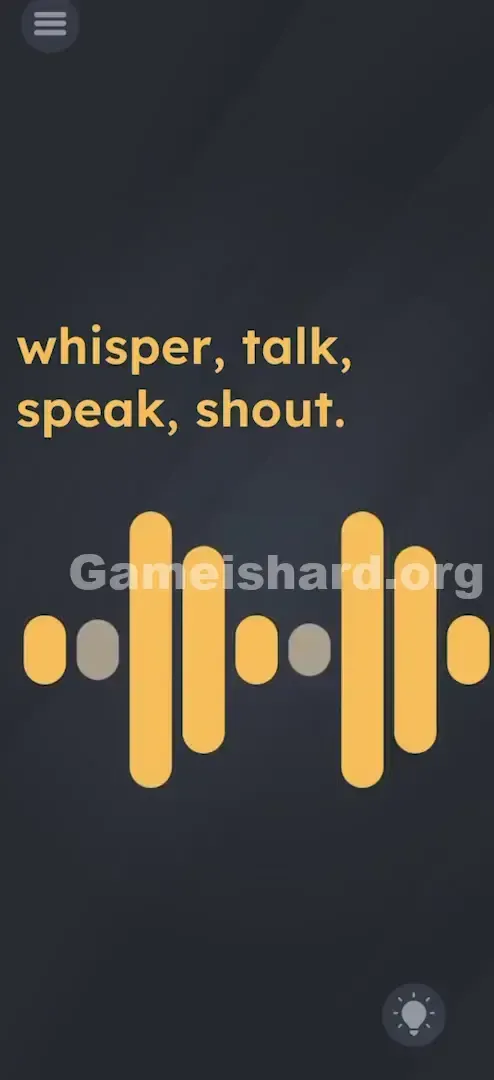
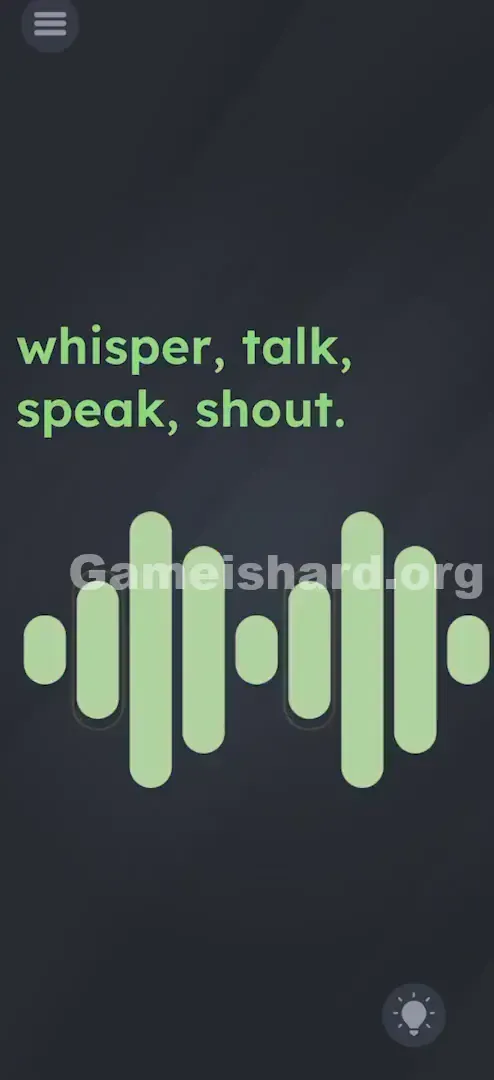
You don't need to say specific words; just generate sustained audio input until all the grey circles turn solid/green.
Level Overview
What Makes This Puzzle Tricky
At first glance, the screen seems unresponsive—just four plain words: whisper, talk, speak, shout. No buttons. No sliders. No drag targets. You might frantically tap the text, convinced it’s interactive. It’s not. You might even shake or tilt your phone, hoping for a hidden trigger. That won’t help either. This level marks one of the game’s earliest real-world hardware challenges—it shifts from touch-based logic to physical audio input. Solving it in a quiet setting (like a library or crowded bus) adds a layer of delightful awkwardness.
Your Goal
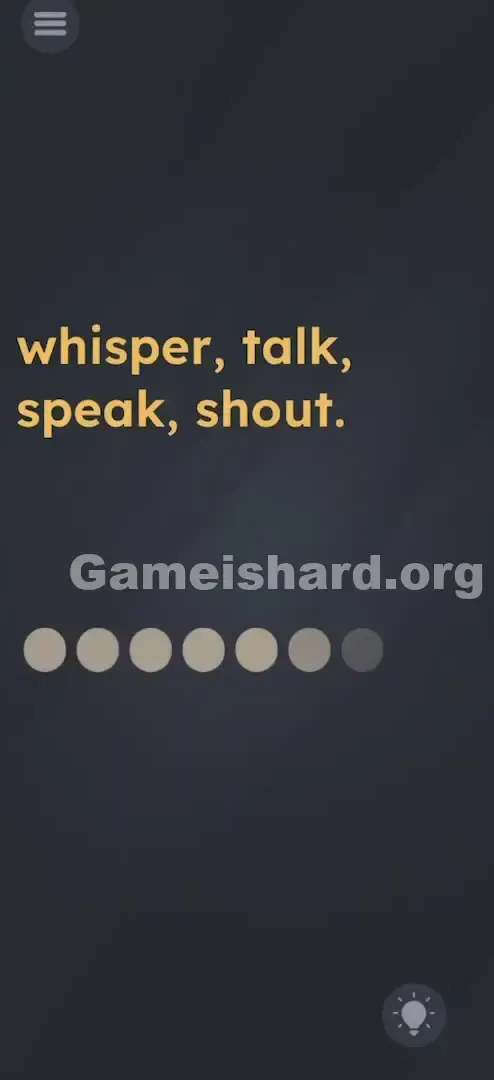
Your goal is to fill the row of circular indicators (dots) beneath the text. Those words aren’t decorative—they’re a step-by-step volume guide. You must demonstrate controlled audio input across increasing intensity levels.
- Audio / Mic Sensor: This level relies entirely on your device’s microphone.
- Volume Thresholds: Success depends on hitting precise loudness levels—not just making any sound.
- Hardware Permissions: If microphone access was previously denied, this level will remain unsolvable until you re-enable it in system settings. It’s not a word puzzle. It’s a live sound calibration test.
What Appears on Your Screen
The interface is intentionally bare—a classic signal that hardware interaction is required, not mental deduction.
- The Prompt: Centered at the top half of the screen reads “whisper, talk, speak, shout” in the game’s signature yellow-orange font. The commas deliberately segment the progression you’ll need to follow.
- The Meter: Directly below sits a horizontal line of grey, unfilled circles—acting as both visual feedback and progress tracker.
- The Void: The rest of the screen is empty dark grey. No hidden icons, no subtle animations, no distractions—just instruction and response.
Common Mistakes to Avoid
The Trap
The biggest mental hurdle is “touch dependency.” Mobile games train us to tap, swipe, and hold—but here, those gestures are useless. The trap lies in assuming the answer lives on screen. It doesn’t. The solution comes from outside the display—specifically, your voice and breath.
First Instincts That Fail
- Tapping the words: Many assume each word is a clickable button. Tapping “whisper” yields zero response.
- Dragging the words: While text is often draggable elsewhere in Game is Hard, here it’s purely static—meant only as guidance.
- Using volume keys: A smart guess—but the game monitors microphone input, not speaker output.
Player Reactions
I tapped the dots rhythmically for over a minute. Then I tried dragging “shout” toward them. Nothing. It wasn’t until I groaned out loud in frustration—and watched the first dot glow—that I realized the game was listening the whole time.
Step-by-Step Solution
Preparing the Move
First, ensure your hand isn’t muffling the microphone (typically located along the bottom edge). If you’re in a quiet room, get ready to make some noise. In a noisy environment, the level may respond instantly—even before you try.
Executing the Solution
- Grant Permission: If prompted for Microphone access, tap Allow. If denied earlier, head to Settings > Apps > Game is Hard > Permissions and enable microphone access.
- Start Quietly: Hold the phone near your mouth and produce a soft, steady sound—like “shhhhh” or a low hum. Watch the first few dots activate.
- Ramp Up: Gradually raise your volume. Shift from humming to conversational tone—try “one two three” or a drawn-out “Ahhhhh,” steadily getting louder.
- Finish Loud: For the final dots, deliver a sharp, high-intensity burst—like a quick yell or forceful exhale into the mic. You don’t need to scream full-volume—just cross the decibel threshold.
If It Did Not Work
- Dots flickering but not staying lit? You need continuous sound—not short bursts. Sustain your noise: “Ahhhhhhhhhh.”
- Nothing happening at all? Double-check microphone permissions—or confirm your case isn’t blocking the mic port.
- Can’t shout right now? Try tapping the mic area firmly (gently), or blow sharply into the mic hole—air movement alone registers as loud input.
Small Details That Matter
This level doesn’t recognize speech—it detects raw sound amplitude.
- The "Blow" Trick: At night or in quiet spaces, blowing directly into the mic creates a strong pressure wave that software interprets as peak volume—the go-to trick for speedrunners.
- Sustain matters: Dots behave like charging capacitors—they fill while sound persists. Stop too soon, and progress resets. Push through the full sequence in one continuous effort—or with rapid, overlapping noises.
- I fixed it by… rubbing my thumbnail lightly over the mic grille. The scratchy friction generated enough abrupt noise to trigger the final “shout” stage—no yelling required.
Why This Solution Works
This level breaks the fourth wall—relying on physical hardware, not software logic.
- Sensor Integration: The app taps into your device’s raw microphone data stream.
- Amplitude Thresholds: Code likely checks values like if (micVolume > 0.2) fillDot1() and if (micVolume > 0.9) fillDot8().
- Text-as-Instruction: Unlike most levels where wording misleads, here “whisper, talk, speak, shout” is literal—guiding you through measurable sound stages. The surprise isn’t the meaning—it’s the medium.
Bonus Tip
If you're stuck—or need silence:
- Find your phone’s mic hole (usually along the bottom edge).
- Blow a short, sharp puff of air into it.
- Or gently scrape the mic grill with your nail. Both register instantly as max-volume input—no vocal effort needed. Skip the time-wasters: dragging letters, adjusting media volume, or tapping endlessly.
Alternative Attempts of Game Is Hard Level 115 (What Doesn’t Work, and Why)
- Tapping the words in order: The text is a non-interactive image—not functional UI.
- Shaking the phone: Accelerometer input isn’t active here.
- Turning up system volume: The game monitors input (mic), not output (speakers).
- Plugging in headphones: Even with better mics, you still need to generate sound—plugging in alone does nothing.
- Dragging dots to the text: The dots are read-only status indicators—not draggable elements.
- Waiting passively: The level has no auto-trigger. Silence = no progress.
- Typing anything: No keyboard appears—this isn’t a typing challenge.
Common Mistakes for Game Is Hard Level 115
- Disabled microphone permissions: The #1 technical blocker. Without mic access, the level can’t respond.
- Underestimating volume: Modern mics filter background noise—so be intentional and direct with your sound source.
- Pausing mid-sequence: Saying “whisper” then stopping won’t fill more than one dot. Sustain your input until completion.
- Covering the mic: Gripping the phone in a way that blocks the mic port dampens input significantly.
- Overthinking pronunciation: Perfectly enunciating “whisper” changes nothing—the game hears volume, not vocabulary.
Pattern Recognition: How to Spot This Trick in Future Game Is Hard Levels
The Tell
Any level with zero interactive elements—no tap zones, no draggable objects—and a prompt suggesting physical action (“blow,” “shout,” “listen,” “cover”) is almost certainly a Sensor Level.
The Habit
When touch fails, run through the “Hardware Checklist”:
- Shake (Accelerometer)
- Tilt/Rotate (Gyroscope)
- Make Noise/Blow (Microphone)
- Cover the Camera (Light Sensor—less common, but possible) In Game is Hard, an unresponsive screen means your device itself is the controller.
Frequently Asked Questions
Q: Does Game is hard Level 115 require internet? A: No, microphone processing happens locally. Solve it offline—even in airplane mode.
Q: I am shouting but nothing is happening in Game is hard Level 115. Why? A: Check privacy settings: Settings > Apps > Game is Hard > Permissions > Microphone → set to “Allow.”
Q: Can I skip this level if my mic is broken in Game is hard Level 115? A: Usually not. Without mic input, the trigger can’t activate. If hardware is truly faulty, use the “Skip Level” option (often via ad watch).
Q: Do I have to say the specific words "Whisper" and "Shout" in Game is hard Level 115? A: Nope. Claps, barks, hums, or air puffs all work—the game measures loudness, not language.
Q: Why are the dots flickering in Game is hard Level 115? A: They mirror real-time audio levels. When sound stops, volume drops—and dots fade. Keep the noise flowing to lock in progress.
More Game Is Hard Solutions
If this guide saved your sanity, explore our other Game is Hard solutions—we cut through the clutter and focus on what actually works, so you never lose momentum. Share it with friends who’ve been yelling at their phones in public!