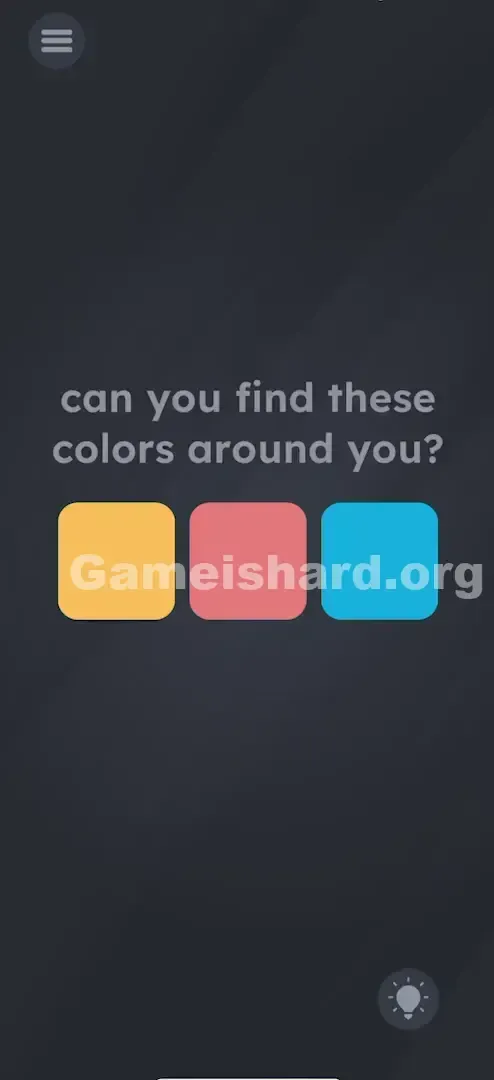
App updates can sometimes shuffle the order of puzzles. If this level 111 walkthrough doesn't match your screen, don't worry! You can browse our All Levels guide to find your exact puzzle by its picture.
You actually have to physically move your phone to look at real-world colors matching the boxes.
Level Overview
What Makes This Puzzle Tricky
Wait—what? The prompt says “around you.” Most players tackle these puzzles while lounging on the couch or lying in bed. Suddenly, the game pulls you out of that cozy digital bubble and demands real-world action. It feels unexpected—and even a little jarring. This level refuses to stay confined to your screen.
Your Goal
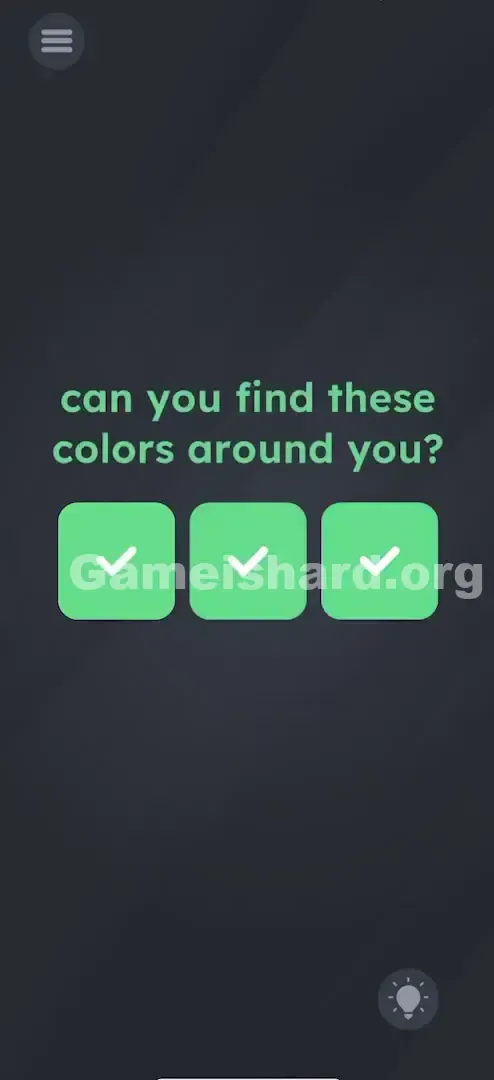
Your job is to get green checkmarks inside all three colored squares: Orange , Red , and Blue . Behind the scenes, the game uses your phone’s rear camera to detect color matches—even though you won’t see the live feed. You’re feeding raw visual data to the app, not solving with logic alone.
Mechanics at Play
- Camera Sensor: The game quietly activates your rear camera.
- Real-World Interaction: You must locate physical objects—or digital displays—that match the target hues.
- Augmented Reality (Lite): It’s not full AR, but it treats your surroundings as an input source.
- Permissions: Without camera access granted, this level simply won’t work. This isn’t a mental puzzle—it’s a real-world color hunt.
What Appears on Your Screen
The interface looks minimal, almost too simple.
- The Prompt: Centered at the top in the game’s clean sans-serif font: "can you find these colors around you?"
- The Targets: Three rounded squares sit side-by-side below the text. Left: A soft Orange/Yellow tone. Middle: A muted Red/Pink shade. Right: A bright Cyan/Blue hue.
- Left: A soft Orange/Yellow color.
- Middle: A muted Red/Pink color.
- Right: A bright Cyan/Blue color.
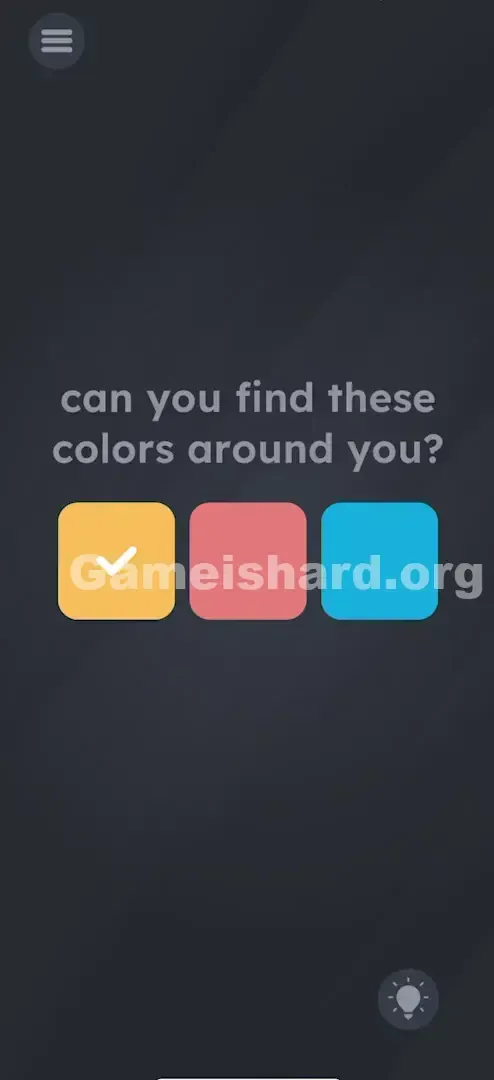
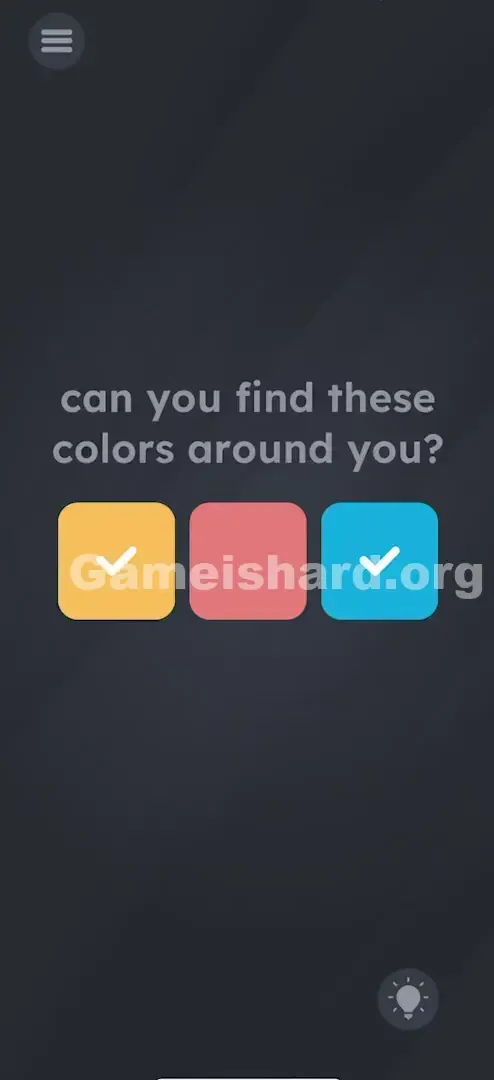
- The Feedback: At first, the squares are empty. When the camera detects a close-enough match, a green checkmark appears in that box. That’s all there is—no buttons, no sliders, no hidden interactions. Just three silent targets waiting for color input.
Common Mistakes to Avoid
The Trap
The biggest pitfall? Assuming everything happens inside the app. Players tap, drag, shake, or zoom—expecting UI-based answers. But this level taps into hardware most games ignore: your camera. It’s easy to forget your phone is more than a touchscreen—it’s a sensor-packed device.
First Instincts That Fail
I wasted time trying to “find” orange within the game. I tapped the box. I dragged the prompt text onto it. I tilted my phone hoping something would shift. Nothing worked—because the interface isn’t the control. It’s just a scoreboard. Your environment is the controller.
Player Reactions
When it clicked, I laughed—and then groaned. I was sitting in a neutral-toned room and had to stand up just to grab a brightly colored notebook from across the room. Frustrating? Yes. Brilliantly inventive? Absolutely.
Step-by-Step Solution
Preparing the Move
First, confirm the app has camera permission. If you previously denied it, head to your phone’s settings and enable access. No camera = no progress. Next, gather reliable color sources—you’ll need orange, red, and blue.
Executing the Solution
- Prepare your palette: Skip the scavenger hunt—open a browser on a second device (laptop, tablet, TV, or even another phone).
- Search for "Orange Color": Head to Google Images and pull up a solid orange block.
- Scan it: Aim your phone’s rear camera directly at the orange image. Get close so the color dominates the frame. Hold still for a moment—listen for a chime or watch for the checkmark in the Orange box.
- Repeat for Red and Blue: Do the same for each remaining color. Search "Red color" → aim → wait for confirmation. Then "Blue color" → aim → wait.
If It Did Not Work
- Lighting matters: Scanning a red object in low light may register as brown or grey. Flip on a lamp.
- Screen glare: Glare on monitors reads as white—adjust your angle or dim ambient light.
- Permissions: If nothing responds no matter what you point at, double-check camera access in your OS settings.
Small Details That Matter
Getting the camera to recognize the right color takes precision:
- Fill the Frame: The algorithm looks for dominant color. Pointing at a red apple on a white counter? Too much white. Move closer until only red fills the view.
- Be Patient: To save battery, the app checks color less frequently. Hold steady for at least two full seconds.
- Color Tone: That “Blue” square leans light—think cyan, not navy. If dark blue fails, try sky blue instead. The “Red” has a subtle pink undertone—crimson works, but softer reds are more reliable.
- I fixed it by... holding my phone against my blue jeans for the blue box. Sometimes the answer is literally wearing on you.
Why This Solution Works
This level tests how well you understand your device—not just the game.
- Hardware access: While earlier levels rely on touch or motion, this one unlocks the camera.
- External dependencies: You must interact with the real world—the puzzle can’t be solved in isolation.
- Game is hard pattern: Input isn’t always tapping. Here, input is visual data—captured from reality and processed in real time.
Bonus Tip
Stuck on transit or in dim lighting? Try these quick fixes:
- Use your clothes: Jeans = reliable blue. Warm lighting often makes skin read as orange/beige.
- Use app icons: Background the game, then open your home screen—look for colorful app icons (Reddit for orange/red, X/Twitter for blue) and zoom in.
- Cheater method: Grab a magazine, flyer, or even a vibrant ad outside. Any real-world color source counts. Don’t waste time dragging or tapping the boxes—they’re locked and purely for feedback.
Alternative Attempts on Game Is Hard Level 111 (What Doesn’t Work, and Why)
- Tapping the boxes repeatedly: They’re status indicators—not interactive buttons.
- Dragging nonexistent color words: There are no draggable labels—just the main prompt.
- Shaking the phone: This triggers no effect here—steady camera focus is key.
- Covering the lens: That gives black input, which won’t match any target.
- Using the selfie camera: The game expects the rear camera. Facing the screen won’t help unless you flip the phone—and then you can’t see the checkmarks.
Common Mistakes for Game Is Hard Level 111
- Assuming the level is broken: “Nothing happens when I tap!” (Tapping isn’t the mechanic.)
- Dim lighting: A red book in shadow won’t register correctly—brighten the area.
- Front-camera confusion: Always use the rear camera unless your device forces otherwise.
- Too much distance: Holding the phone too far back dilutes the color signal—get close.
- Off-target hues: Substituting purple for blue or maroon for red usually fails—the shades need to be near-exact.
Pattern Recognition: How to Spot This Trick in Future Game Is Hard Levels
The Tell
If the prompt asks you to “find,” “see,” “look around,” or references light/darkness, suspect hardware involvement—especially camera or ambient light sensors.
The Habit
When tapping stops working, shift focus to your device’s capabilities:
- Need sound? Check microphone access.
- Detecting movement? Think gyroscope or accelerometer.
- Matching visuals? Camera is likely active.
- Seeing a tiny green/orange dot in your status bar? That’s your cue—it means camera or mic is live. Watch for it.
Game Is Hard Level 111 FAQ (Short, Useful)
Q: Do I really need to get up on Game is hard Level 111? A: Unless you’ve got a colorful shirt or second screen nearby, yes—you need real-world color input.
Q: Why isn't the blue box checking off on Game is hard Level 111? A: It’s sensitive to tone. Try a lighter cyan instead of deep blue—search “Cyan color” in Google Images for best results.
Q: Does this work on tablets without rear cameras on Game is hard Level 111? A: Most modern tablets have rear cameras. If yours doesn’t, the app may fall back to the front camera—but success isn’t guaranteed.
Q: Is the game recording me on Game is hard Level 111? A: It processes the live camera feed solely to detect color values—no video is stored or uploaded.
More Game Is Hard Solutions
Stuck on the next puzzle? We decode every trick Game is hard throws your way—so you skip the frustration and keep playing. Jump to our index for the next level; these guides are built to get you unstuck fast. Good luck on your color quest!