App updates can occasionally shift puzzle order. If this level 200 guide doesn’t match what’s on your screen, no problem! Just head to our All Levels page and locate your exact puzzle using its visual layout.
Level Overview
What Makes This Puzzle Tricky
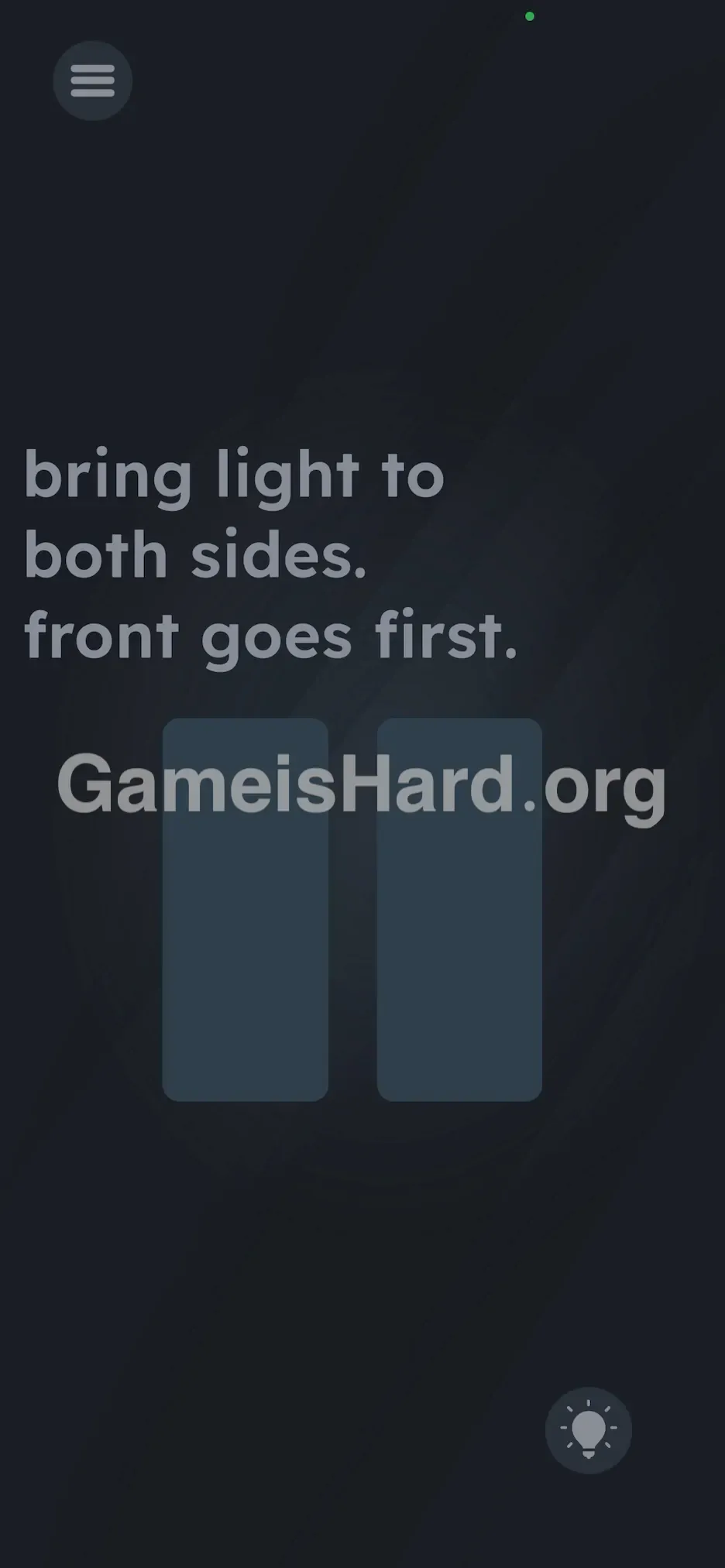
You’re faced with two blank, shadowy rectangles. The prompt says “bring light to both sides,” yet there’s no sun icon to drag, no working flashlight button, and cranking up screen brightness has zero effect. This isn’t about virtual illumination—it’s about real photons hitting real hardware.
Your Goal
Your goal is to trigger your device’s physical light sensors in the correct sequence. Those two dark rectangles on screen act as live progress indicators—they fill only when bright light hits your front and rear cameras in order.
Key Mechanics:
- Hardware Sensors: This level relies entirely on your camera/light sensor—not touchscreen input.
- Timing: You must sustain the light exposure long enough for detection.
- Sequential Logic: Front camera first, rear camera second—order is non-negotiable. This isn’t a wordplay puzzle. It’s a hands-on hardware challenge.
What Appears on Your Screen
The interface is stark and minimal.
- Top: Instruction reads: "bring light to both sides. front goes first."
- Center: Two tall, vertical rectangles—currently dark and empty.
- Bottom Right: A small Lightbulb Icon (standard hint button).
- Background: No interactive elements—just clean, neutral space. The simplicity is intentional: it pushes you to focus solely on those rectangles. Tapping or dragging them does nothing—they respond only to external light input.
Common Mistakes to Avoid
The Trap
Most players instinctively try dragging something on screen—like the hint bulb or even the word “light” itself. You might attempt sliding “light” into the rectangles. That’s classic Game is Hard misdirection: you’ve been conditioned to solve puzzles within the screen’s borders—but here, the answer lives outside them.
First Instincts That Fail
- Dragging the text: Moving “light” or “bright” onto the boxes yields no result.
- Tapping the bulb: This just opens the ad-supported hint menu—not a functional game element.
- Screen Brightness: Cranking up display brightness won’t help—the game checks raw camera input, not screen output.
Player Reactions
I wasted nearly two minutes trying to pluck the dot from the 'i' in “light,” convinced it was a tiny sun icon. Then I remembered that camera permission popup I’d swiped away earlier. Instant facepalm.
Step-by-Step Solution
Preparing the Move
You’ll need an external light source—a desk lamp, flashlight, or even the flashlight app on a second phone works best. Attempting this in total darkness won’t succeed unless you have a dedicated light source.
Executing the Solution
- Front Camera: Position your phone’s front-facing (selfie) camera directly against your light source. Hold steady.
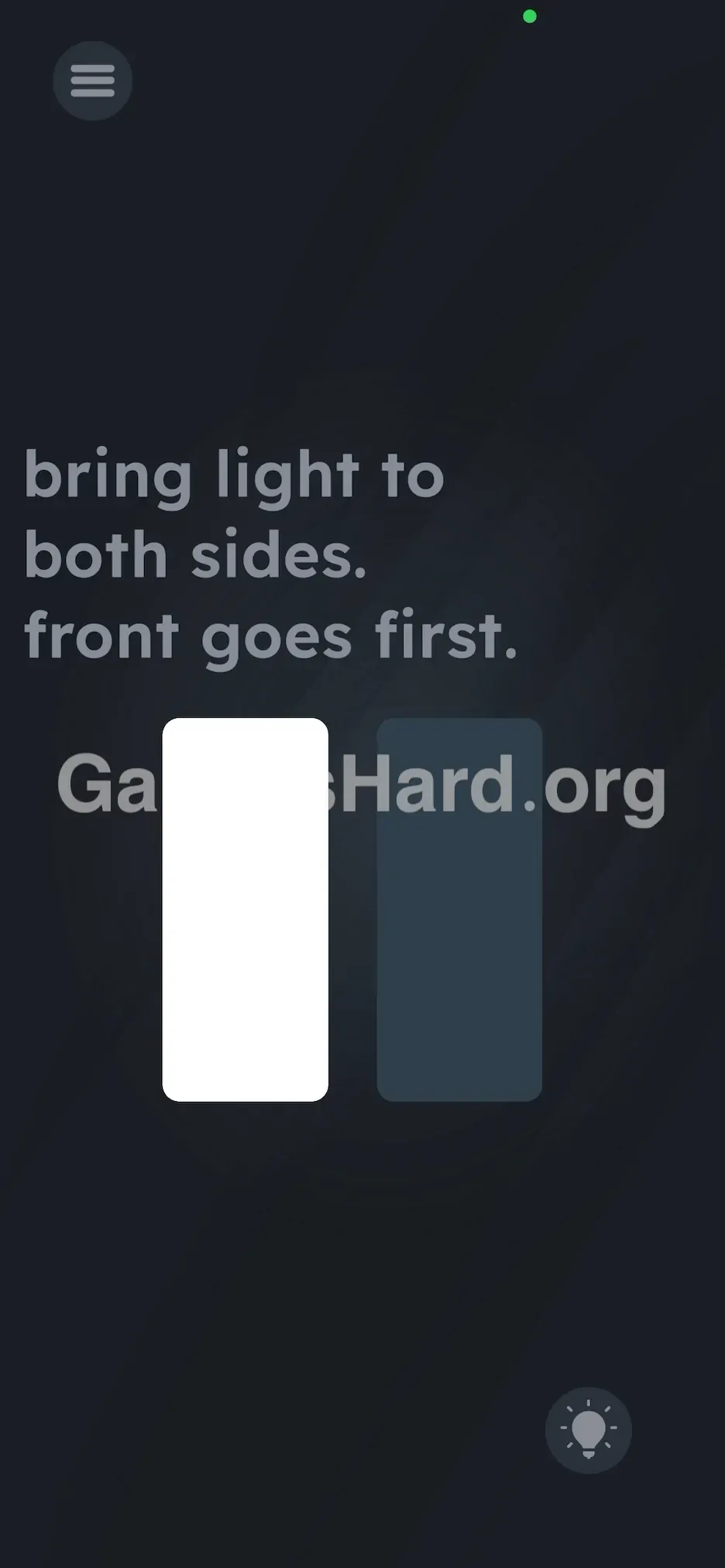
- Wait: Watch the left rectangle—it should gradually brighten to white. Keep the light steady until it’s fully illuminated (roughly 5 seconds).
- Rear Camera: Once the left box stays solid white, flip your phone and aim the rear camera (the main one on the back) at the same light source.
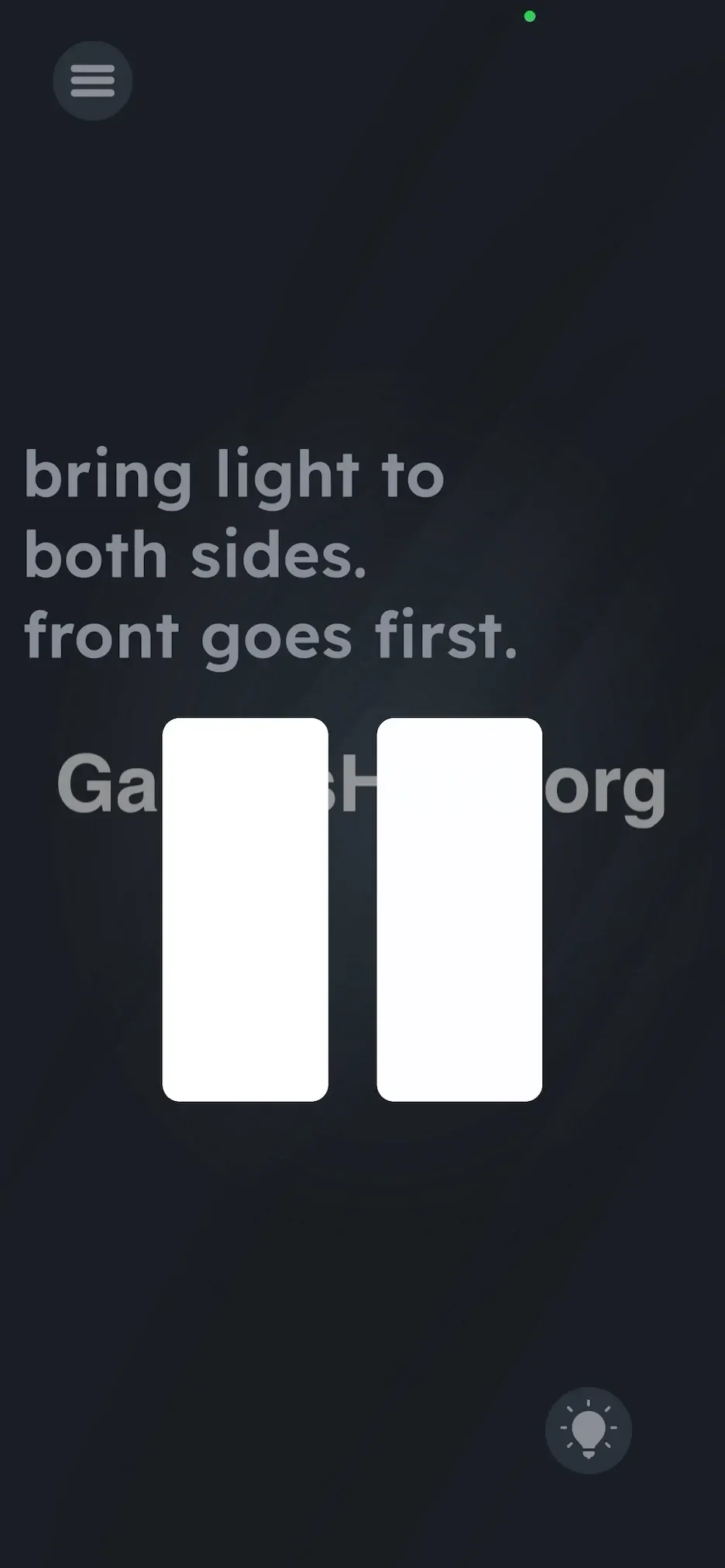
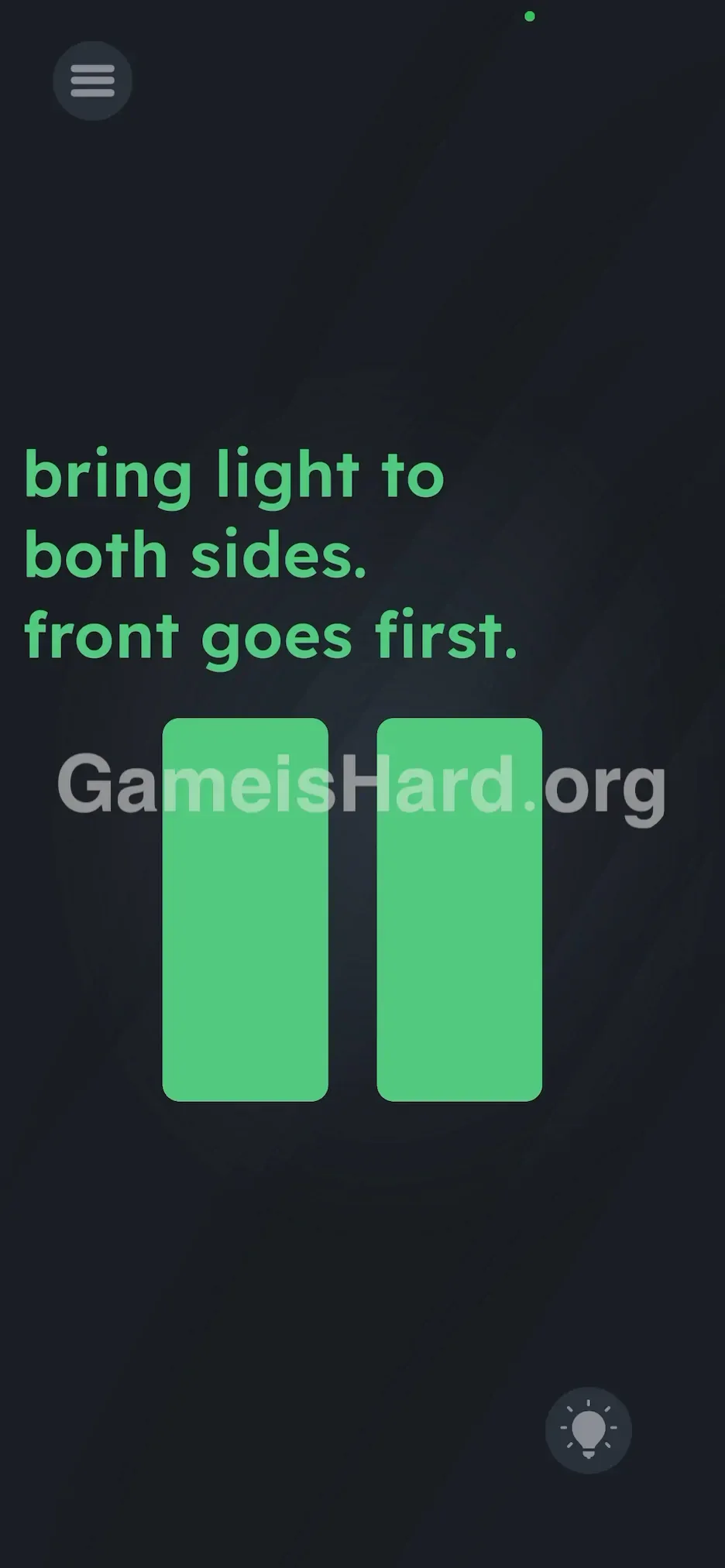
- Verification: The right rectangle will now fill with white light. When both are lit, the level completes automatically.
If It Did Not Work
- Permissions: If nothing happens, verify camera access is enabled in your phone settings. Denying permissions earlier blocks sensor detection.
- Light Intensity: A weak ambient light may not register. Press the lens gently against the bulb (mind heat buildup).
- Case obstruction: Thick or sensor-covering cases—especially near the front camera—can block light. Remove it if needed.
Why This Solution Works
This level shatters the illusion that games exist only as software. Game is Hard often uses “hardware puzzles,” where your device itself becomes part of the control scheme.
The underlying logic is straightforward:
- Input = Lux (measured light intensity).
- Variable 1 = Front Sensor reading exceeds activation threshold.
- Variable 2 = Rear Sensor reading exceeds activation threshold. It forces you to stop seeing your phone as a window into a digital world—and start treating it as a physical object packed with responsive sensors. A sharp reminder: your phone isn’t just watching the game—it’s watching you.
Bonus Tip
If the sensors aren’t responding reliably:
- Try using another phone’s flashlight—it delivers intense, focused light.
- Avoid covering your screen while aiming the camera; you need to see the rectangle turn white to know when to flip.
- Don’t wiggle or sweep the light—hold still and maintain consistent contact.
Frequently Asked Questions
Q: Do I really need a lamp? A: Yes—or strong natural light. The sensors require a noticeable brightness spike to register “lit.” Total darkness won’t cut it.
Q: The left box lit up but flickered off. Why? A: You likely pulled the light away too soon or flipped to the rear camera before the front step registered fully. Hold steady until the white stays solid.
Q: Why does the game need my camera? A: Solely for this level—to measure ambient light, not capture images. You can revoke camera access immediately after solving level 200.
Q: Can I use a mirror? A: Technically possible—if you reflect bright, direct light precisely into each sensor—but finding a lamp is far simpler.
More Game Is Hard Solutions
Level 200 marks a major checkpoint—but the hardware-based challenges only grow more inventive from here. Hit a wall on upcoming levels? Our full index has fast, precise, no-nonsense guides—designed to get you moving again, not bogged down.