App updates can occasionally reorder puzzles. If this level 120 walkthrough doesn’t match what you see, no stress! Head over to our All Levels directory and locate your exact puzzle using its visual layout.
Level Overview
What Makes This Puzzle Tricky
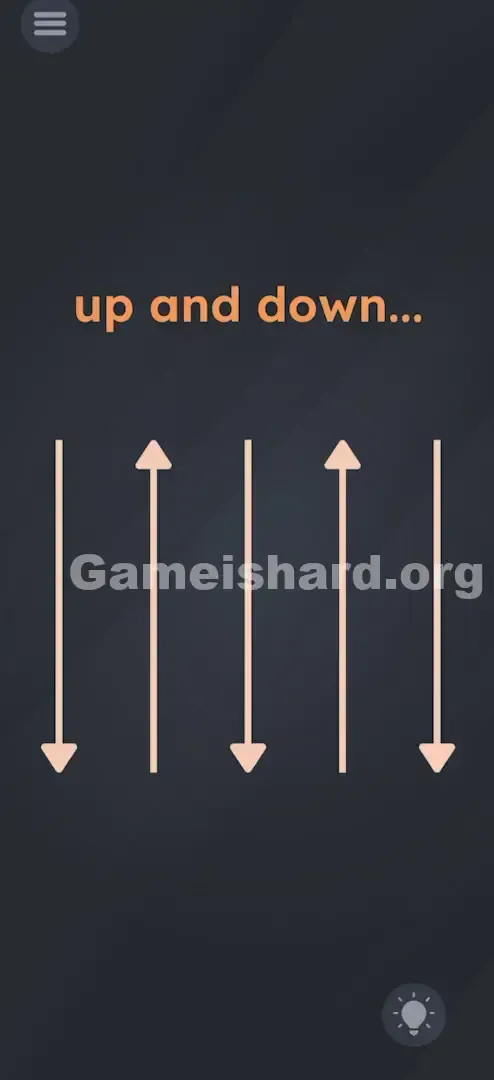
You’re met with a screen full of arrows—nothing else. You swipe them. Nothing happens. You tap them in time. Still nothing. You even try dragging “up and down” toward the matching arrows. Silence. The level feels broken because nothing responds to touch, triggering panic that the game froze. It hasn’t. It’s simply ignoring your fingers on purpose.
Your Goal
Your task isn’t to interact with anything on-screen. Instead, you must demonstrate real-world understanding of “up and down” by moving your device itself—using the phone as both controller and prop.
Key Mechanics Involved in Game is hard Level 120:
- Gyroscope / Accelerometer Sensors
- Physical Rotation
- Logic Trap (Touchscreen uselessness) This isn’t about swiping—it’s about rotating the hardware.
What Appears on Your Screen
The design is intentionally bare, offering zero visual hints.
- Top Center: The phrase "up and down..." hangs quietly. That trailing ellipsis (...) signals something’s missing—an action needed to finish the idea.
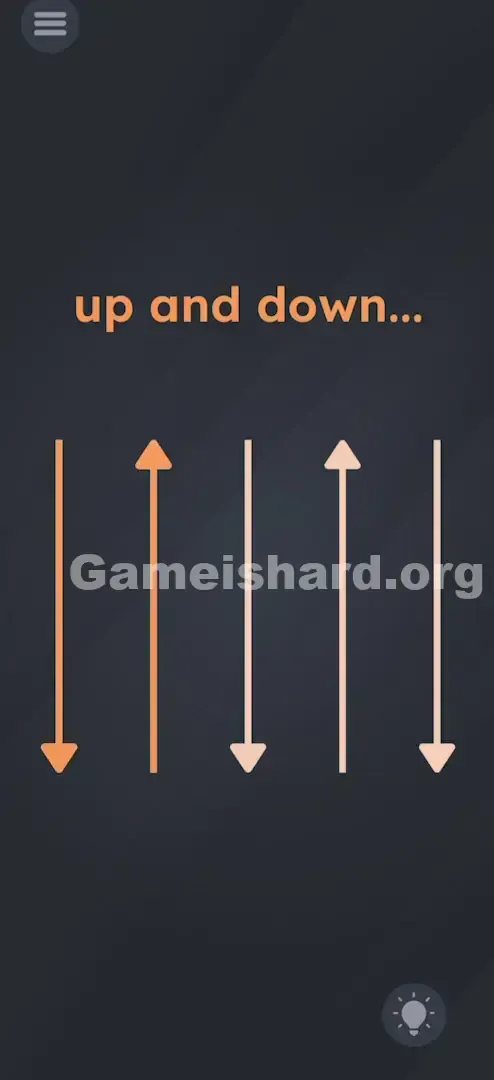
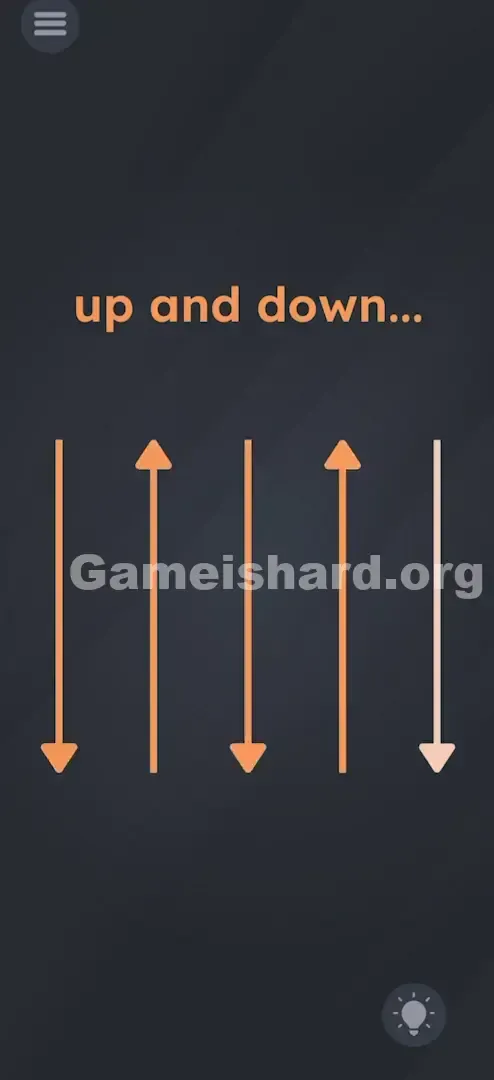
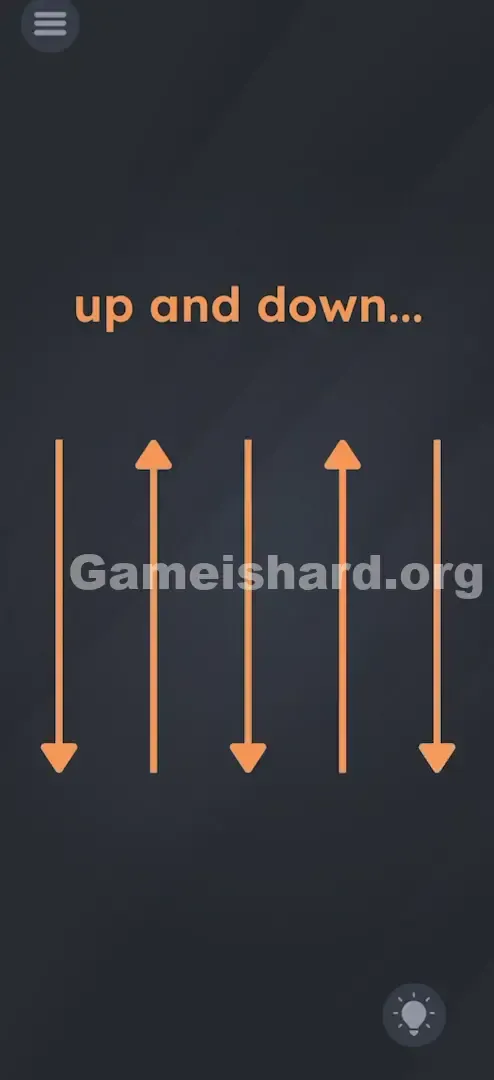
- Center Stage: Five vertical arrows aligned side-by-side. Arrow 1: Points Down Arrow 2: Points Up Arrow 3: Points Down Arrow 4: Points Up Arrow 5: Points Down
- Arrow 1: Points Down
- Arrow 2: Points Up
- Arrow 3: Points Down
- Arrow 4: Points Up
- Arrow 5: Points Down
- The Vibe: Total stillness. No animation. No buttons beyond menu and hint icons. It reads like a textbook diagram—not an interactive level.
Common Mistakes to Avoid
The Trap
We’re wired to treat phones like touch-first devices. See an arrow? Swipe. See a pattern (Down, Up, Down…)? Tap along. This level exploits sensor blindness—we forget our phone is a physical object packed with motion sensors. We treat it like a flat, magical screen instead of a gadget that senses gravity and orientation.
First Instincts That Fail
Players often exhaust every option—except the right one:
- Swiping up and down repeatedly across the display.
- Tapping arrows in sequence, hoping timing matters.
- Vigorously shaking the device (which triggers different sensors but fails here).
- Dragging the words “up” and “down” onto matching arrows.
Player Reactions
I spent over two minutes swiping those arrows—frustrated, convinced something was broken. Then, annoyed, I tossed my phone face-down onto the couch… and heard the victory chime. Pure accident. That’s when it clicked: the prompt wasn’t asking for finger movement—it wanted the phone to go up and down.
Step-by-Step Solution
Preparing the Move
Clear some space first. You’ll need room to rotate your device freely. Get a firm grip—you don’t want to fling it across the room.
Executing the Solution
- Hold your phone upright (portrait orientation).
- Flip it fully upside down—rotate exactly 180 degrees so the charging port faces the ceiling and the top speaker points at the floor.
- Pause briefly—just a fraction of a second—in that inverted position.
- Rotate it smoothly back to its standard upright orientation.
Confirming It Worked
The level should complete instantly once your phone settles upright again. You’ve just mirrored the arrow sequence: “down” (inverted), then “up” (restored).
If It Did Not Work
If nothing triggers:
- Check Rotation Lock: System-level screen rotation locks can block gyroscope input. Disable “Portrait Orientation Lock” from your device’s control center.
- The Camera Trick: Some devices hesitate to grant motion access mid-session. Go into Settings, toggle the game’s Camera or Motion permissions off and back on—this resets sensor access.
- Exaggerate the Motion: Be deliberate. A subtle tilt won’t cut it—make the flip clear and decisive.
Why This Solution Works
This is a textbook example of an External Hardware Puzzle. The game breaks the touchscreen illusion entirely.
The phrase “up and down” refers to how your device aligns with Earth’s gravity—not how your finger moves. Those arrows visually map the Y-axis shift the gyroscope detects. Rotating the phone feeds raw “Down” and “Up” orientation data directly into the game’s code. It’s a gentle nudge reminding you: software lives inside a box full of sensors—and sometimes, you have to move the box.
Bonus Tip
For speedruns or replays:
- Keep your fingers off the screen entirely.
- Flip the moment the level loads—no hesitation.
- If it doesn’t register, give the phone one quick shake to wake up the sensors, then retry the flip. Do NOT waste seconds tapping arrows. They exist only as visual cues—not interactive elements.
Frequently Asked Questions
Q: I flipped my phone but nothing happened in Game is hard Level 120? A: Try flipping faster—a sluggish motion may not register as intentional. Also, confirm your screen rotation lock is disabled.
Q: Do I need to shake the phone? A: No. Shaking activates acceleration sensors, not orientation ones. This level specifically watches for clean, 180-degree rotation—not erratic movement.
Q: Is there a specific timing? A: Not rigidly—but “down… then up” implies order. Flip down, hold half a beat, then flip up. Avoid rapid spinning or partial turns.
Q: Does this work on tablets/iPads? A: Yes—the gyroscope works identically—but flipping a large tablet requires extra care. Watch your grip.
More Game Is Hard Solutions
If this guide kept your phone safely away from the wall, you’re in luck—we’ve got dozens more. Game is hard loves to mislead, and we specialize in cutting through the deception. Browse our other walkthroughs to keep your streak going—without the rage-quits. Happy solving, gamer.